Can you install packages without internet? Setting up a private npm repository on an intranet
LMX20 min read#Verdaccio#npm
Introduce the use of NVM to manage multiple versions of Node in a physically isolated internal network environment, and set up a private npm repository with Verdaccio to achieve dependency caching and offline migration.
Introduction
Have you ever imagined a scenario where all your development computers are completely isolated from the network, and there is no frontend development environment installed on these computers, but your projects involve different tech stacks, such as Vue2, Vue3, React, etc.? At the same time, you might use package managers like npm, yarn, pnpm, or bun, and you also need to develop desktop applications in an internal network environment, similar to Electron or Tauri. Furthermore, your builds may require binary dependencies, and you might be using Vue3 to develop some business component libraries. To address these problems, you might have two options:
Option 1: Convert everything to npm and include node_modules along with the project;
Option 2: Use Verdaccio to set up a complete private npm registry that supports different tech stacks and package managers.
This leads to a scenario: how can we set up a frontend private npm repository that supports different tech stacks on a purely physically isolated, clean computer?
Below we will start using Verdaccio. After reading this article, you should have a certain understanding and familiarity with Verdaccio.
Preparation
Since we are working in a brand-new environment, taking Windows as an example, the first thing we need to install is Node. However, since our projects involve different versions of Vue and other dependencies, multiple Node versions are required for the development environment. In such cases, a Node version management tool is needed. Common options include nvm, fnm, volta, etc. Here, we will use NVM for installation (you can choose others as well). The following operations use nvm.
In other words, the steps below allow us to set up a frontend development environment on a clean, isolated internal network computer!
NVM Installation and Deployment
The following examples demonstrate the installation of NVM on Windows and Linux.
Extract nvm-noinstall.zip to the specified directory
For the installation directory, using C:\nvm as an example. Subsequent operations are done in this directory. If you need to change it, make the corresponding replacement.
Remember the two paths when installing:
nvm installation path: C:\nvm
Node.js symlink path: C:\Program Files\nodejs
Manually Adding Node.js Versions
Extract the downloaded Node.js manual package to the nvm installation directory:
When downloading the Node installation package needed on Linux, you need to pay attention to the architecture version; ARM and x64 are different, just be aware of this.
# 重新加载环境source ~/.bashrc# 验证NVMnvm --version# 查看已安装的Node.js版本nvm list# 使用特定版本nvm use 18.17.1# 验证Node.js和npmnode --versionnpm --version# 测试npm基本功能npm config list
Instructions for Use
# 切换Node.js版本nvm use 16.20.2 # 切换到16版本nvm use 18.17.1 # 切换到18版本nvm use 20.5.1 # 切换到20版本# 设置默认版本nvm alias default 18.17.1# 查看当前使用的版本nvm current# 查看所有可用版本nvm list# 在特定版本下运行命令nvm exec 16.20.2 node --version# 显示可用命令nvm --help# 卸载指定版本(删除文件夹)nvm uninstall 12.22.12
Because we are doing an offline installation, all nvm install version are actually unavailable. The above steps are just manually implementing this command.
The above operations are equivalent to installing Node and Node's version manager on the internal network machine. This is the first step and also a prerequisite. Next, we will move on to the formal setup of Verdaccio.
Verdaccio Installation and Deployment
First, consider this question: Our Verdaccio is installed globally via npm, and Verdaccio is published to npm js, but our internal network environment cannot access npm js. What should we do?
The following example explains in detail what we need to do using a Windows system:
Step 1: Install Verdaccio on a machine with internet access
Step 2: Use Verdaccio to cache the required dependencies, including both project dependencies and global dependencies (such as pnpm)
Step 3: Transfer Verdaccio itself and all cached dependencies to internal machines
Step 4: Dynamically update the dependencies in Verdaccio's storage and the config.yaml according to needs
Step 5: Transfer the updated storage dependencies and config.yaml to the internal machine for merging
Repeating the above steps can achieve private deployment of dependencies in most scenarios (though in certain special cases it may not be applicable, which will be explained later in missing content).
Windows Environment Installation and Deployment
Verdaccio Installation
We have already installed Node above, so we can directly use npm on the online machine to install it globally.
If we do not focus on managing private packages, we need to pay attention to two places:
C:\Users\LMX\AppData\Roaming\verdaccio\ (the path where the configuration file and storage are located)
http://localhost:4873/ (visualization address; later we will make all dependencies display simply at this address)
Register Installation Source
After Verdaccio is installed, a relatively important next step is to register the registries of various package managers so that Verdaccio can properly cache dependencies.
Set a global registry for all projects:
npm set config registry http://localhost:4873 # 注册地址就是上面的verdaccio的访问地址yarn config set registry http://localhost:4873
The above command is actually equivalent to adding a registration center under your project .npmrc. You can also directly modify .npmrc:
registry=http://localhost:4873/
But now many Vue 3 projects use multi-package management with monorepo, so we certainly can't avoid pnpm. Actually, there's a bit of extended knowledge here.
For a pure intranet setup, globally installing pnpm can actually be implemented in two ways.
Approach 1: Use Verdaccio to cache pnpm dependencies
Approach 2: Use npm's pack command to package pnpm
Approach 2 will be explained in later chapters. For now, let's practice with Approach 1.
Start Verdaccio following the steps above and specify pnpm's registry:
Afterwards, go to Verdaccio's storage directory to check whether it has been properly cached.
Normally, the pnpm folder has two files:
package.jsonpnpm-10.32.1.tgz
Normally, a tgz package has a size, so if it is 0k, you need to be careful. Of course, it’s impossible for pnpm to be the only dependency; it is a dependency tree, and this is just an example to illustrate the point.
Points to Note:
When we use Verdaccio for dependency caching, we may encounter situations where the dependency is not cached. This situation does exist, and the general approach to handle it is as follows:
Clear the cache and install again
Restart Verdaccio and install again
If conditions allow, delete the entire Verdaccio cache and install again
The related commands are as follows:
npm cache clean --forcepnpm store prune
Configuration File
After configuring the registration sources above, we need to understand two files: config.yaml and .verdaccio-db.json. These two files are helpful for our subsequent operations, and we need to understand them.
config.yaml
This file is in the same directory as storage. The configuration content of the file is as follows, and we need to understand some of the configuration items in it:
Official statement of cache attributes: Setting cache to false can help save your hard drive space. This will avoid storing tarballs, but it will retain metadata in the folder.
Actually, the official explanation is a bit obscure. It can actually be understood like this:
cache: true (default); tarballs pulled from upstream will be cached in the storage directory, and next time requests will return directly from local.
cache: false; tarballs will not be written to disk, but the package metadata (package.json, version lists, etc.) will still be cached, and each request for a tarball will fetch it from upstream.
To explain further, what is tarball? Answer: it is the tgz file of the dependency package.
Misconfiguration of this setting is also an important reason that can prevent caching.
Further explanation:
⚠️ Key point: Internal network machine: In a physically isolated environment, you must remove proxy: npmjs, otherwise every package installation will get stuck trying to connect to the external network.
⚠️ Key point: External network machine: For machines that can access the internet, do not remove the proxy, but cache should either not be set or be set to true.
.verdaccio-db.json
How do we understand .verdaccio-db.json?
The official statement is:
The miniature database is used to store private packages published by users. This database is based on JSON files and contains a list of published private packages as well as secret tokens used for token signing. The database is automatically created on the first application startup.
I have released secret (token key) here. Normally, this should not be exposed and is only for demonstration purposes.
Start verdaccio and visit: http://localhost:4873. We will find nothing, because our list: [] is empty.
Only when we publish npm packages to our private server (verdaccio will actively write to the database file only when publishing private packages), list will be updated.
But if we want verdaccio to act as a private npm, we want to append the packages we have already cached into list. Therefore, we need to write a JS file sync-verdaccio-db.js to update it:
Note: Our approach above is just to display which dependencies are installed. Dependencies have a dependency tree, which is understood by default and will not be explained in detail!
First start verdaccio, then in the same directory as storage, use node to execute the sync-verdaccio-db.js file, as follows:
node .sync-verdaccio-db.js
⚠️ After completion, restart Verdaccio, and then open http://localhost:4873 in the browser to view the cached dependencies.
Create User
Also briefly explain how to register and log in users for Verdaccio, as it might be useful later, but it is not the focus of this article.
When using npm version 8 or lower, both adduser or login can be used to create a user and log in at the same time.
npm adduser --registry http://localhost:4873
After npm@9, these two commands work separately:
npm login --registry http://localhost:4873
npm adduser --registry http://localhost:4873
By default, both commands rely on web login. Adding --auth-type=legacy allows you to use the previous login method.
Intranet Deployment
After completing the above operations, the next step is how to deploy the entire Verdaccio to an intranet machine. As long as you move Verdaccio to the intranet machine and start it, afterwards you only need to update the storage and .verdaccio-db.json to achieve dependency updates.
Actually, there are two approaches:
Approach 1: Use npm pack to package Verdaccio, then use npm to install it globally on the intranet machine.
Approach 2: Directly copy the Verdaccio installed on the machine with internet access to the intranet machine (personally, I think this is the most reliable way).
Approach 1 seems more standardized, but may encounter unexpected issues. Approach 2 has a higher success rate in the Windows environment. We will introduce Approach 2 first, and then explain Approach 1.
Since it has already been installed globally above, we need to check the global installation path.
npm config get prefix
The output result is as follows:
C:\Users\LMX>npm config get prefixC:\nvm4w\nodejs # 这个路径是你自己的,每个人的安装路径都不一样
Enter the installation directory and copy the relevant files to the same directory of npm on the internal network machine.
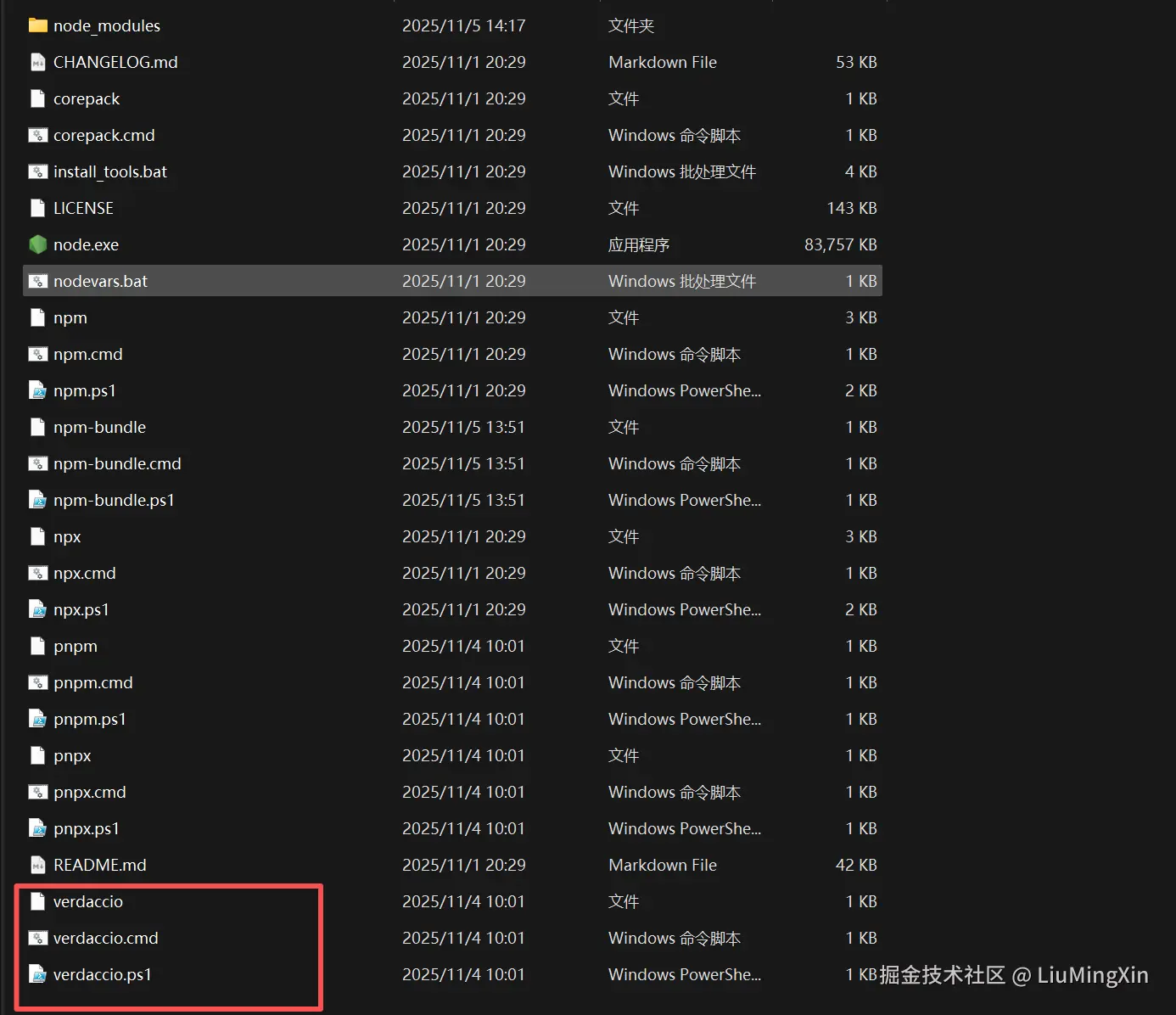
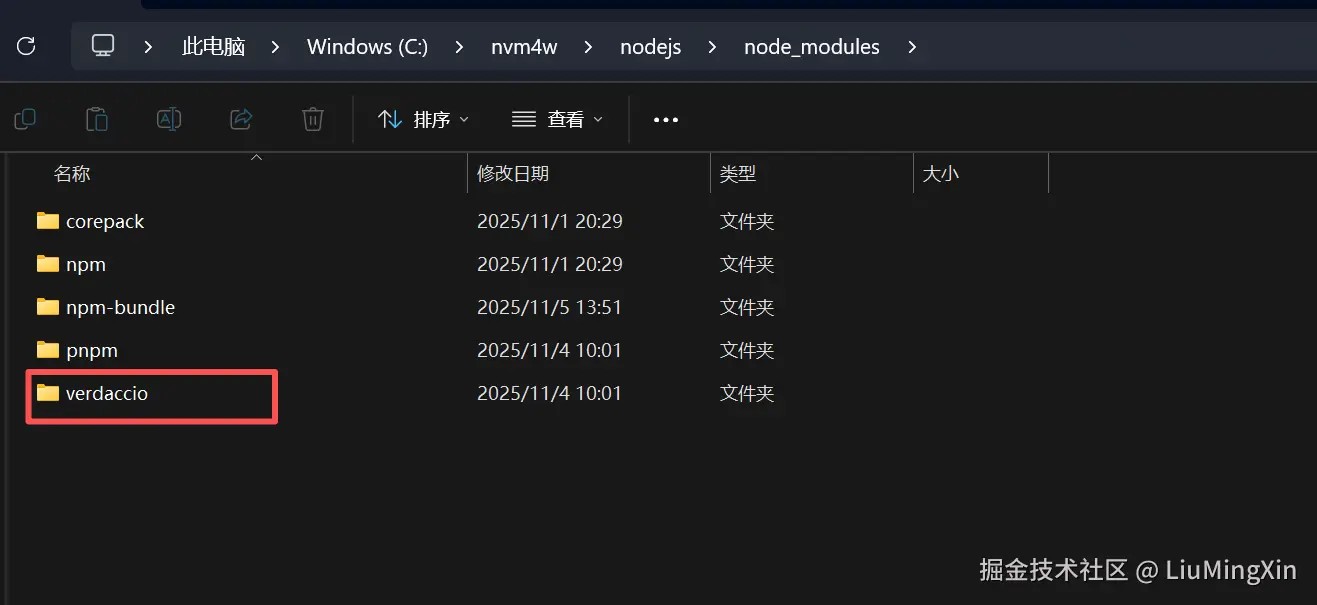
The files that need to be copied include (verdaccio, verdaccio.cmd, verdaccio.ps1, and the node_modules/verdaccio folder):
Finally, verify on the internal network machine whether Verdaccio is successful.
verdaccio --version
After Verdaccio is successfully installed, simply start Verdaccio and copy the previously saved storage and config.yaml to the Verdaccio cache directory on the internal network machine.
Although Approach Two is a bit unconventional, it is actually the method with a higher success rate when attempting on Windows.
A brief explanation of why Approach Two is simple and straightforward:
When we install dependencies, it’s not just a single dependency, but a complex dependency tree. By directly copying node_modules/verdaccio,
we essentially skip the process of searching for and installing the complex dependency tree. This operation is essentially an environment dependency migration process.
Now let’s explain the seemingly formal Approach One:
For Approach One to succeed, a very important point is that you not only need to npm pack Verdaccio, but also npm pack each sub-dependency required by Verdaccio. This is extremely tedious and prone to errors.
So can we just package node_modules/verdaccio directly, similar to the idea of Approach Two? In that case,
we basically return to Approach Two, which we won’t elaborate further.
However, combining Approach One and Approach Two, we can think of a more optimal engineering practice:
Use Verdaccio to bootstrap Verdaccio
First, deploy Verdaccio on the internal network machine using Approach Two. Then, on the external network, start Verdaccio and let it cache Verdaccio itself along with all its dependencies, and then copy the storage data to the internal network Verdaccio cache.
Other internal network machines can directly install Verdaccio via the already installed Verdaccio on the internal machine.
All the installations mentioned above are illustrated using Windows as an example. So when our development environment is Linux, what should we do?
Generally speaking, most front-end development environments are Windows, which is why the Windows part is our main concern!
This also happens to illustrate how to migrate pnpm via packaging rather than Verdaccio caching.
Linux Environment Installation and Deployment
A brief explanation for the Linux environment for general understanding; it is not the focus of this article.
Verdaccio Installation
tar -xzf /tmp/verdaccio-offline-package/verdaccio-data.tar.gz -C ~# 验证ls -la ~/.config/verdaccio/ls ~/.config/verdaccio/storage/
Set up systemd service (optional)
PREFIX=$(npm config get prefix)sudo tee /etc/systemd/system/verdaccio.service > /dev/null << EOF[Unit]Description=Verdaccio Private NPM RegistryAfter=network.target[Service]Type=simpleUser=$USERWorkingDirectory=$HOMEEnvironment=PATH=$PREFIX/bin:$HOME/nodejs/bin:/usr/local/bin:/usr/bin:/binExecStart=$PREFIX/bin/verdaccioRestart=on-failureRestartSec=10StandardOutput=journalStandardError=journal[Install]WantedBy=multi-user.targetEOFsudo systemctl daemon-reloadsudo systemctl start verdacciosudo systemctl enable verdaccio# 查看状态sudo systemctl status verdaccio# 查看日志sudo journalctl -u verdaccio -f
Precautions
When caching dependencies with verdaccio, the situation where only the package.json file in the dependency package is missing the corresponding .tgz package
This situation is the most common problem when caching dependencies in an online environment using verdaccio to set up a private npm.
The solution approach is to use pnpm-lock.yaml and package-lock.json files' full dependencies for dependency installation and updates.
If you need to add dependencies, it is better to use specific versions for the new dependencies, as follows:
 "dependencies": {
    "xlsx": "0.18.5"
 }
If the project has not yet generated lockfile, first generate the corresponding file.
Executing the following command will generate the corresponding pnpm-lock.yaml based on your package.json.
pnpm install --lockfile-only
If the dependencies have already been installed
# 删除 node_modules 和项目内虚拟存储rm -rf node_modules# 清空 pnpm 全局 store(内容寻址存储),迫使重新下载pnpm store prune --force # 可以先用 pnpm store path 找到路径再手动删除整个 store 目录# 删除pnpm-lock.yamlrm -rf pnpm-lock.yamlpnpm install --lockfile-only
If you are using the pnpm package tool, the recommended operation is to go to the .pnpm-store folder and delete the cached files. This can more completely remove the dependency cache and allow verdaccio to better cache newly added dependencies. The operation is similar for npm.
First, use a fetch request once, which is actually an operation to let verdaccio cache dependencies
Strengthen a dependency request once, to prevent missing dependency caches, and at the same time download the corresponding dependencies under the project to node_modules
Above, we only mentioned the most common scenarios, but there are several other scenarios that cannot be ignored. Due to space constraints, we will just list them here without elaboration and supplement them later.
Desktop builds like electron/tauri (involving handling of native binary dependencies)
Binary dependencies, how to handle node-gyp, prebuild, etc.
Publishing process for private business component libraries is not explained here
Extensions and Thoughts
More mature alternatives include Nexus Repository Manager and Alibaba's cnpm, although cnpmcore has additional requirements in a physically isolated environment. The approach above is intended to remain manageable for frontend developers; teams may choose a more comprehensive repository platform when appropriate.
Explanation of Missing Parts
Example of Electron
Taking the migration of the Electron build environment on Windows as an example:
When building Electron and other desktop applications in a completely physically isolated intranet environment, the core pain point is: Verdaccio can only cache the source code and metadata of npm packages, but Electron and its build tools (like electron-builder) will dynamically download a large number of underlying binaries (such as Electron core, NSIS, winCodeSign, etc.) from GitHub Releases via postinstall scripts during installation or packaging.
To migrate this environment to the intranet, you need to manually take over the caching of these binary files.
Core challenges of offline Electron build migration:
Resource
Source
Handling Method
Electron binary package
GitHub Releases
Manual download/local cache
npm dependencies (JS)
npmjs.org
Verdaccio cache
electron-builder toolchain
GitHub / various mirrors
Manual download / local cache
Native module compilation (node-gyp)
Node.js / Electron headers
Manual download of headers
We don’t need to worry about npm dependencies. What remains are: Electron binary packages, the electron-builder toolchain, and native module compilation (node-gyp).
Solving Electron Binary Packages
When you execute npm install electron, the @electron/get module will download the corresponding electron-vX.Y.Z-[os]-[arch].zip.
Operation on an external network machine:
After running npm install electron normally on the external network machine, Electron will cache the downloaded binary package in a specific directory in the local system:
Locate the corresponding cache directory on the external network machine and package it completely.
Copy it to the internal network machine and extract it to the exact same physical path.
Set the environment variable on the internal network machine to force Electron to skip network downloads and use the cache directly:
# Windows (cmd)set ELECTRON_SKIP_BINARY_DOWNLOAD=1
Or simply execute npm install normally. As long as the underlying system detects that a Cache compressed package with the matching version hash exists, it will skip the download step.
electron-builder Toolchain Binaries
When you run the packaging command (such as electron-builder --win), it requires that the environment contains packaging toolchain binaries like app-builder, winCodeSign, nsis. These are also not cached in node_modules by default.
External network machine operations:
Similar to Electron, electron-builder also has its own independent global cache directory:
Windows: %LOCALAPPDATA%\electron-builder\Cache
Linux: ~/.cache/electron-builder
macOS: ~/Library/Caches/electron-builder
Internal network machine migration:
Fully execute npm run build on an external network machine to ensure that the toolchains for the required target platforms (whether win or linux) are fully downloaded.
Package the corresponding electron-builder\Cache directory from the external network machine.
Copy it to the same path on the internal network machine and unzip it. When the internal machine cannot access the network during packaging, it will automatically fallback to use the cache in this directory.
(Optional advanced method: You can set up a static file server similar to Nginx within the internal network, put the above zip files into it, and then set environment variables ELECTRON_MIRROR and ELECTRON_BUILDER_BINARIES_MIRROR to point to the internal server, but this is a bit more complex than simple copy migration.)
Solving native C++ module issues
For packages like sqlite3 and serialport that depend on underlying C++, the precompiled .node files are usually downloaded through node-pre-gyp or prebuild-install.
Migration Methods:
Based on binary cache: Some prebuilds are cached to %APPDATA%\npm-cache\_prebuilds or %LOCALAPPDATA%\npm-cache, which can be copied together.
Source compilation fallback: If node-gyp must build on site, internal machines need Python and the Visual Studio C++ build toolchain. On the connected machine, also package the Node.js C++ headers—usually under %LOCALAPPDATA%\node-gyp—and copy them into the isolated network.
The most brute-force solution (recommended scenario): Under the condition that the operating system and Node versions of the external and internal machines are exactly the same (e.g., both are Win10 64-bit, Node 18.x), after performing npm install on the external machine, compress the node_modules folder containing the compiled .node files and transfer it to the internal machine. This is the least error-prone way to handle C++ native extensions on an internal network.
Discussion
Support the author