Official OpenAI Image Prompt Guide in Chinese, introducing model selection, prompt writing, image generation and editing, cross-round refinement, and practical methods for maintaining consistency in subjects and details.
The margin notes are this blog's reading notes and practical commentary; they are not part of the source article.
This article is translated from the OpenAI official documentation. Models, parameters, and pricing may change with updates to the official documentation, so please refer to the original text.
Overview
Start with the image you need, then describe the subject, composition, style, and constraints. For editing, determine what should be changed and what must remain unchanged. Improve one thing at a time and check the results.
GPT Image 2.5 includes two model options. GPT Image 2.5 Flare is a smaller model optimized for speed, with image quality comparable to GPT Image 2. GPT Image 2.5 Sunburst is the base model optimized for quality, offering higher image quality than GPT Image 2. Both models have improvements in precise editing and subject preservation.
For API settings and request examples, refer to the Image Generation Guide.
Choosing a Model
For new workflows, start with GPT Image 2.5 Flare when speed is prioritized; start with GPT Image 2.5 Sunburst when strict quality requirements are prioritized. Once the output meets your needs, look for opportunities to reduce latency.
To migrate from the current image model, use your current image quality as a starting point. Both models support image generation, editing, and transparent backgrounds.
| Your current workflow | Start from testing |
|---|---|
| Existing, verified GPT Image 2 workflows that meet your quality requirements | GPT Image 2.5 Flare. Check whether it can maintain acceptable quality while reducing latency. |
| Complex use cases where GPT Image 2 does not meet your quality requirements | GPT Image 2.5 Sunburst. First, determine if it provides the quality you need. |
If GPT Image 2.5 Sunburst meets your quality requirements, test GPT Image 2.5 Flare with the same prompts and inputs. If GPT Image 2.5 Flare also meets these requirements and improves latency, switch to it. Keep GPT Image 2.5 Sunburst when your workflow needs the quality advantage of GPT Image 2.5 Sunburst.
Measure the response time and quality of your own workloads. Results depend on your prompts, reference images, output sizes, and quality settings; a speed improvement for one workload does not guarantee the same improvement for another workload.
Model Parameters
Set API parameters separately from prompts.
| Model Parameters | GPT Image 2.5 Settings |
|---|---|
model | gpt-image-2.5-flare (Small Model) or gpt-image-2.5-sunburst (Base Model) |
quality | auto (default), low, medium, high, xhigh, or max |
size | auto or custom resolution. Common sizes: 1024x1024 (square), 1536x1024 (landscape), 1024x1536 (portrait), 2048x2048 (2K square), 2048x1152 (2K landscape), 3840x2160 (4K landscape), and 2160x3840 (4K portrait). |
background | auto, opaque, or transparent |
For custom resolutions, please use WIDTHxHEIGHT and comply with the following restrictions:
- No side may exceed 3,840 pixels.
- Both sides must be multiples of 16 pixels.
- The ratio of the long side to the short side must not exceed 3:1.
- The total number of pixels must be between 655,360 and 8,294,400.
Outputs with a total pixel count exceeding 3,686,400 (
2560x1440) are experimental.
Before adjusting quality, use the workflow above to select a model. For the first comparison, when both models are supported, keep the explicitly chosen quality settings unchanged, along with prompts, reference images, and output dimensions. The same quality label does not mean the models have the same image quality or response time.
If the output is insufficient, test higher quality settings. Once your requirements are met, test lower settings to see if they maintain acceptable quality while reducing latency. Only use xhigh or max if they improve unmet quality requirements within your latency budget. Higher settings do not guarantee better results for every prompt.
For transparent assets, explicitly request background="transparent" and use PNG or WebP. Check the Alpha channel of decoded images, including hair, glass, shadows, and object edges. output_compression is only intended for JPEG or WebP outputs and does not apply to PNG.
Migrating Existing Workflows
- Save a baseline. Collect representative production prompts and reference images, including challenging edits, precise text, faces, product geometries, and transparent assets. Record the current model, request settings, and results.
- Select the first candidate. If GPT Image 2 already meets your quality requirements, start with GPT Image 2.5 Flare and test for latency improvements. If GPT Image 2 cannot satisfy complex use cases, start with GPT Image 2.5 Sunburst and first determine that it meets your quality requirements. Keep prompts, references, dimensions, and output formats unchanged for the first comparison.
- Check complete results. Compare adherence to instructions, identity and product preservation, text accuracy, unwanted changes, and transparency. Repeat requests to measure consistency. For editing workflows, test the full edit sequence as well as individual steps.
- Test latency gains after quality approval. If you start using GPT Image 2.5 Sunburst and it meets your quality requirements, evaluate GPT Image 2.5 Flare against the same criteria. Only switch if the quality remains acceptable and latency improves; otherwise, retain GPT Image 2.5 Sunburst.
- Adjust one setting at a time. Compare quality levels before rewriting prompts. Measure typical and slow responses, failures, retries, and the cost per accepted image. Confirm current pricing rather than assuming faster models cost less.
- Roll out according to workflow. Once the released model meets your acceptance criteria, move a small portion of traffic, monitor the same metrics, and gradually expand. Keep previous models available for rollback while still supported.
When migrating from GPT Image 1 or 1.5, check parameter differences and deprecation dates using the reference tab. Test the request settings supported by the candidate model rather than copying old settings verbatim. For GPT Image 2, retain your existing resolution and transparency requirements for comparison.
Repeated edits can still change the details you want to preserve. Reiterate these constraints and check each outcome. If a certain area must maintain the same pixels, composite the approved edits onto the original image rather than relying solely on prompts.
Prompt Basics
- Define the outcome. Name the subject and intended use, such as product photos, advertisements, or charts. Specify composition, aspect ratio, and important placement restrictions. For complex requests, organize the prompt into labeled sections for scene, subject, details, and constraints.
- Choose a maintainable format. Short prompts, descriptive paragraphs, JSON-like structures, instructions, and labels can all express the same intent. Choose the format that makes requirements easiest to read and update, rather than relying on special syntax.
- Describe visible details. Name materials, lighting, colors, and visual media. When the target is a “real photo” or “photorealistic,” state this clearly and describe framing and texture. Treat camera specifications as appearance cues, not guarantees of precise physical simulation. For wide shots, cinematic, low-light, rainy, or neon scenes, specify scale, atmosphere, and color rather than relying solely on mood words.
- Specify characters and actions. Describe the body framework, relative proportions, gaze, and interaction with objects. Instructions such as "full body visible, including feet," "looking down at an open book," or "holding the handlebars naturally with both hands" make the intended poses and actions clearer.
- Specify exact text. Place the required wording in quotes and describe its position and typography. Spell out uncommon words or brand names letter by letter if needed. Request not to provide additional text, and then check the spelling and readability of the output. Compare small text, dense information, or medium to high quality with multiple fonts.
- Separate changes from constraints. For edits, say "change only X" and list the details to keep, such as identity, geometry, layout, lighting, or labels. Specify exclusions, such as unwanted text, logos, or watermarks. For precise local editing, you can also identify saturation, contrast, arrows, camera angles, and surrounding objects that must remain unchanged.
- Assign roles for reference. Identify each input by number and purpose: subject, style, clothing, or background. Explain how the inputs should be combined and which elements should be moved where.
- Iterate intentionally. Use the previous output as the next edit input, request a change, and repeat the details that need to be preserved. References such as "same style as before" can provide context, but if the results change, restate key constraints. Compare results before adding more instructions.
Each example below demonstrates a different technique. Use their prompts as a starting point and adjust according to your own images and requirements.
Image Generation
Control Style and Lighting
Describe the photo through subject, framing, lighting, and texture. This example specifies a candid composition and explicitly excludes extensive retouching.
Generation settings: size="1024x1536", quality="medium".
Create a photorealistic candid photograph of an elderly sailor standing on a small fishing boat.
He has weathered skin with visible wrinkles, pores, and sun texture, and a few faded traditional sailor tattoos on his arms.
He is calmly adjusting a net while his dog sits nearby on the deck. Shot like a 35mm film photograph, medium close-up at eye level, using a 50mm lens.
Soft coastal daylight, shallow depth of field, subtle film grain, natural color balance.
The image should feel honest and unposed, with real skin texture, worn materials, and everyday detail. No glamorization, no heavy retouching.
Example Output:
GPT Image 2.5 Flare

GPT Image 2.5 Sunburst

Intuitive Explanation of the Process
Name the process, audience, and the message the image should convey. For charts and infographics, verify labels, factual relationships, and appearance.
Generation Settings: size="1024x1536", quality="medium".
Create a detailed Infographic of the functioning and flow of an automatic coffee machine like a Jura.
From bean basket, to grinding, to scale, water tank, boiler, etc.
I'd like to understand technically and visually the flow.
Output Example:
GPT Image 2.5 Flare

GPT Image 2.5 Sunburst

Render Precise Text
Quote the required copy and tell the model how many times it should appear. Specify the audience and visual processing, without adding irrelevant instructions.
Generation Settings: size="1024x1536", quality="medium".
Give me a cool in culture ad / fashion shot for a brand called Thread.
It's a hip young street brand. The ad shows a group of friends hanging out together with the tagline "Yours to Create."
Make it feel like a polished campaign image for a youth streetwear audience: stylish, contemporary, energetic, and tasteful.
Use clean composition, strong color direction, natural poses, and premium fashion photography cues.
Render the tagline exactly once, clearly and legibly, integrated into the ad layout.
No extra text, no watermarks, no unrelated logos.
Example Output:
GPT Image 2.5 Flare

GPT Image 2.5 Sunburst

Design a Reusable Logo
The description should define the brand and shape of the mark. Specify a clear composition that remains visible at different sizes. Use n to request multiple variations.
Generation Settings: size="1024x1536", quality="medium", background="transparent", output_format="png", n=1.
Create an original, non-infringing logo for a company called Field & Flour, a local bakery.
The logo should feel warm, simple, and timeless. Use clean, vector-like shapes, a strong silhouette, and balanced negative space.
Favor simplicity over detail so it reads clearly at small and large sizes. Flat design, minimal strokes, no gradients unless essential.
Fully transparent background. Deliver a single centered logo with generous padding, clean alpha edges, and no solid backdrop, scenery, checkerboard, or watermark.
Each row compares a variant of each model.
Output example:
GPT Image 2.5 Flare

GPT Image 2.5 Sunburst

GPT Image 2.5 Flare

GPT Image 2.5 Sunburst

GPT Image 2.5 Flare

GPT Image 2.5 Sunburst

GPT Image 2.5 Flare

GPT Image 2.5 Sunburst

Using Historical and Real-World Background Knowledge
Name places and dates to establish a historical setting. The model can infer contextual details but can check the historical accuracy of clothing, stage, and surroundings.
Generated settings: size="1024x1536", quality="medium".
Create a realistic outdoor crowd scene in Bethel, New York on August 16, 1969.
Photorealistic, period-accurate clothing, staging, and environment.
Output Example:
GPT Image 2.5 Flare

GPT Image 2.5 Sunburst

Turning Stories into Comics
For generating a story into a comic, define the narrative as a series of clear visual beats, one per panel. Keep descriptions specific and action-focused so that the model can transform the story into readable, well-paced panels.
Generation Settings: size="1024x1536", quality="medium".
Create a short vertical comic-style reel with 4 panels.
Panel 1: The owner leaves through the front door. The pet is framed in the window behind them, small against the glass, eyes wide, paws pressed high, the house suddenly quiet.
Panel 2: The door clicks shut. Silence breaks. The pet slowly turns toward the empty house, posture shifting, eyes sharp with possibility.
Panel 3: The house transformed. The pet sprawls across the couch like it owns the place, crumbs nearby, sunlight cutting across the room like a spotlight.
Panel 4: The door opens. The pet is seated perfectly by the entrance, alert and composed, as if nothing happened.
Output Example:
GPT Image 2.5 Flare

GPT Image 2.5 Sunburst

Create Interface Preview
The interface preview works best when you describe the product as if it already exists. Focus on layout, hierarchy, spacing, and real interface elements, and avoid conceptual art language, so the result looks like a usable, delivered interface rather than a design sketch.
Generation Settings: size="1024x1536", quality="medium".
Create a realistic mobile app UI mockup for a local farmers market.
Show today’s market with a simple header, a short list of vendors with small photos and categories, a small “Today’s specials” section, and basic information for location and hours.
Design it to be practical, and easy to use. White background, subtle natural accent colors, clear typography, and minimal decoration.
It should look like a real, well-designed, beautiful app for a small local market.
Place the UI mockup in an iPhone frame.
Example Output:
GPT Image 2.5 Flare

GPT Image 2.5 Sunburst

Creating Scientific and Educational Visuals
Scientific and educational visuals are great for biology, chemistry, classroom presentations, graphic science icon systems, charts, and learning resources. Prompt them like a teaching design brief: define the audience, course objectives, visual format, required labels, and scientific constraints. For the best results, request a clean, flat visual system with consistent icon styles, clear arrows, readable labels, and enough white space so that students can quickly grasp the concepts.
When accuracy is important, clearly list the required components and indicate which components should not be included. Use quality="high" for densely labeled charts or resources used in slides or course materials.
Generation Settings: size="1536x1024", quality="high".
Create a simple biology diagram titled "Cellular Respiration at a Glance" for high school students.

Show how glucose turns into energy inside a cell. Include glycolysis, the Krebs cycle, and the electron transport chain.
Use arrows to connect the steps, and label the main molecules: glucose, pyruvate, ATP, NADH, FADH2, CO2, O2, and H2O.
Make it look like a clean classroom handout or slide, with a white background, simple icons, clear labels, and easy-to-read text.

Avoid tiny text, extra decoration, or anything that makes the diagram hard to understand.
Example Output:
GPT Image 2.5 Flare

GPT Image 2.5 Sunburst

Creating Slides, Diagrams, and Charts
When prompts resemble a specification of deliverables rather than a simple illustration request, productivity-oriented visual content works best. Please specify the exact deliverable (slide, flowchart, chart, or page image), define the canvas and information hierarchy, provide real text or data, and describe the visual language. These prompts should also include practical constraints: clear layout, precise spacing, minimal decoration, and avoidance of repetitive stock photo styles.
For slides, charts, and large chart resources, please directly include numbers and labels in the prompt. When images contain small text, legends, axes, or footnotes, please use horizontal dimensions for deck-style output and quality="high".
The following market data and quotes are fictional design inputs. Before using the slides officially, please replace them with verified data.
Generation settings: size="1536x864", quality="high".
Create one pitch-deck slide titled **"Market Opportunity"** that feels like a real Series A fundraising slide from a YC-backed startup.

Use a clean white background, modern sans-serif typography like Inter, and a crisp, minimal layout. The slide should include:

* A TAM/SAM/SOM concentric-circle diagram in muted blues and grays
* Specific, believable market sizing numbers:

  * **TAM:** $42B
  * **SAM:** $8.7B
  * **SOM:** $340M
* A clean bar chart below showing market growth from **2021 to 2026**, with a subtle upward trend
* Small footnotes: **"AGI Research, 2024"** and **"Internal analysis"**
* A company logo placeholder in the bottom-right corner

The design should look like it belongs in a deck that actually raised money: highly readable text, clear data hierarchy, polished spacing, and professional startup-style visual language.

Avoid clip art, stock photography, gradients, shadows, decorative elements, or anything that feels generic or overdesigned.
Example Output:
GPT Image 2.5 Flare

GPT Image 2.5 Sunburst

Edit Image
Use client.images.edit together with the referenced input image. For local edits that require a mask, see Editing with a Mask.
Translate While Preserving Layout
Use the coffee machine images generated by each model in Intuitively Explaining the Process as input. The task is to replace the text while keeping the design unchanged; then check the translation and confirm that no original language text remains.
Edit settings: size="1024x1536", quality="high".
Translate the text in the infographic to Spanish. Do not change any other aspect of the image.Example Output:
GPT Image 2.5 Flare

GPT Image 2.5 Sunburst

Transferring Visual Style
Assign specific roles to the reference images: their palette, texture, or visual medium. Describe the new subject separately. Use the pixel art images below as input.
Editing Settings: size="1024x1536", quality="medium".
Use the same style from the input image and generate a man riding a motorcycle on a white background.Input image:

Example output:
GPT Image 2.5 Flare

GPT Image 2.5 Sunburst

Keep identity and change clothing
Use a portrait photo and the three clothing references below as input. Specify which aspects of the person must remain unchanged, and only allow the clothing to be altered. This mode also applies to edits where products or objects must remain recognizable.
Edit settings: size="1024x1536", quality="medium".
Edit the image to dress the woman using the provided clothing images. Do not change her face, facial features, skin tone, body shape, pose, or identity in any way. Preserve her exact likeness, expression, hairstyle, and proportions. Replace only the clothing, fitting the garments naturally to her existing pose and body geometry with realistic fabric behavior. Match lighting, shadows, and color temperature to the original photo so the outfit integrates photorealistically, without looking pasted on. Do not change the background, camera angle, framing, or image quality, and do not add accessories, text, logos, or watermarks.Input images:


Example output:
GPT Image 2.5 Flare

GPT Image 2.5 Sunburst

Combination Reference Image
Pass the scene photo as Image 1 and the dog photo as Image 2. Specify the elements to be moved, their destinations, and the elements that must remain unchanged.
Edit settings: size="1024x1536", quality="medium".
Place the dog from the second image into the setting of image 1, right next to the woman, use the same style of lighting, composition and background. Do not change anything else.Input images:


Example output:
GPT Image 2.5 Flare

GPT Image 2.5 Sunburst

Creating Product Cutouts with Transparent Backgrounds
Use the independent themes in the request prompt and background="transparent" from the API. Use PNG or WebP, retain the returned alpha channel, and omit output_compression in PNG. The drawn checkerboard is not transparent. For subsequent edits, continue to retain the requirement for a transparent background. Use the following product photos as input.
Editing settings: size="1024x1536", quality="medium", background="transparent", output_format="png".
Extract the product from the input image and isolate it on a fully transparent background.
Output: centered product, crisp silhouette, no halos/fringing.
Preserve product geometry and label legibility exactly.
Add only light polishing. Do not add a solid backdrop, checkerboard, scenery, or shadow.
Do not restyle the product; remove the background and preserve clean alpha transparency.
Input Image:

Example Output:
GPT Image 2.5 Flare

GPT Image 2.5 Sunburst

Convert the Drawing into a Realistic Image
The workflow from sketch to rendering is ideal for transforming rough drawings into realistic concepts while maintaining the original intent. Treat prompts as specifications: preserve the layout and perspective, then add realism by specifying appropriate materials, lighting, and environment. Include 'do not add new elements/text' to avoid creative reinterpretation.
Editing settings: size="1024x1536", quality="medium".
Turn this drawing into a photorealistic image.
Preserve the exact layout, proportions, and perspective.
Choose realistic materials and lighting consistent with the sketch intent.
Do not add new elements or text.
Input Image:

Example Output:
GPT Image 2.5 Flare

GPT Image 2.5 Sunburst

Delete an Object
Delete an object by name; it clarifies it and preserves everything around it. Keep the person, pose, lighting, and composition unchanged so that the edit remains localized.
Edit settings: size="1024x1536", quality="medium".
Remove the flower from man's hand. Do not change anything else.Input Image:

Output Example:
GPT Image 2.5 Flare

GPT Image 2.5 Sunburst

Insert Character into Scene
Insert a person into a new scene while preserving their identity. Specify natural lighting, believable details, body framing, gaze, and interaction with the scene. Indicate which facial features and proportions must remain unchanged. For gpt-image-2, omit input_fidelity; image inputs are always processed at high fidelity.
Use the woman in the museum as the input image.
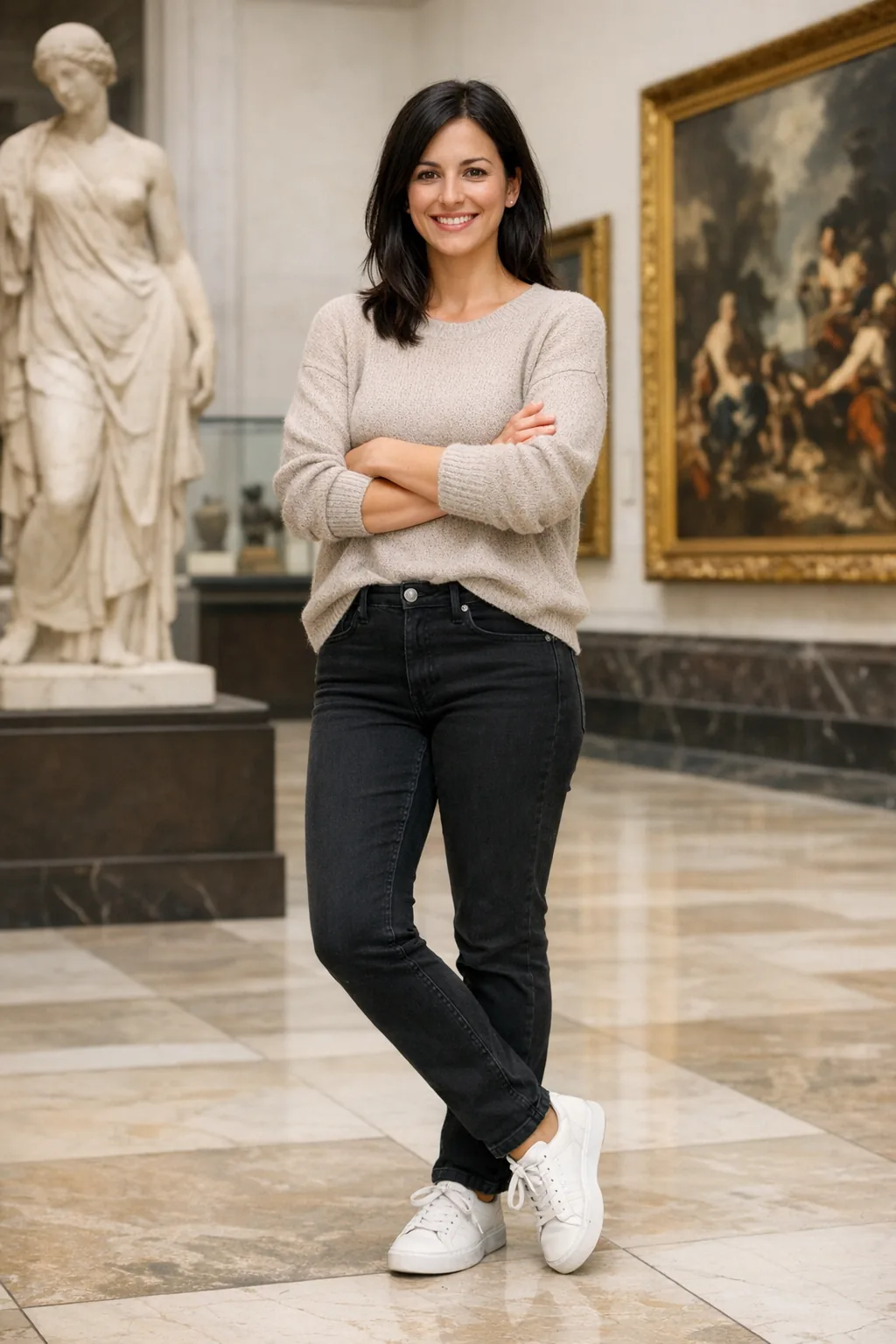
Editing settings: size="1024x1536", quality="medium".
Generate a highly realistic action scene where this person is running away from a large, realistic brown bear attacking a campsite. The image should look like a real photograph someone could have taken, not an overly enhanced or cinematic movie-poster image.
She is centered in the image but looking away from the camera, wearing outdoorsy camping attire, with dirt on her face and tears in her clothing. She is clearly afraid but focused on escaping, running away from the bear as it destroys the campsite behind her.
The campsite is in Yosemite National Park, with believable natural details. The time of day is dusk, with natural lighting and realistic colors. Everything should feel grounded, authentic, and unstyled, as if captured in a real moment. Avoid cinematic lighting, dramatic color grading, or stylized composition.
Example Output:
GPT Image 2.5 Flare

GPT Image 2.5 Sunburst

Cross-Round Refinement of Images
Start with one output, review it, and use it as the next input. Narrow the scope of each follow-up so you can see which changes are helpful.
Creating the Initial Image
Use the shampoo photo from Creating Product Cutouts with Transparent Background as the input for the billboard scene. Accurately retain the label text.
Edit Settings: size="1024x1536", quality="medium".
Create a realistic billboard mockup of the shampoo on a highway scene during sunset.
Billboard text (EXACT, verbatim, no extra characters):
"Fresh and clean"
Typography: bold sans-serif, high contrast, centered, clean kerning.
Ensure text appears once and is perfectly legible.
No watermarks, no logos.
Input image:
Example output:
GPT Image 2.5 Flare

GPT Image 2.5 Sunburst

Change a condition
Pass the billboard output of each model from the previous step to the next edit request. This brief follow-up action changes the weather while retaining the existing scene.
Edit settings: size="1024x1536", quality="medium".
Make it look like a winter evening with snowfall.Output Example:
GPT Image 2.5 Flare

GPT Image 2.5 Sunburst

Maintain Character Consistency
For books that include multiple illustrations, create reusable character references to help retain the appearance of scenes, poses, and pages. Change the environment and story while repeating the defining details of the characters.
Establish Characters
Define the character's appearance, proportions, clothing, and tone.
Generation settings: size="1024x1536", quality="medium".
Create a children’s book illustration introducing a main character.

Character:
A young, storybook-style hero inspired by a little forest outlaw,
wearing a simple green hooded tunic, soft brown boots, and a small belt pouch.
The character has a kind expression, gentle eyes, and a brave but warm demeanor.
Carries a small wooden bow used only for helping, never harming.

Theme:
The character protects and rescues small forest animals like squirrels, birds, and rabbits.

Style:
Children’s book illustration, hand-painted watercolor look,
soft outlines, warm earthy colors, whimsical and friendly.
Proportions suitable for picture books (slightly oversized head, expressive face).

Constraints:
- Original character (no copyrighted characters)
- No text
- No watermarks
- Plain forest background to clearly showcase the character
Example Output:
GPT Image 2.5 Flare

GPT Image 2.5 Sunburst

Continue the Story
Reuse the character images generated by each model and describe a new scene. Repeat appearance constraints to keep the character consistent.
Editing settings: size="1024x1536", quality="medium".
Continue the children’s book story using the same character.

Scene:
The same young forest hero is gently helping a frightened squirrel
out of a fallen tree after a winter storm.
The character kneels beside the squirrel, offering reassurance.

Character Consistency:
- Same green hooded tunic
- Same facial features, proportions, and color palette
- Same gentle, heroic personality

Style:
Children’s book watercolor illustration,
soft lighting, snowy forest environment,
warm and comforting mood.

Constraints:
- Do not redesign the character
- No text
- No watermarks
Example Output:
GPT Image 2.5 Flare

GPT Image 2.5 Sunburst

More Workflows
Changing Furniture in a Room
Visualize changes to furniture or decorations in a real space without recreating the entire scene. The goal is surgical-level realism: swap a single object while keeping the camera angle, lighting, shadows, and surrounding environment, so the edit looks like a real photo rather than a redesign.
Edit Settings: size="1536x1024", quality="medium".
In this room photo, replace ONLY the white chairs with chairs made of wood.
Preserve camera angle, room lighting, floor shadows, and surrounding objects.
Keep all other aspects of the image unchanged.
Photorealistic contact shadows and fabric texture.
Input Image:

Example Output:
GPT Image 2.5 Flare

GPT Image 2.5 Sunburst

Designing Holiday Cards
For seasonal card concepts, describe the scene, mood tone, materials, lighting, and precise copy. For 3D pop-up or photo card handling, specify paper layers, fibers, folds, and soft studio lighting. The example below uses a nostalgic teddy bear scene.
Generation settings: size="1024x1536", quality="medium".
Create a Christmas holiday card illustration.

Scene:
a cozy Christmas scene with an old teddy bear sitting inside a keepsake box, slightly worn fur, soft stitching repairs, placed near a window with falling snow outside. The scene suggests the child has grown up, but the memories remain.

Mood:
Warm, nostalgic, gentle, emotional.

Style:
Premium holiday card photography, soft cinematic lighting,
realistic textures, shallow depth of field,
tasteful bokeh lights, high print-quality composition.

Constraints:
- Original artwork only
- No trademarks
- No watermarks
- No logos

Include ONLY this card text (verbatim):
"Merry Christmas — some memories never fade."
Output Example:
GPT Image 2.5 Flare

GPT Image 2.5 Sunburst

Design Collection Products
Use product photography cues to explore product and packaging concepts: materials, packaging, and print clarity. Keep designs original and non-infringing, and compare multiple character or packaging variants.
Generation settings: size="1024x1536", quality="medium".
Create a collectible action figure of a vintage-style toy propeller airplane with rounded wings, a front-mounted spinning propeller, slightly worn paint edges, classic childhood proportions, designed as a nostalgic holiday collectible, in blister packaging.

Concept:
A nostalgic holiday collectible inspired by the simple toy airplanes
children used to play with during winter holidays.
Evokes warmth, imagination, and childhood wonder.

Style:
Premium toy photography, realistic plastic and painted metal textures,
studio lighting, shallow depth of field,
sharp label printing, high-end retail presentation.

Constraints:
- Original design only
- No trademarks
- No watermarks
- No logos

Include ONLY this packaging text (verbatim):
"Christmas Memories Edition"
Example Output:
GPT Image 2.5 Flare

GPT Image 2.5 Sunburst

Run Full Example
This runnable example is fixed to gpt-image-2. Use it as a baseline, then select available models and their supported request settings for evaluation.
The Python example below generates four logo variants and extracts the product onto a transparent background. Install the 【OpenAI Python SDK】, set OPENAI_API_KEY, and save the 【product photo】 as input_images/shampoo.webp. Real-time requests will incur API usage costs.
View Python Example
Generate and edit transparent assets
import base64
from pathlib import Path

from openai import OpenAI

client = OpenAI()

prompt = """
Create an original, non-infringing logo for a company called Field & Flour, a local bakery.
The logo should feel warm, simple, and timeless. Use clean, vector-like shapes, a strong silhouette, and balanced negative space.
Favor simplicity over detail so it reads clearly at small and large sizes. Flat design, minimal strokes, no gradients unless essential.
Fully transparent background. Deliver a single centered logo with generous padding, clean alpha edges, and no solid backdrop, scenery, checkerboard, or watermark.
"""

result = client.images.generate(
    model="gpt-image-2",
    prompt=prompt,
    size="1024x1536",
    quality="medium",
    background="transparent",
    output_format="png",
    n=4,  # Generate 4 versions of the logo
)

# Preserve the returned PNG bytes, including the alpha channel.
for index, item in enumerate(result.data, start=1):
    Path(f"logo-generation-{index}-gpt-image-2.png").write_bytes(
        base64.b64decode(item.b64_json)
    )

# Extract a product from a reference image.
prompt = """
Extract the product from the input image and isolate it on a fully transparent background.
Output: centered product, crisp silhouette, no halos/fringing.
Preserve product geometry and label legibility exactly.
Add only light polishing. Do not add a solid backdrop, checkerboard, scenery, or shadow.
Do not restyle the product; remove the background and preserve clean alpha transparency.
"""

result = client.images.edit(
    model="gpt-image-2",
    image=[
        Path("input_images/shampoo.webp"),
    ],
    prompt=prompt,
    size="1024x1536",
    quality="medium",
    background="transparent",
    output_format="png",
)

Path("extract-product-gpt-image-2.png").write_bytes(
    base64.b64decode(result.data[0].b64_json)
)
For additional prompts and a complete workflow, please refer to the original notebook.
Check Results
Check the output before use to ensure it meets requirements:
- Is the required text accurate and clear? Are the chart labels and relationships correct?
- Are identities, product shapes, labels, and reference details intact?
- Did the edits only change what you requested?
- If transparency is needed, does the file include an Alpha channel instead of a drawn background?
Compare the quality, latency, and cost of representative inputs when changing prompts or models. For current costs, see image generation pricing.
GPT Image 2 Reference
Overview of existing GPT Image 2 and request setup workflow.
Overview
GPT Image 2 supports image generation and editing, including text rendering, reference-based editing, and flexible output sizes. Use this reference to maintain existing integrations. The Prompt Guide covers composition, text, reference images, and techniques for preserving details during the editing process. Its examples use GPT Image 2.5 Flare and GPT Image 2.5 Sunburst; outputs may vary across different models. For migration, please refer to the guide's Model Selection and Evaluation Workflow.
Model Parameters
Use client.images.generate for generation and client.images.edit for editing. For API settings and request examples, see the Image Generation Guide.
| Model Parameters | GPT Image 2 |
|---|---|
model | gpt-image-2 |
quality | low, medium, high, or auto |
size | auto or supported resolutions; please refer to Size Limitations |
input_fidelity | Omit it. Image input is always processed in high fidelity. |
output_format | png, jpeg, or webp |
background | For transparent output, explicitly set transparent and use PNG or WebP. |
output_compression | Only for JPEG or WebP output, not applicable to PNG. |
The preview version of gpt-image-2 provides a transparent background.
For the original prompts, inputs, and runnable workflows, please refer to the fixed GPT Image 2 Notebook.
GPT Image 1.5 Reference
Overview and request setup for existing GPT Image 1.5 workflows.
Overview
Deprecated model. gpt-image-1.5 is scheduled to be shut down on December 1, 2026. Please see the deprecation notice and verify existing workflows before migration with gpt-image-2.
GPT Image 1.5 supports image generation and editing, including text rendering, realistic images, and reference-based editing. Use this reference to maintain existing integrations. The prompt guide covers composition, text, reference images, and shared techniques for preserving details during editing. Test these techniques with your models and inputs; outputs may vary between versions.
Model Parameters
Use client.images.generate for generation and client.images.edit for editing. For API settings and request examples, please refer to the Image Generation Guide.
| Model Parameters | GPT Image 1.5 |
|---|---|
model | gpt-image-1.5 |
quality | low, medium, high or auto |
size | 1024x1024, 1024x1536, 1536x1024, or auto |
output_format | png, jpeg, or webp |
output_compression | 0 to 100, only applicable for JPEG or WebP output |
background | Explicitly set transparent for transparent output; use PNG or WebP |
input_fidelity | low or high; high preserves input details, while quality controls output generation. This parameter is ignored when migrating to GPT Image 2, as GPT Image 2 always uses high input fidelity. |
GPT Image 1 Reference
Overview and request settings for the existing GPT Image 1 workflow.
Overview
Deprecated model. gpt-image-1 is scheduled to be shut down on October 23, 2026. Please refer to the deprecation notice and verify gpt-image-2 before migrating existing workflows.
GPT Image 1 supports image generation and editing using reference images and masks. Use these references to maintain existing integrations. For shared techniques on describing scenes, preserving details, and optimizing edits, see the prompt guide.
Model Parameters
Use client.images.generate for generation and client.images.edit for editing. For API settings and request examples, see the image generation guide.
| Model Parameters | GPT Image 1 |
|---|---|
model | gpt-image-1 |
quality | low, medium, high or auto |
size | 1024x1024, 1024x1536, 1536x1024 or auto |
output_format | png, jpeg or webp |
output_compression | 0 to 100, only applicable to JPEG or WebP output |
background | Explicitly set transparent for transparent output; use PNG or WebP |
input_fidelity | low or high; high preserves input details, while quality controls output generation. Higher input fidelity uses more image input tags. Ignored when migrating to GPT Image 2, as GPT Image 2 always uses high input fidelity. |
Let's Put It Into Practice
Use the pictures you originally took and generate once under the prompt below
【主题】:____
【中文标题】:____
【英文标题】:____
【左侧元素】:____
【右侧元素】:____
【中轴内容】:____
【夹景方式】:人物动作 / 光影投射 / 正负对照 / 烟雾气流 / 实体轮廓
【主色调】:____
【辅助色】:____
【日期 / 场馆】:____
【画面比例】:9:16

生成一张具有强设计感和文化展览气质的「中轴夹景」海报。画面建立清晰稳定的垂直中轴,让左右两侧的视觉元素共同把视线推向中央。两侧不只是做对称装饰,而是真正参与主题表达,可以是人物、水袖、烟气、器物、建筑、投影、材质轮廓,或者同一主题的不同状态。

根据主题灵活选择夹景方式:
人物动作可以用姿态、衣袖、布料和身体曲线夹出中央负形;
光影投射可以让两侧阴影或亮面对中央形成收束;
正负对照可以用原版与成品、实体与印痕、反刻与正印形成中轴关系;
烟雾气流可以让两股连续上升或回旋的线条围绕中央;
实体轮廓则通过器物、建筑或自然形态的边缘共同围出中心区域。

标题必须是画面核心,并且真正参与构图。可以使用大字纵排、横排、错位排版、上下拆分或跨区排版,不要每次都套用同一种“四字标题”格式。文字允许和主体轻微穿插、遮挡、贴边,但要保持清晰可读。

整体信息密度要比普通海报更丰富,可在中轴、边栏和底部加入少量展览信息,也可以增加一个小型研究模块,例如动作轨迹、工艺步骤、气流变化或结构示意,让画面更像成熟的 museum poster 和 editorial design。

色彩控制在 3–5 个主要颜色,形成明确的大色块关系。画面第一眼要看到左右视觉力量和中轴聚焦,第二眼读到标题,第三眼发现构图方法与主题之间的联系。

整体要求:高级、清晰、完整、层次丰富、具有视觉冲击,避免机械对称、固定模板感、PPT 式信息框、无意义装饰、斑驳噪点、文字模糊和低完成度 AI 感。

Discussion
Support the author