A web visual dictionary essential for writing Skill or Prompt keywords
Organize 80 high-frequency web design vocabulary terms, covering layout, structure, navigation, components, scroll animations, loading feedback, visual style, and advanced experience, and include AI prompt words that can be directly rewritten.
Simply asking AI to create an advanced, clean, and design-oriented website makes it difficult to obtain verifiable results. These adjectives do not specify the content order, layout rules, interaction states, or acceptance criteria.
A more effective approach is to break down webpage requirements into four layers:
- Layout: How content is arranged on the screen;
- Page Structure: The sequence in which information appears;
- Navigation: How users move, jump, and switch between sections;
- UI Components: How users click, input, expand, and receive feedback.
This article is adapted and reorganized based on Adrian Punk's “Vibe Coding Visual Dictionary” Part 1 and Part 2. Examples are uniformly based on personal portfolio websites, with each entry including the concept, applicable scenarios, and prompt templates.
These 80 entries form a set of vocabulary for requirement communication, not an official web standard classification. The number of columns, breakpoints, spacing, and durations in the prompts are starting points and need to be adjusted according to actual content, brand guidelines, target devices, and test results. When dealing with experimental or partially supported web capabilities, progressive enhancement should be used, and a baseline experience that does not depend on the effect must be provided.
In the text, aria-* refers to the Web Accessibility Initiative – Accessible Rich Internet Applications (WAI-ARIA) attributes. Native HTML elements and behaviors should be prioritized; ARIA should only be supplemented when native semantics are insufficient, and keyboard and focus management should be implemented according to the corresponding interaction pattern.
Chapter 1: Layout
Page layout focuses on how elements occupy the screen—whether they are arranged in a grid, naturally staggered, split left and right, or composed of modules of different sizes.
1. Card-based Layout
Break information into independent cards, each carrying an item or a group of related content. Clear boundaries help with quick browsing, but too many cards can weaken the hierarchy of information.
Suitable for: portfolios, blog lists, feature introductions, tool navigation, product lists, personal homepages.
Create a responsive card-based layout for a personal portfolio website.
Show 6 cards in the projects section, each with a cover image, title, two-line summary, technology tags, and a details button.
Use three columns on desktop, two on tablet, and one on mobile; use a warm white background, dark green accents, thin borders, subtle shadows, and restrained corner radii.
2. Waterfall Masonry Layout
Cards have similar widths but different heights, and the content naturally flows down each column. It does not require strict alignment for each row, making it suitable for visual materials with inconsistent proportions. Native CSS Masonry still requires checking target browser support; in production environments, a regular Grid or other reliable fallback solutions must be prepared, and keyboard and reading order should be verified.
Suitable for: AI-generated images, photo collections, inspiration boards, case covers, visual blogs.
Create a three-column masonry portfolio gallery that preserves each image's original aspect ratio.
Switch to two columns on tablet and one on mobile; load images only when they approach the viewport, and open a full-screen preview when a thumbnail is clicked.
First check target-browser support for CSS Masonry; fall back to a regular Grid when it is unavailable.
The DOM order must match the visual reading order.
3. Bento Box Layout Bento Grid
Combine the page using rectangular modules of different sizes to express content priority through differences in area. Core content occupies large modules, while skills, articles, data, and contact information are placed in smaller modules.
Suitable for: Personal homepages, product homepages, SaaS homepages, creator websites, AI tool showcase pages.
Design a Bento Grid personal homepage: use a large module on the left for the name, role, introduction, and primary action;
use differently sized modules on the right for About, Skills, Latest Writing, and Contact;
add a horizontal Featured Project section at the bottom.
Do not use an evenly sized nine-cell grid; let module sizes express hierarchy.
4. Split-screen Layout
Divide the page into two main areas, left and right. A common combination is "text on one side, visuals on the other," and you can also have one side fixed while the other side scrolls.
Suitable for: Personal homepages, product introductions, login pages, creative portfolios, comparison pages.
Create a split-screen hero: the left side takes about 45% and contains the name, role, introduction, and two action buttons;
the right side takes about 55% and presents an abstract interface visual. Keep the side-by-side layout on desktop, and stack text before the visual on mobile.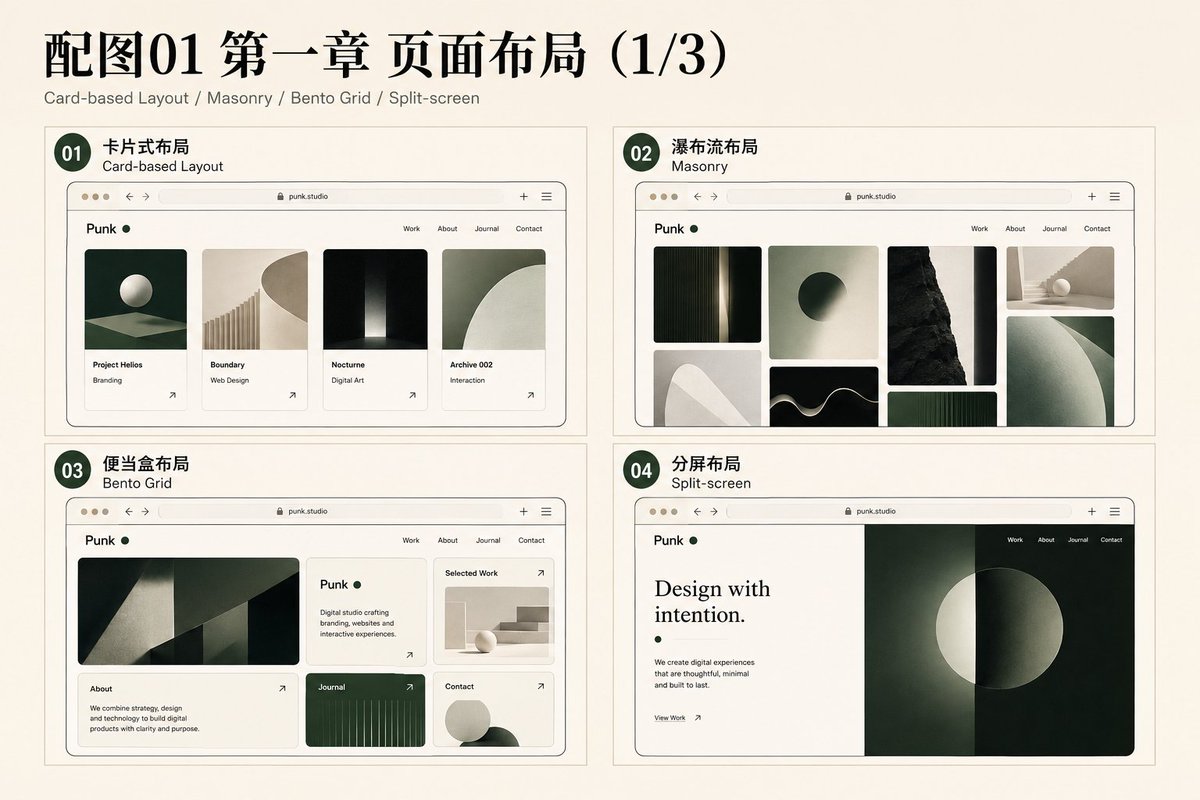
5. CSS Grid Layout
Organizes two-dimensional content according to explicit rows and columns. Different modules can span across varying numbers of grid columns, allowing the creation of regular or asymmetrical layouts.
Suitable for: complex homepages, magazine layouts, dashboards, asymmetrical portfolios, responsive modules.
Build a portfolio page with CSS Grid. Use a 12-column grid on desktop: the primary project spans 8 columns, its description spans 4, and remaining projects each span 4 columns;
switch to 6 columns below 900px and a single column below 640px.
Use `grid-template-columns` and `gap`; do not use CSS `order` to change a meaningful reading order or rely on absolute positioning to assemble the layout.
6. Flexible Layout Flexbox
Allows a group of elements to be arranged along a single main axis, good at handling alignment, spacing, wrapping, and order in a row or column.
Suitable for: Top navigation, toolbars, button groups, tags, avatar information, inside cards.
Implement the top navigation with Flexbox: place the brand mark on the left and Work, About, Writing, Contact, and a theme toggle on the right;
align the ends and center them vertically. Hide the text navigation on small screens and show a hamburger menu.
7. Sidebar Layout
One side of the page permanently retains an auxiliary area, while the other side displays the main content. The sidebar can accommodate personal information, table of contents, categories, filter conditions, or backend navigation.
Suitable for: blogs, documentation sites, admin panels, portfolio archives, settings pages.
Add a 260px-wide left sidebar to the Journal page with an avatar, introduction, categories, tags, and social links; show the article list on the right.
Make the sidebar sticky on desktop; collapse it into a top filter panel on mobile.
8. Dashboard Layout
Composed of modules such as a sidebar, top toolbar area, statistic cards, charts, tables, and activity logs, focusing on information density and task efficiency.
Suitable for: Content backends, project management, data products, CMS, AI tool consoles.
Create a personal creator dashboard. The left navigation includes Overview, Projects, Writing, Analytics, and Settings;
place search, notifications, and an avatar at the top; show four statistic cards, recent projects, and traffic trends in the main area.
Use a fixed sidebar on desktop and a drawer on mobile.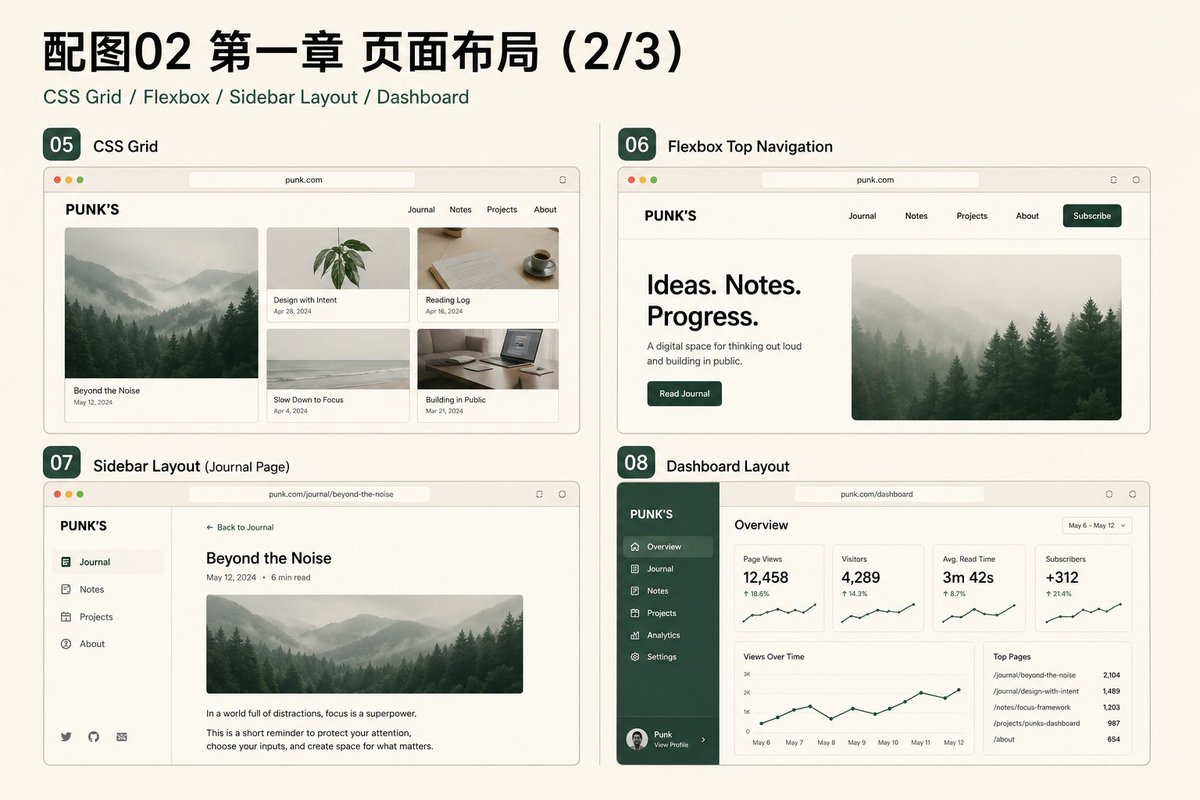
9. Responsive Layout
Responsive design is not simply shrinking a desktop page, but rearranging content, navigation, and interactions according to screen width.
Suitable for: Almost all user-facing web pages.
Define desktop, tablet, and mobile layout states for the website.
Use a 1200px maximum container width on desktop, two-column cards on tablet, and a single column with a hamburger navigation on mobile;
prevent horizontal scrolling and ensure touch targets are sufficiently large.
10. Full-bleed Layout
Allow images, videos, or color blocks to extend beyond the regular content container, reaching all the way to the edges of the viewport. This is commonly used for immersive openings and chapter transitions.
Suitable for: Brand homepages, project openings, photography websites, product launches, immersive storytelling.
Create a full-bleed Hero: make the background visual fill the browser width and occupy about 90vh, with an oversized title, introduction, and View Work button in the foreground;
return to a centered 1120px content container after the Hero, and ensure sufficient contrast for foreground text.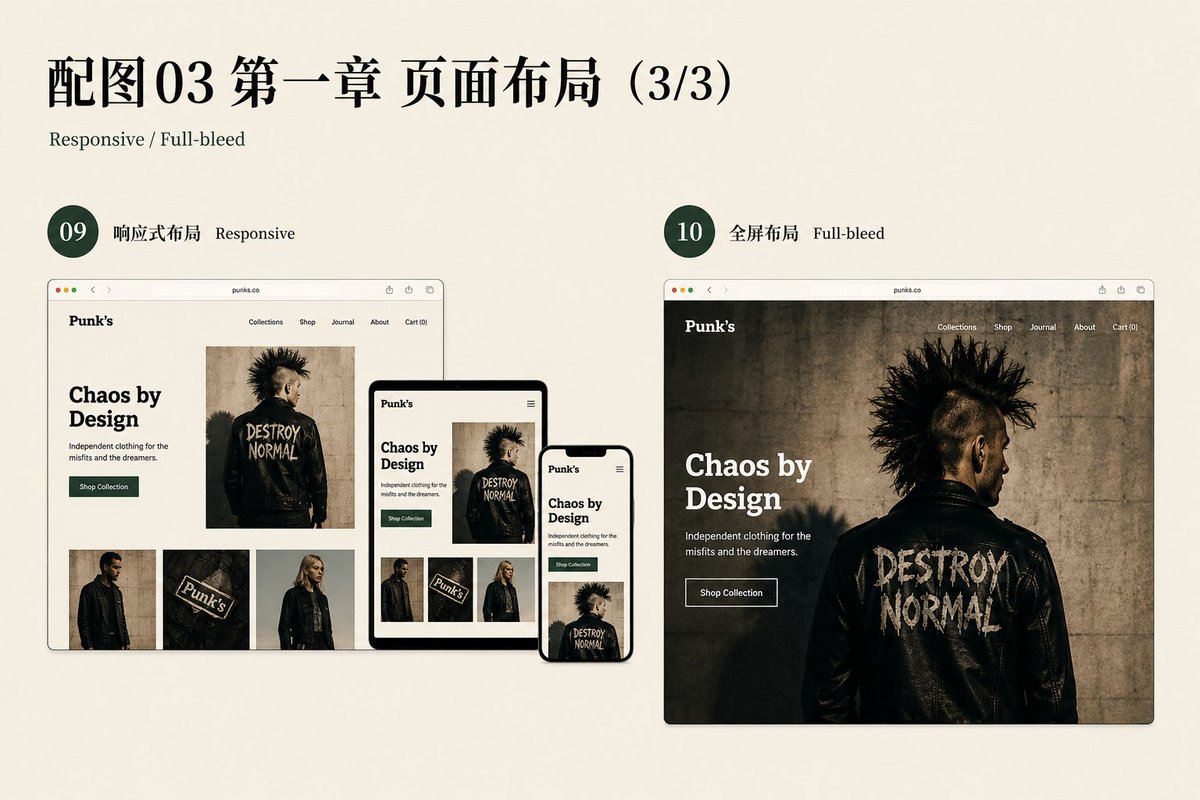
Chapter 2: Page Structure
Page structure determines the order of information and how a page fully conveys a topic.
11. Single-page Website
The main content is concentrated on a single page, and users browse each section sequentially by scrolling or using anchor links.
Suitable for: personal business cards, lightweight portfolios, event pages, early product introductions, small official websites.
Create a single-page portfolio website with sections in this order: Hero, About, Selected Work, Writing, Contact, and Footer.
Use anchor navigation to reach each section; give every section a semantic heading and a unique `id`.
Disable smooth scrolling when `prefers-reduced-motion: reduce` is enabled, and after navigation move focus to the target content or preserve a clear focus order.
12. Multi-page Website
Provides separate pages and URLs for different content, making it easier to expand, share, index, and establish a clear information architecture.
Suitable for: Mature portfolios, blogs, corporate websites, content sites, and websites with many projects.
Plan seven page types: Home, Work, Project Detail, About, Journal, Article, and Contact.
All pages share a Header and Footer;
the navigation indicates the current page; clicking a project card opens a separate detail URL.
13. Landing Page
Organize content around a single goal such as registration, purchase, appointment, download, or contact, and each section of the page should drive the same action.
Suitable for: AI products, courses, events, newsletters, personal services, and portfolio releases.
Create a booking-focused landing page for an AI design service, with a Hero, value proposition, collaboration process, three case studies, client testimonials, FAQ, and a final CTA in that order.
Use the same action copy on primary buttons and remove complex entry points unrelated to booking.
14. Case Study Page
A case study page not only shows the results, but should also explain the background, problems, responsibilities, processes, key decisions, solutions, outcomes, and reviews.
Suitable for: Designers' or developers' portfolios, product projects, brand cases, job application materials.
Create a project case-study page with a project overview, background problem, personal responsibilities, process, key decisions, final solution, outcome metrics, and reflection.
Use a large cover at the top, a narrower line length for body content, and full-width process images; provide a sticky table of contents on the right on desktop.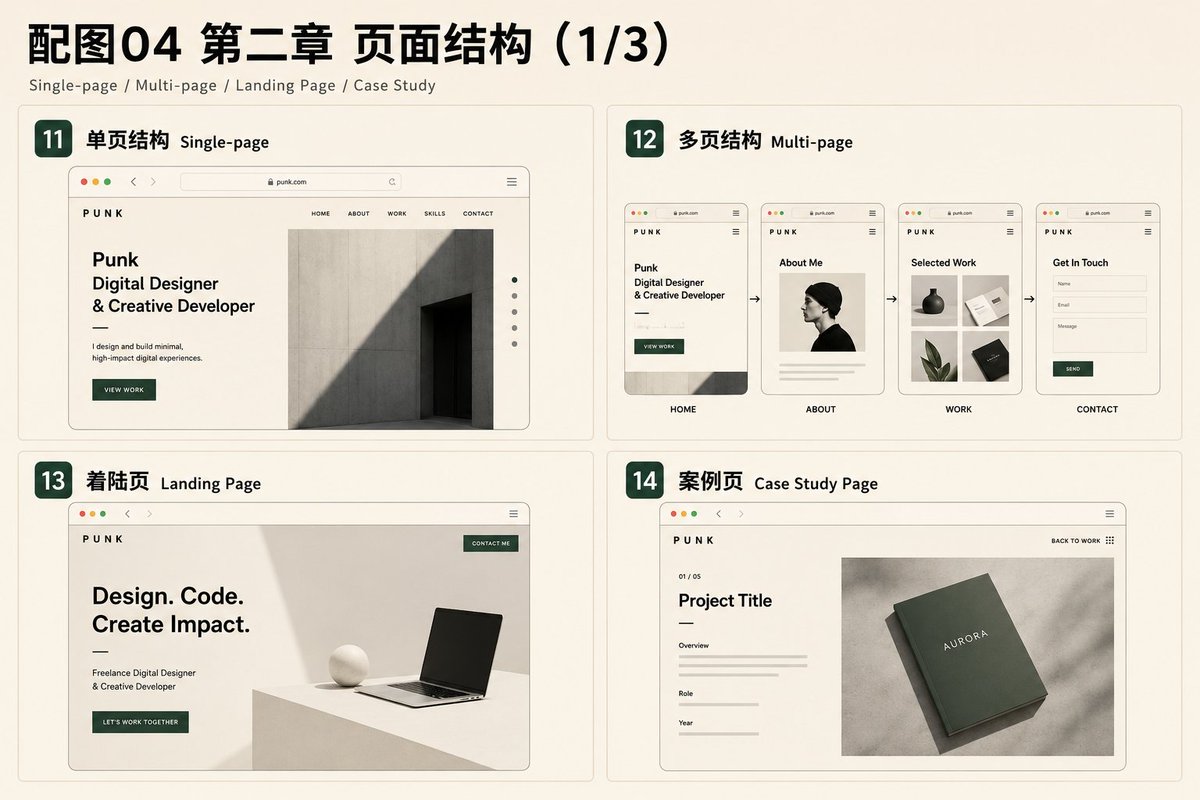
15. First Screen Hero Section
The area that users see first when they enter the page should quickly explain "who you are, what you do, why it's worth continuing to look, and what the next step is."
Suitable for: Homepages, landing pages, and key entry pages.
Create an information-rich Hero. Let the main headline directly summarize the professional positioning, keep the subtitle to no more than two lines, and provide View Work and Contact buttons;
pair it with a low-saturation abstract interface visual on the right, without unrelated stock people or office scenes.
16. Feature Grid
Use three to six parallel modules to introduce capabilities, services, or product features, each typically including an icon, a title, and a brief description.
Suitable for: Capability introduction, product features, service lists, advantage display.
Add a four-item Feature Grid below About: Design, Frontend, AI Prototyping, and Writing.
Give each item a line icon, title, and description of no more than two lines; use four columns on desktop, two on tablet, and one on mobile, while avoiding heavy shadows.
17. Sticky Storytelling
One side of the content remains fixed, while the other side changes stages as you scroll, allowing complex processes to unfold according to the storytelling rhythm.
Suitable for: Product stories, project processes, timelines, complex feature explanations, brand storytelling.
Design a Sticky Storytelling section. On desktop, the left side takes about 38%, remains fixed, and displays the current stage;
the right side scrolls through Discover, Design, and Build in sequence.
Update the left content when a new stage begins; remove sticky behavior and use a normal vertical layout on mobile.
18. Timeline
Use lines and nodes to present experiences, versions, milestones, or project progress in chronological order.
Suitable for: Professional experience, project milestones, product versions, company history, learning paths.
Add a vertical timeline to the About page. Each node includes a year, event title, and two-line description;
place content to the right of the axis on desktop and keep a single column on mobile; use a thin line and simple circular nodes.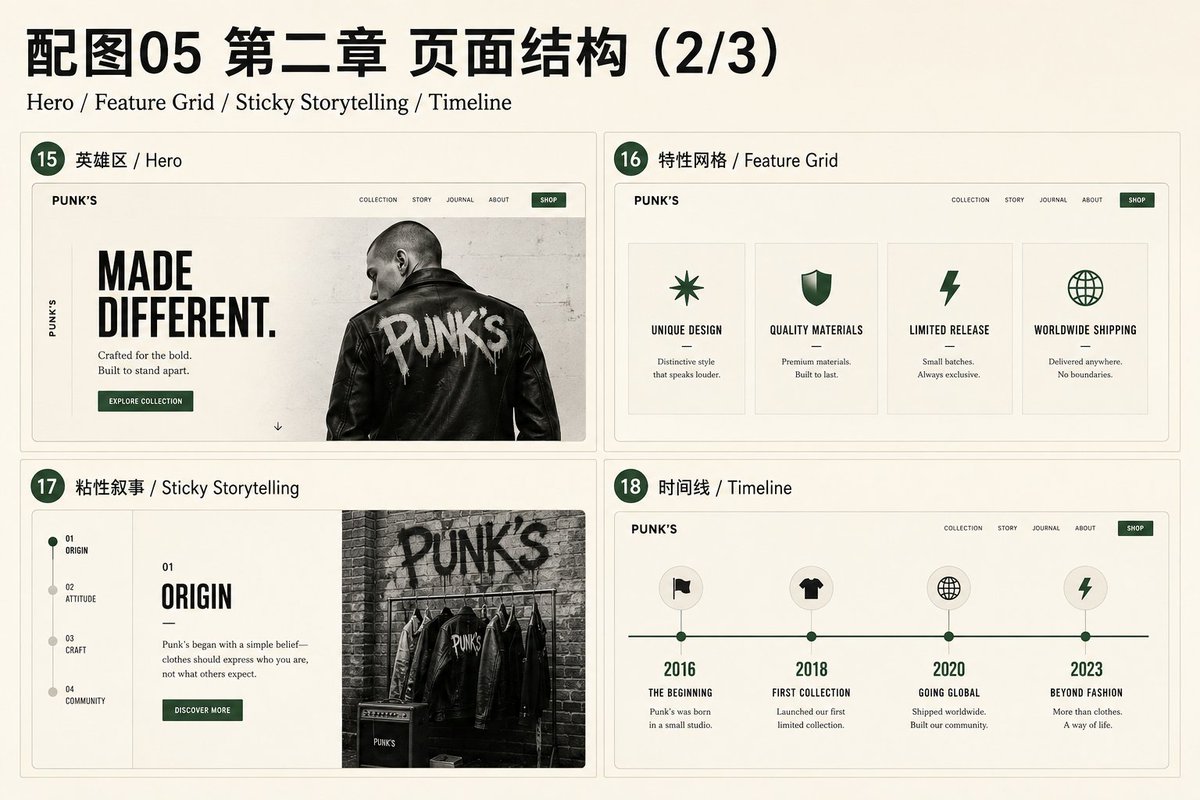
19. Common Questions FAQ Section
Concentrate on answering common questions at the back of the page, usually presented in a collapsible panel, helping users eliminate concerns before taking action.
Suitable for: Service descriptions, pricing pages, courses, collaboration processes, product Q&A.
Add six FAQ items before the contact section. Use a native `button` for each heading, placed within a heading element appropriate to the document outline;
connect each content panel with `aria-expanded` and `aria-controls`.
Whether only one item may be open should depend on the reading task, not be a fixed Accordion rule.
20. Footer
The closing area at the bottom of the page, used to hold secondary navigation, social links, contact information, copyright, and subscription entry.
Suitable for: All complete websites.
Design a complete footer: place the brand and a short description on the left, three link groups named Explore, Connect, and Elsewhere in the middle, an email address and subscription form on the right, and copyright and privacy links at the bottom.
Use a dark green background with warm white text to create a clear boundary from the main content.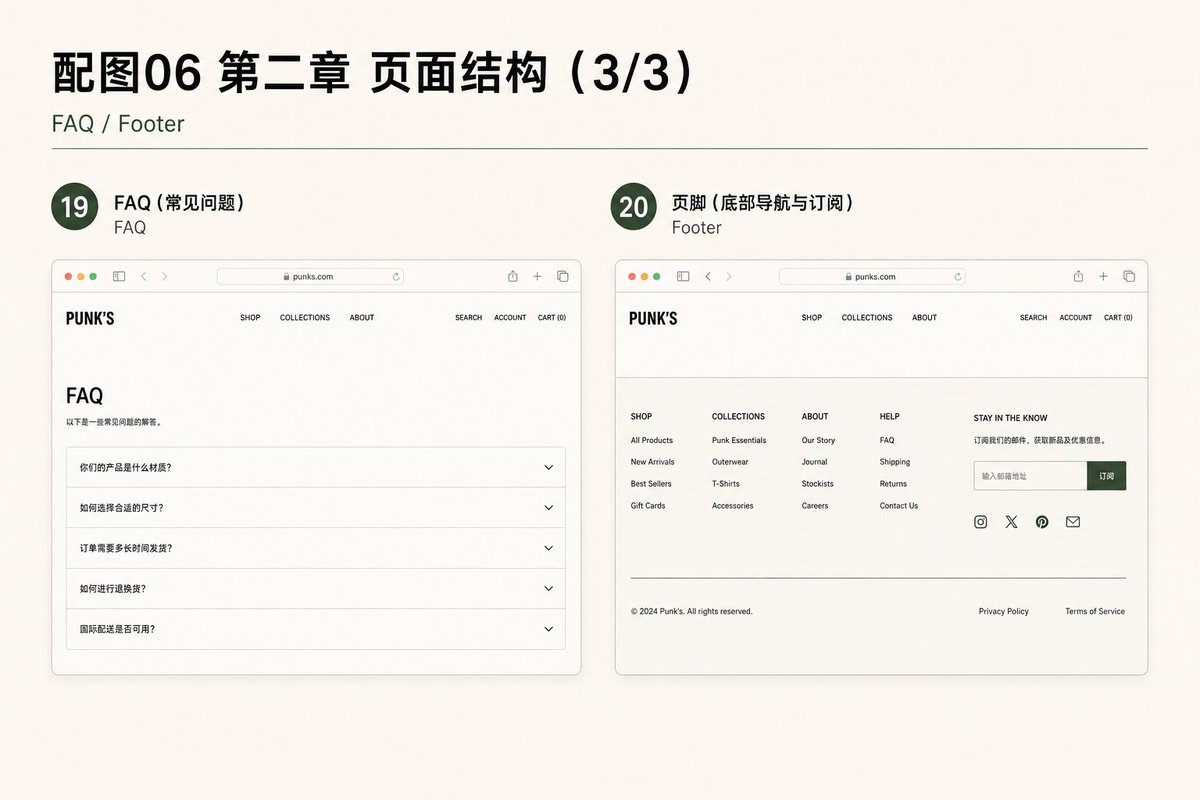
Chapter 3: Navigation and Switching Navigation
A navigation system needs to continuously answer three questions: Where is the user currently? Where can they go? What will happen after triggering an action?
21. Sticky Navbar
When the user scrolls down, the top navigation remains in the viewport, suitable for long pages and content that requires frequent switching.
Suitable for: Long pages, single-page websites, documentation, landing pages, portfolios.
Add a Sticky Navbar. Keep its background transparent at the top of the page, then switch to a warm white background, thin border, and subtle backdrop blur after scrolling more than 40px;
keep the navigation height unchanged during the transition, and use a hamburger menu on mobile.
22. Hamburger Menu
A compact navigation entry commonly used on mobile devices, which expands into a full menu when clicked, usually paired with a Drawer or full-screen overlay.
Suitable for: Mobile websites, small-screen interfaces, minimalist navigation, websites with few entry points.
Show a hamburger button below 768px that opens a Drawer from the right containing the primary page entries.
Lock background scrolling while the menu is open; support Esc, backdrop clicks, and complete keyboard focus management.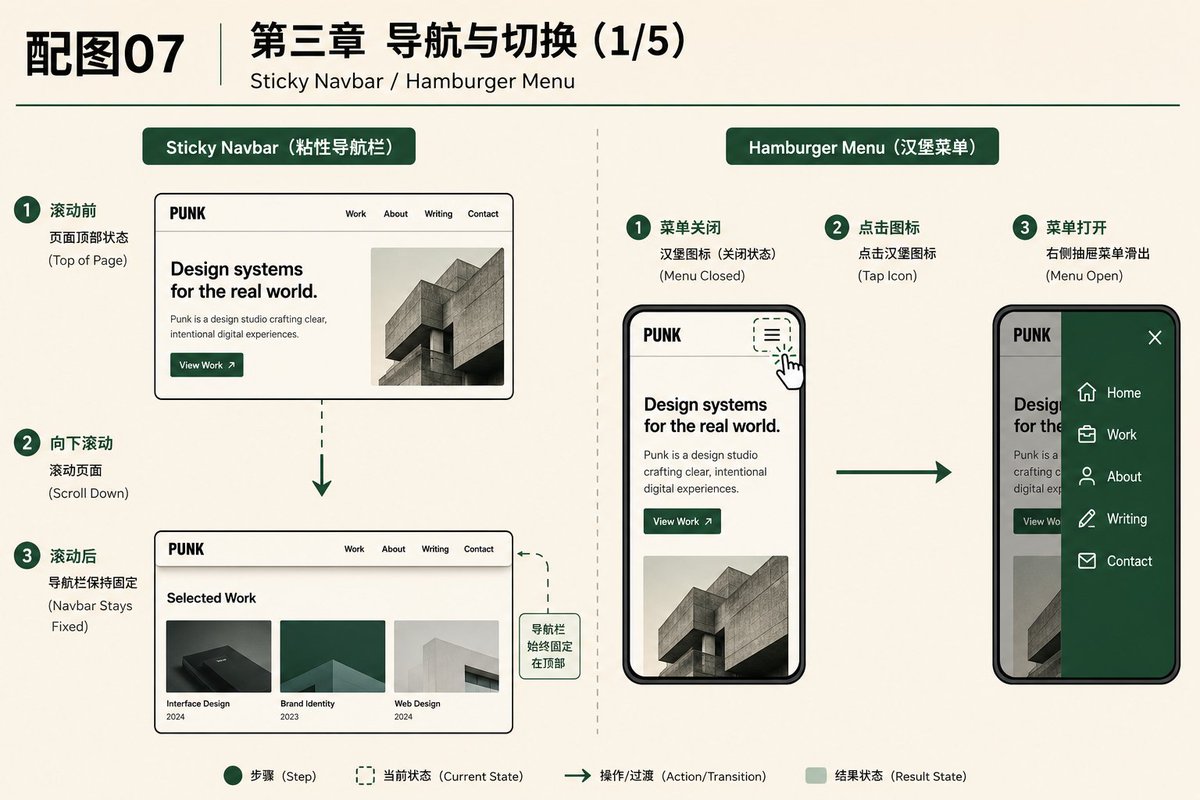
23. Breadcrumb
Displays the page hierarchy path at the top of the content to help users understand the current page's position within the entire site.
Suitable for: Multi-level websites, e-commerce, blogs, documentation, project detail pages.
Add Home › Work › AI Tools › Project Detail at the top of project details.
Use a `nav` with `aria-label="Breadcrumb"` and an ordered list; the final item represents the current page, is not a link, and has `aria-current="page"`.
24. Anchor Link
Clicking the entry moves to the target section of the current page, rather than opening a new page.
Suitable for: Single-page websites, long articles, landing pages, document directories, in-page directories.
Add in-page anchors for About, Work, Writing, and Contact. Reserve space for the fixed Header when scrolling to a target, and highlight the corresponding navigation item according to the currently visible section;
motion must respect the `prefers-reduced-motion` setting.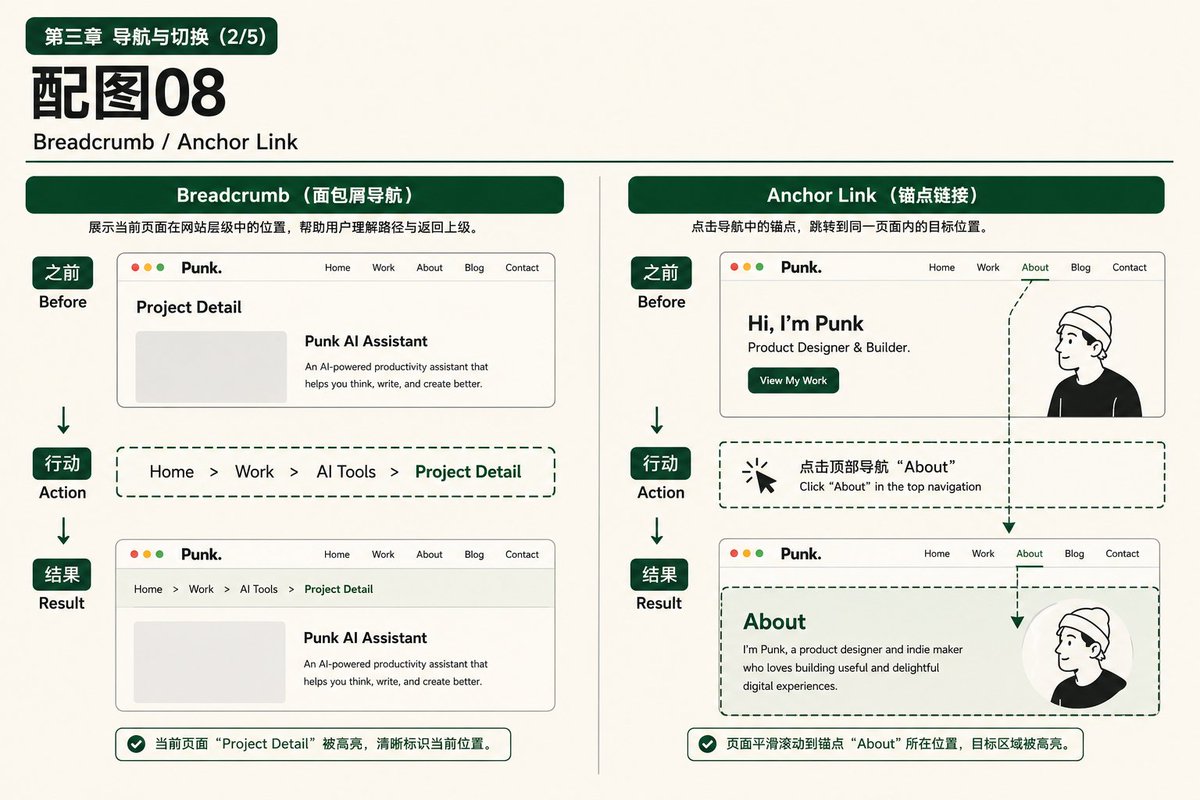
25. Tab Switching Tabs
Multiple peer tabs share a single content area, and the user can view only one panel at a time.
Suitable for: Content categorization, data views, settings, project filtering, periodic charts.
Add four tabs to the work section: All, Web, AI, and Experiments, with All selected by default.
Use `tablist`, `tab`, `tabpanel`, `aria-selected`, and roving `tabindex`; support Left and Right arrow keys horizontally, with Home and End moving to the first and last tabs.
Use automatic activation on focus only when panels can display instantly; otherwise require Enter or Space to confirm the switch.
26. Sidebar Navigation
Keep the main entry points on the side of the page for a long time. This is suitable for systems with many navigation items, deep hierarchies, or frequent task switching.
Suitable for: Backend, documentation, settings pages, complex tools, content management.
Add sidebar navigation to the creator dashboard with Overview, Projects, Posts, Media, Analytics, and Settings.
Identify the current page with an accent color and icon, make secondary menus collapsible, and move the entire navigation into a Drawer on mobile.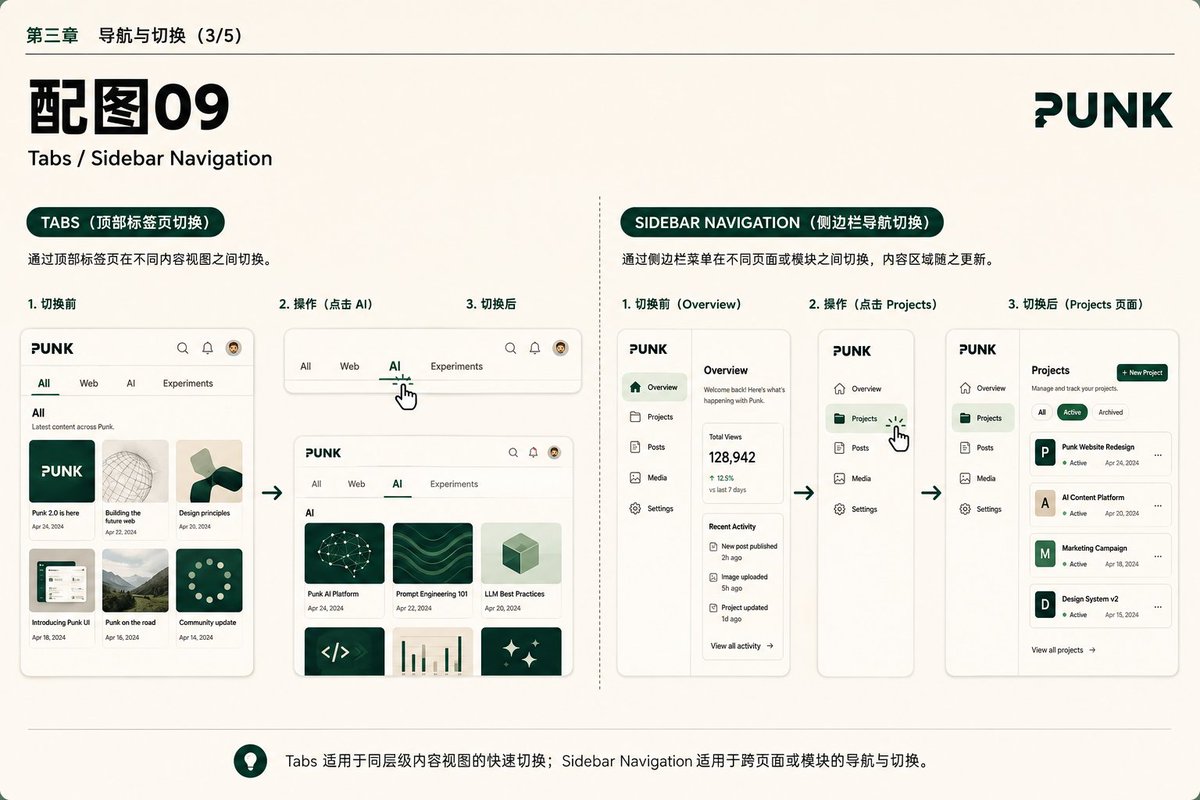
27. Mega Menu
Click the main navigation to expand a large, multi-column menu, which can simultaneously display categories, subpages, and featured content.
Suitable for: Websites with a large amount of content, product matrices, resource centers, and complex project classifications.
Make the Work entry open a three-column Mega Menu that shows Projects, Experiments, and Resources, with a featured project preview on the right.
Open the menu on click, support keyboard controls and Esc, and use an Accordion on mobile.
28. Bottom Navigation
Display three to five of the most important entries fixed at the bottom on mobile devices to facilitate thumb reach and high-frequency switching.
Suitable for: Mobile Web Apps, Dashboards, content tools, creative tools.
Display five fixed entries on mobile: Home, Projects, Create, Notes, and Profile. Use a filled icon and accent color for the current item.
Respect `safe-area-inset-bottom`; hide the entire component on desktop.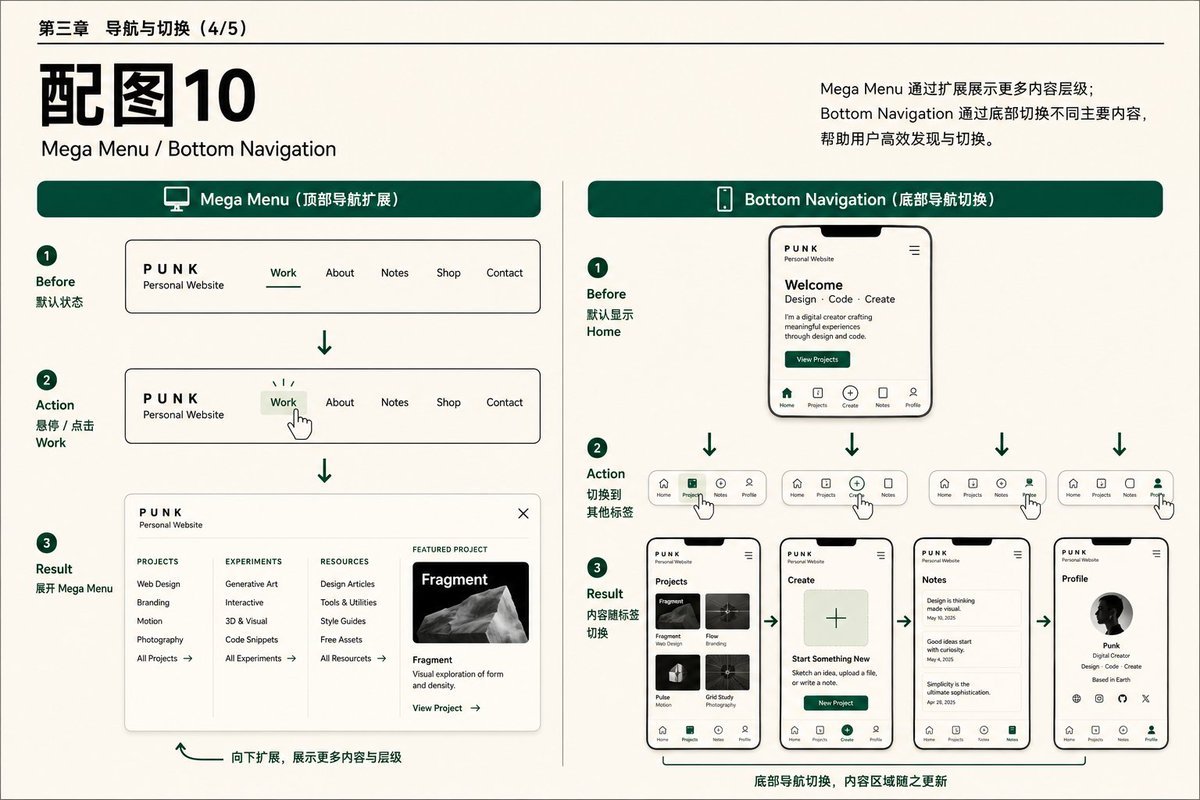
29. Pagination
Divide long lists into multiple fixed pages. Users navigate through page numbers, previous page, and next page.
Suitable for: Blog archives, search results, backend tables, portfolio lists, large data lists.
Add pagination to the article archive, showing 10 items per page. Provide Previous, page numbers, and Next at the bottom;
make the current-page state clear and persist the page number in a URL such as `?page=2`. Use real links for pagination so refresh, sharing, and back navigation work.
30. Back to Top
A quick button appears when the page is scrolled a certain distance, allowing users to quickly return to the top of the page.
Suitable for: long articles, long work pages, documents, long lists.
Show a back-to-top button in the bottom-right after scrolling more than 800px. Give the button understandable visible text or `aria-label="Back to top"`;
allow smooth scrolling in the default mode and jump directly when `prefers-reduced-motion: reduce` is enabled. Ensure the keyboard focus location remains sensible after returning to the top.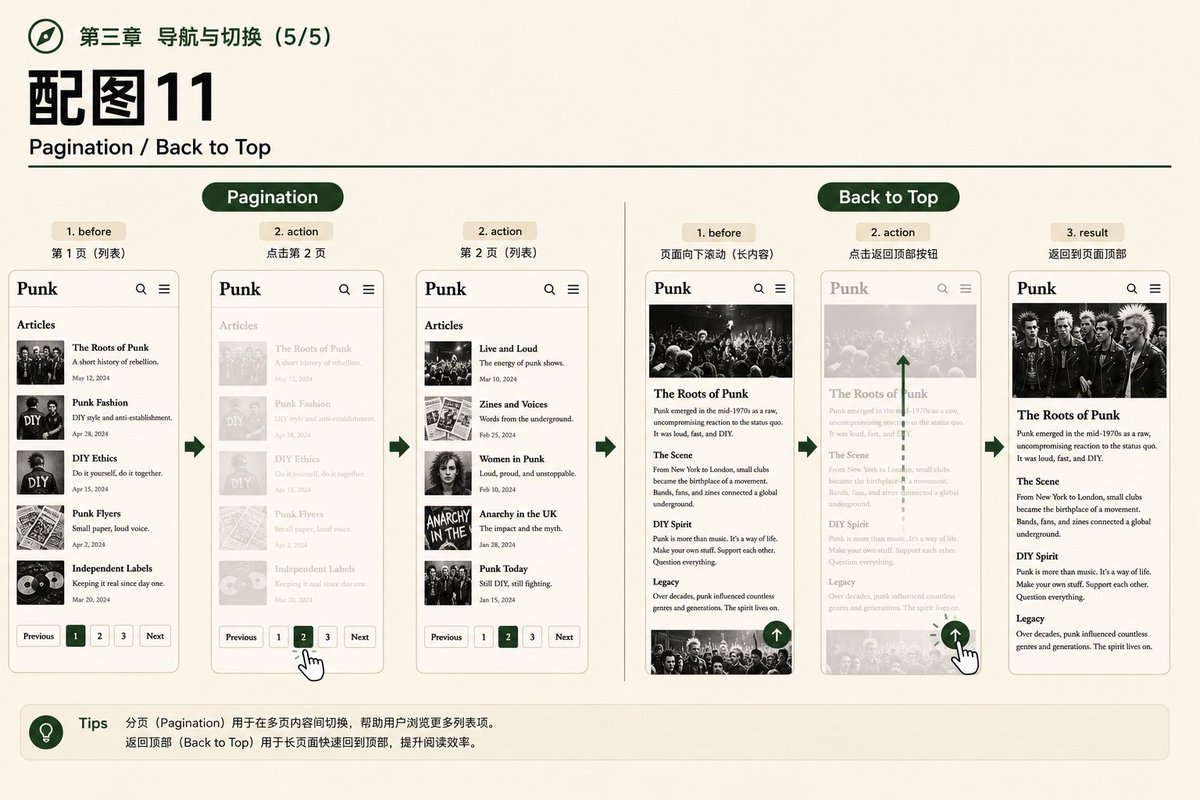
Chapter 4: Common Components UI Components
Components are local interaction units that require clear triggering, state changes, closing methods, feedback, and accessibility behaviors.
31. Modal
A dialog that overlays on the current page. Users need to handle or close it before they can continue interacting with the background content.
Suitable for: Contact forms, confirmation actions, login, quick previews, tasks that must be prioritized.
Make the Contact button open a Modal containing a name, email, project type, and message form.
Prefer the native `<dialog>` element and `showModal()`; give the dialog an accessible name and a clear close button, and choose a suitable initial focus target;
return focus to the trigger after closing. Keep the browser-provided Esc closing behavior and background `inert` behavior.
32. Drawer
A panel that slides out from the edge of the screen, allowing navigation, filtering, settings, or details to be displayed while keeping the context of the main page.
Suitable for: Mobile navigation, filtering, settings, detail previews, shopping carts, notification centers.
Open a 420px-wide detail Drawer from the right after a project card is clicked, showing its cover, introduction, technology stack, and visit link.
Manage initial focus and focus trapping when it opens so background content cannot be interacted with; support Esc and a clear close button, then restore focus to the trigger when it closes.
On mobile, open it from the bottom at close to full-screen size.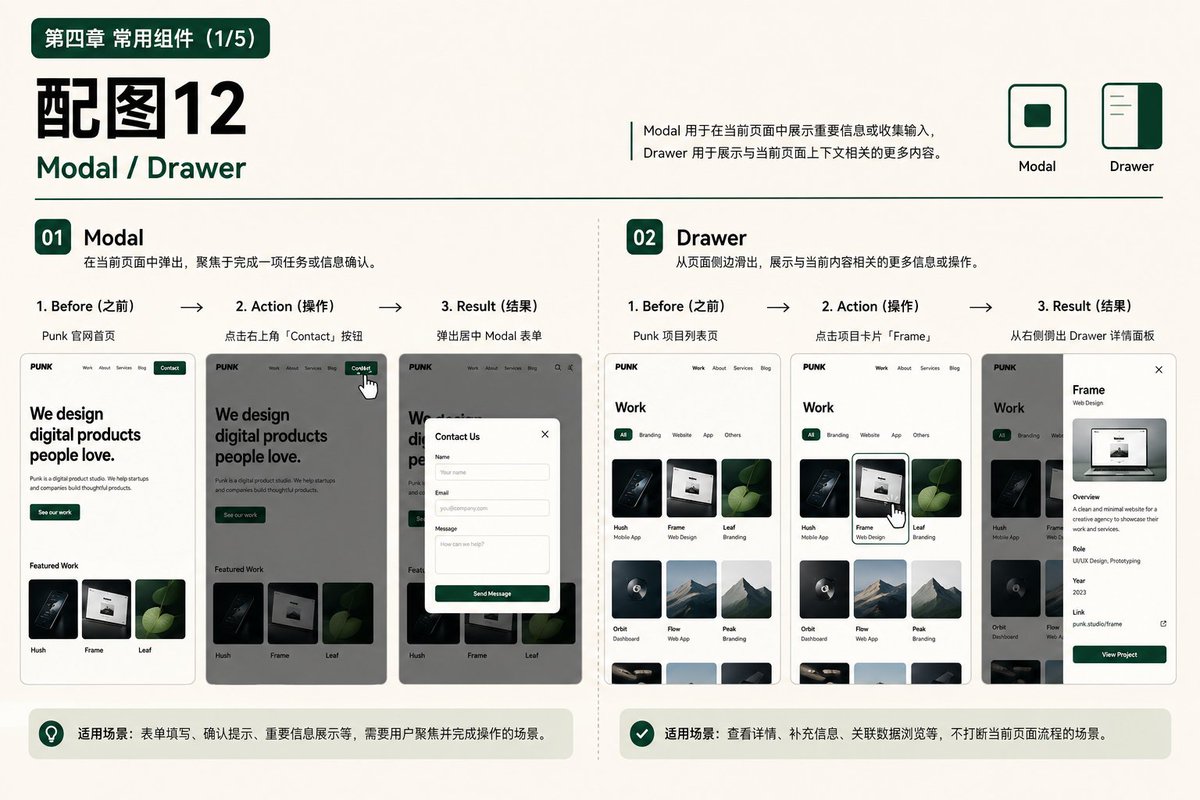
33. Accordion
Arrange multiple headers vertically. Clicking a header expands or collapses the corresponding content, suitable for organizing information in limited space.
Suitable for: FAQ, mobile menus, filters, course catalogs, grouped explanations.
Implement an Accordion. Place each `button` in a heading element appropriate to the document outline, and connect its content panel with `aria-expanded` and `aria-controls`;
change the icon state when expanded, using 200 ms as the starting transition duration. Restrict it to a single open item only when product requirements explicitly call for it.
34. Tooltip
When the mouse hovers over or the keyboard focuses on the trigger element, a brief supplemental explanation is displayed nearby.
Suitable for: icon explanations, term supplements, button names, chart data explanations.
Add a Tooltip to icon-only actions, supporting both hover and focus.
Limit its content to one short phrase; the Tooltip itself must not enter the Tab order, and it must be connected to the trigger with `role="tooltip"` and `aria-describedby`.
Keep it visible while the pointer is over the trigger or Tooltip, and close it on Esc;
use a visible label or equivalent explanation on touch devices.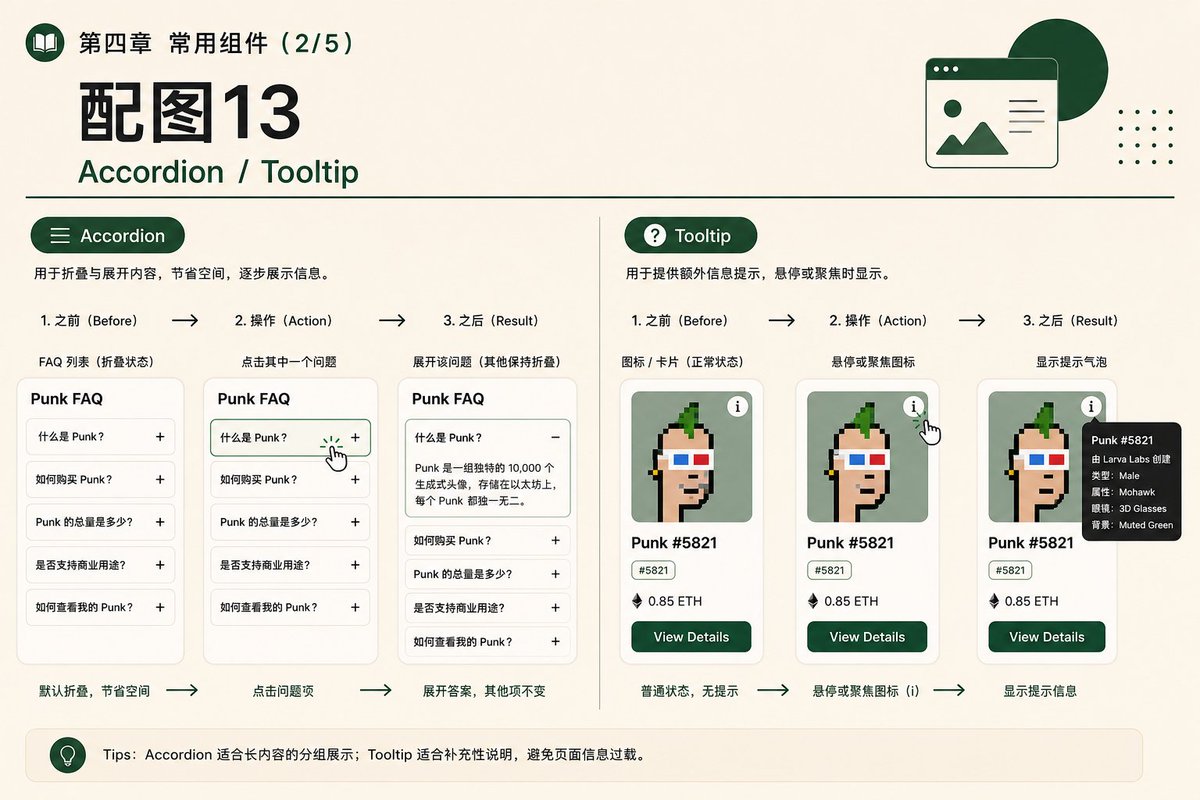
35. Light Tip Toast
A brief status message that appears after an operation is completed, usually located in a corner of the viewport, and does not interrupt the current task like a Modal.
Suitable for: saving, copying, publishing, deleting, network status, and lightweight feedback.
Show a Toast in the top-right after a successful save, including a status icon, message, and close button. Ordinary success messages may disappear after four seconds;
messages with actions, error messages, and Toasts that receive keyboard focus must not close automatically.
Use `role="status"` for success states and `role="alert"` for errors requiring immediate attention, avoiding duplicate attributes that cause repeated announcements.
36. Carousel
Switch multiple items within a limited area, usually equipped with previous and next buttons, indicators, and the current number.
Suitable for: Featured items, customer reviews, product screenshots, event banners.
Create a Featured Projects Carousel that emphasizes one project at a time while revealing part of the next item.
Provide Previous, Next, and a 01 / 05 counter; do not autoplay by default, support touch and keyboard input, and disable sliding animation when `prefers-reduced-motion: reduce` is enabled.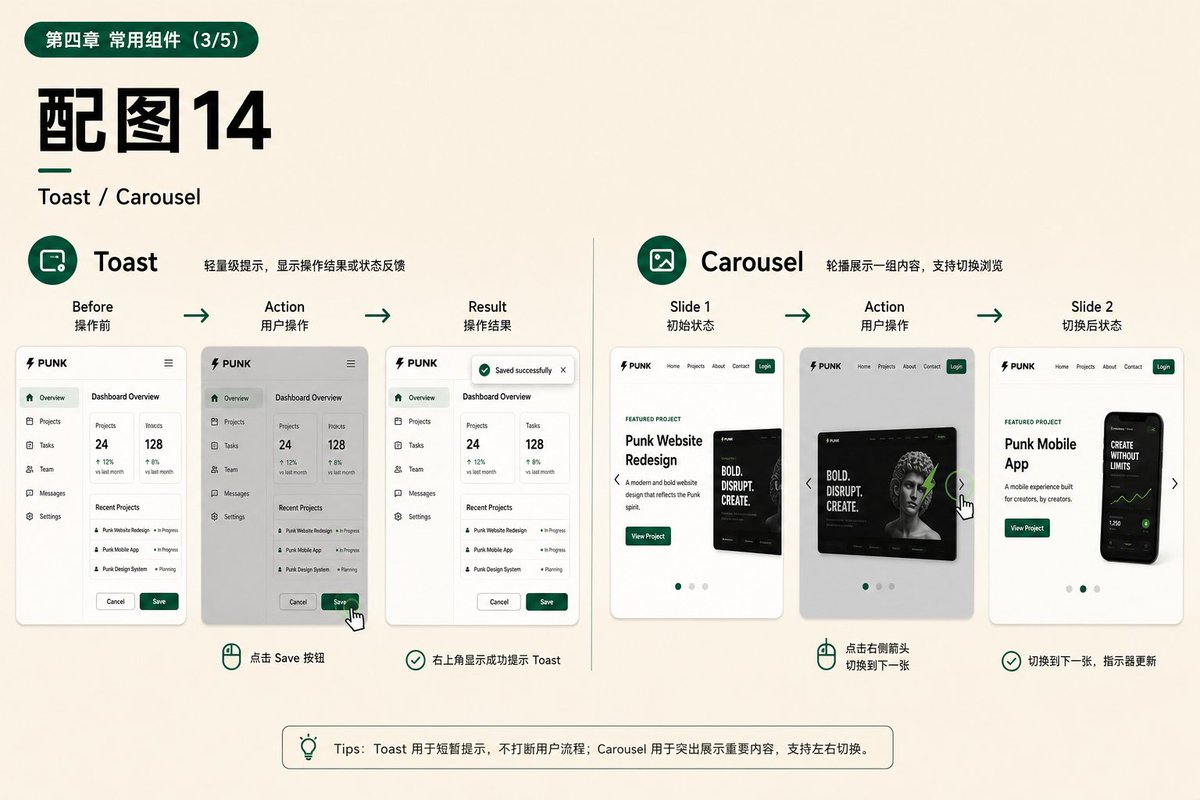
37. Image Lightbox
After clicking the thumbnail, a large image is displayed on a mask layer, providing options to close, switch, and view title information.
Suitable for: Photography, AI works, illustrations, project screenshots, visual portfolios.
Add a Lightbox to the portfolio gallery. Display the full-size image after a thumbnail is clicked, support previous and next navigation, Esc closing, and title display, and lock background scrolling;
the trigger must be keyboard accessible, and every image must have accurate alt text.
38. Form
Consists of controls such as labels, input fields, selectors, checkboxes, and submit buttons, used to collect structured information.
Suitable for: Contact, subscription, login, search, appointment, settings.
Create an accessible contact form with Name, Email, Project Type, Budget Range, and Message.
Give every field a visible label and clearly associate error messages with their fields;
show a loading state during submission, provide a Toast after success, and do not clear inputs until the server confirms success.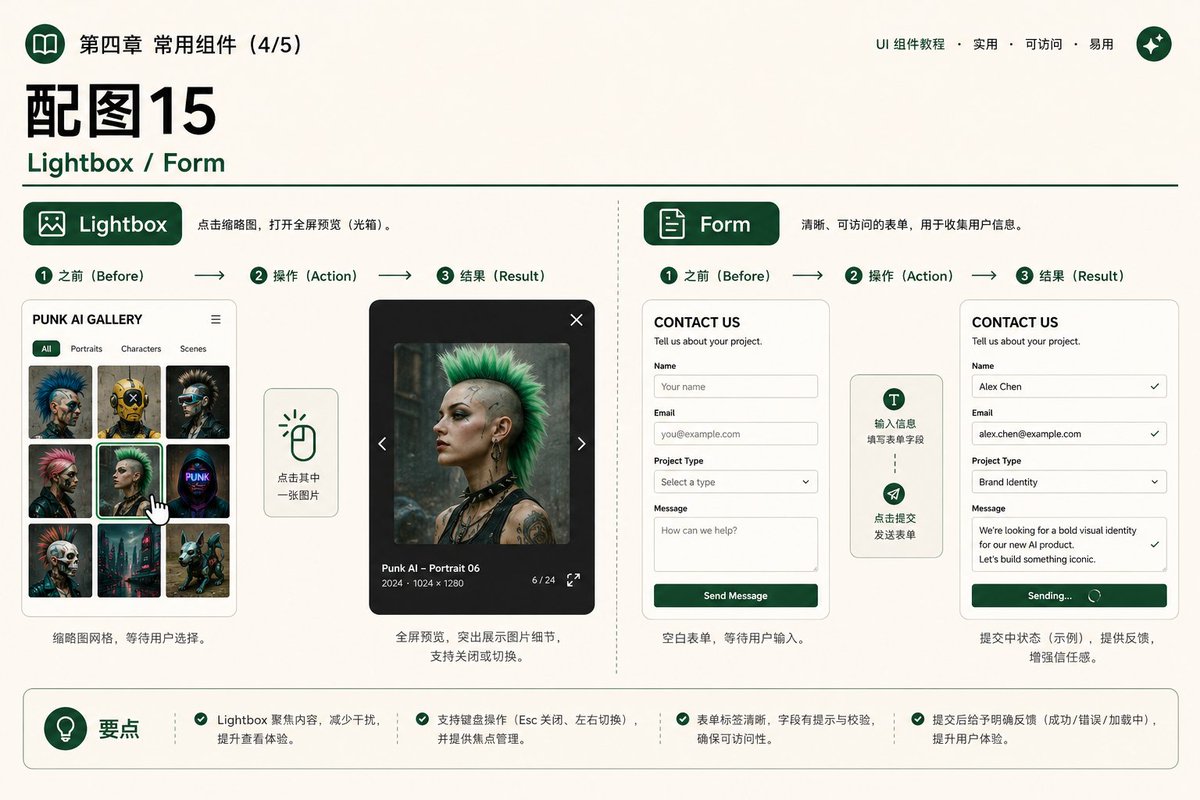
39. Command Palette
A search and action panel triggered by a shortcut key, allowing users to quickly navigate pages or execute commands using the keyboard.
Suitable for: Developer tools, documentation sites, complex personal websites, dashboards, productivity tools.
Add a Command Palette that opens with Command+K or Ctrl+K.
Support searching pages and actions, use Up and Down arrow keys to select, Enter to execute, and Esc to close, and group results into Pages and Commands.
40. Floating Action Button (FAB)
Primary actions fixed at the corner of the viewport, often used for adding, creating, or quick contact.
Suitable for: Dashboards, mobile tools, creative applications, quick contact, primary addition actions.
Add a Floating Action Button with a plus icon to the bottom-right of the project dashboard. On click, expand New Project, New Post, and Upload Image actions.
The button must not obstruct bottom navigation or primary content, and must respect mobile safe areas.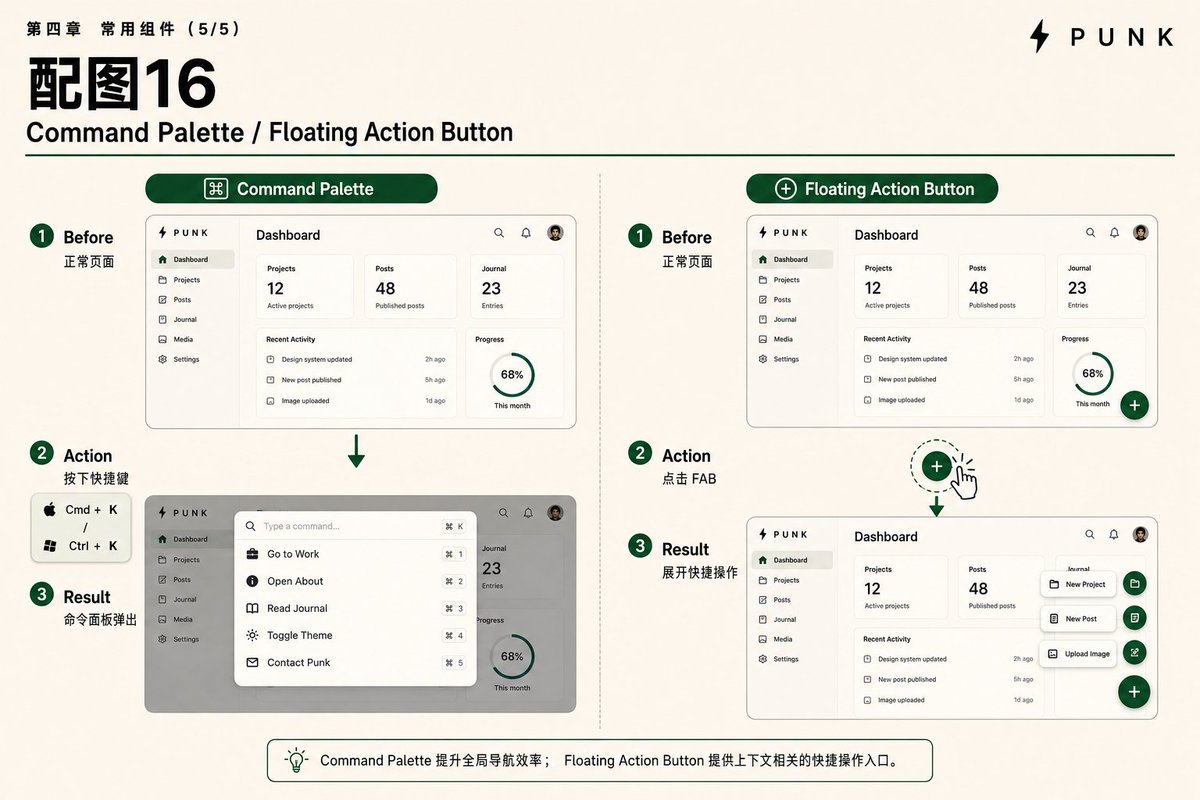
Chapter 5: Scroll & Motion
Motion effects are responsible for establishing rhythm, explaining spatial relationships, and confirming interactions. They should not make each element take turns “performing,” nor should they hinder reading and interaction.
41. Scroll Reveal
Elements fade in, slightly move upward, or scale when entering the viewport, used to indicate reading order and section changes.
Suitable for: long pages, personal introductions, project cases, data blocks, section transitions.
Add Scroll Reveal to headings, body content, and project cards. Fade elements in and move them upward by 16px as they enter the viewport, with a duration of 400-600 ms;
cards in a group may be lightly staggered, but do not animate the entire page at once. Under `prefers-reduced-motion: reduce`, remove movement and show content directly or with only a brief fade.
Content must remain visible by default even if scripts fail.
42. Parallax Scrolling
Move the foreground, midground, and background at slightly different speeds to create a sense of spatial depth. The amplitude should be restrained to avoid disrupting readability.
Suitable for: Hero sections, brand stories, portfolio covers, immersive chapters, visually-oriented personal websites.
Add lightweight parallax to the Hero: background abstract shapes move the slowest, semi-transparent mid-layer panels move at a medium speed, and the foreground title stays in normal document flow.
Limit maximum displacement and avoid dramatic scaling; reduce the intensity on mobile and disable it entirely under `prefers-reduced-motion: reduce`.
Animate only `transform` and `opacity` to avoid continuous layout work during scrolling.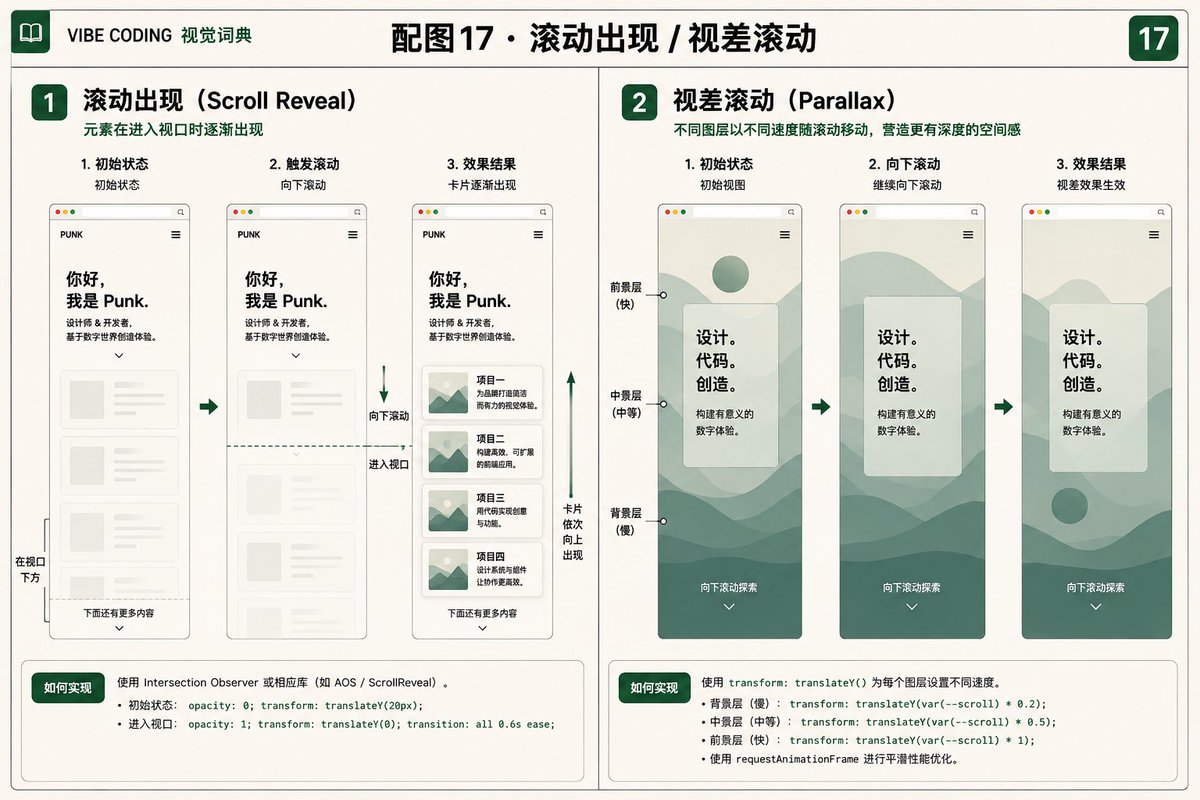
43. Reading Progress Bar Scroll Progress Indicator
Display the reading progress of an article based on scroll position, which can be a thin line at the top, side markings, or a circular percentage.
Suitable for: Long articles, blogs, case studies, tutorials, documents.
Add a 3px dark green reading-progress line at the top of long articles, positioned below the sticky navigation and growing from left to right.
Prefer CSS Scroll-driven Animation; batch updates in `requestAnimationFrame` for the JavaScript fallback.
Use `aria-hidden="true"` for a purely decorative progress line;
if progress must be provided to assistive technology, use a named `<progress>` element and do not announce every percentage change at high frequency.
44. Scroll Snap
Automatically aligns to preset cards or sections after scrolling ends, creating a browsing experience similar to page-turning.
Suitable for: horizontal portfolios, full-screen sections, mobile cards, product stories.
Use CSS Scroll Snap for horizontally featured work.
Set `scroll-snap-type: inline proximity` on the container's inline axis and `scroll-snap-align: center` on every card;
use `mandatory` only when page-by-page snapping is truly necessary.
Preserve natural touch and trackpad inertia, provide previous and next buttons on desktop, and do not take over vertical page scrolling.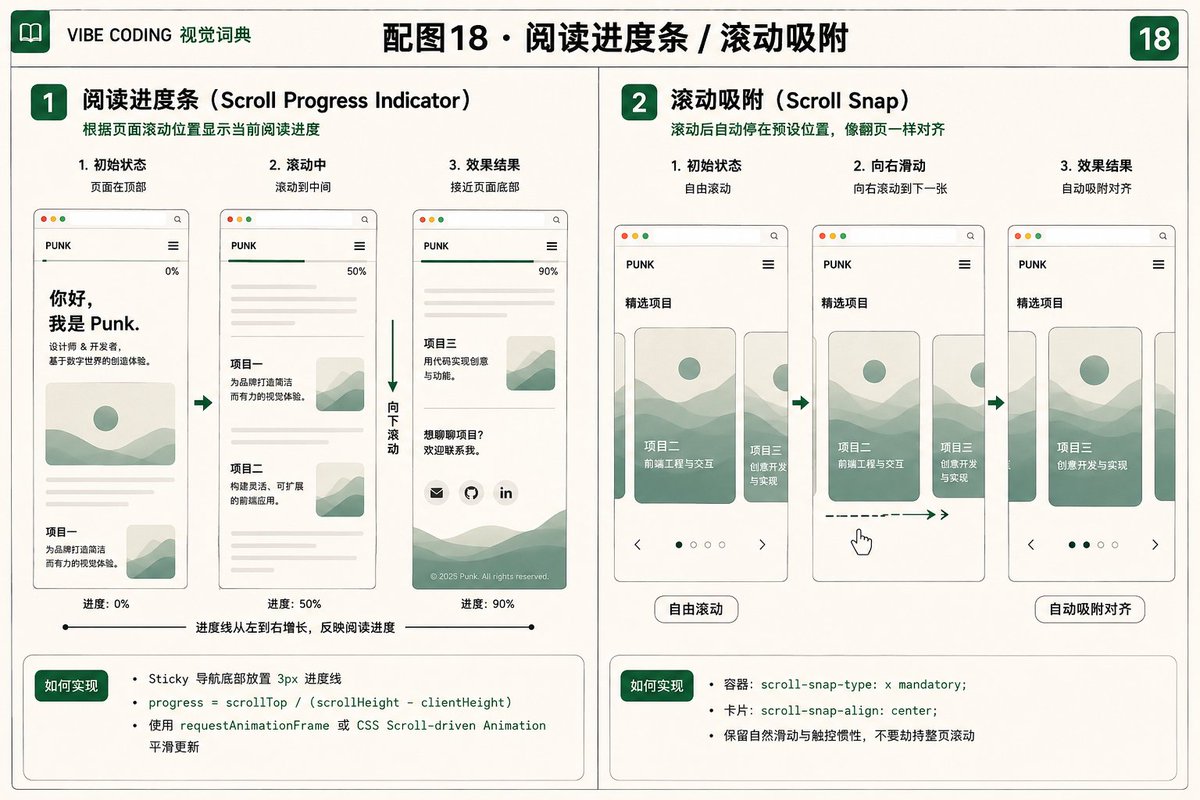
45. Horizontal Scroll
Content extends horizontally, suitable for a row of works, a timeline, or a gallery. The interface needs to clearly indicate that there is more content.
Suitable for: Project galleries, timelines, client logos, mobile works, horizontal storytelling.
Create a horizontal project archive. Reveal about 3.5 cards at once on desktop, using part of the next card to indicate more content;
support trackpad, touch, and Left and Right arrow input, keep cards keyboard focusable, and use native horizontal scrolling on mobile.
46. Infinite Scroll
Automatically requests the next batch of data when users approach the end of a list. Suitable for continuous exploration, but not suitable for tasks that rely on page number positioning.
Suitable for: Dynamic content feeds, inspiration boards, AI image libraries, social lists, exploration pages.
Implement Infinite Scroll for an inspiration feed, loading 12 projects per batch.
Place a sentinel at the bottom of the list and use `IntersectionObserver` to request the next page early;
also provide a focusable Load more fallback and a clear end state. Show a Skeleton while loading and provide Retry on failure;
persist pagination and scroll position in the URL or history state so they can be restored after refresh, back navigation, and sharing.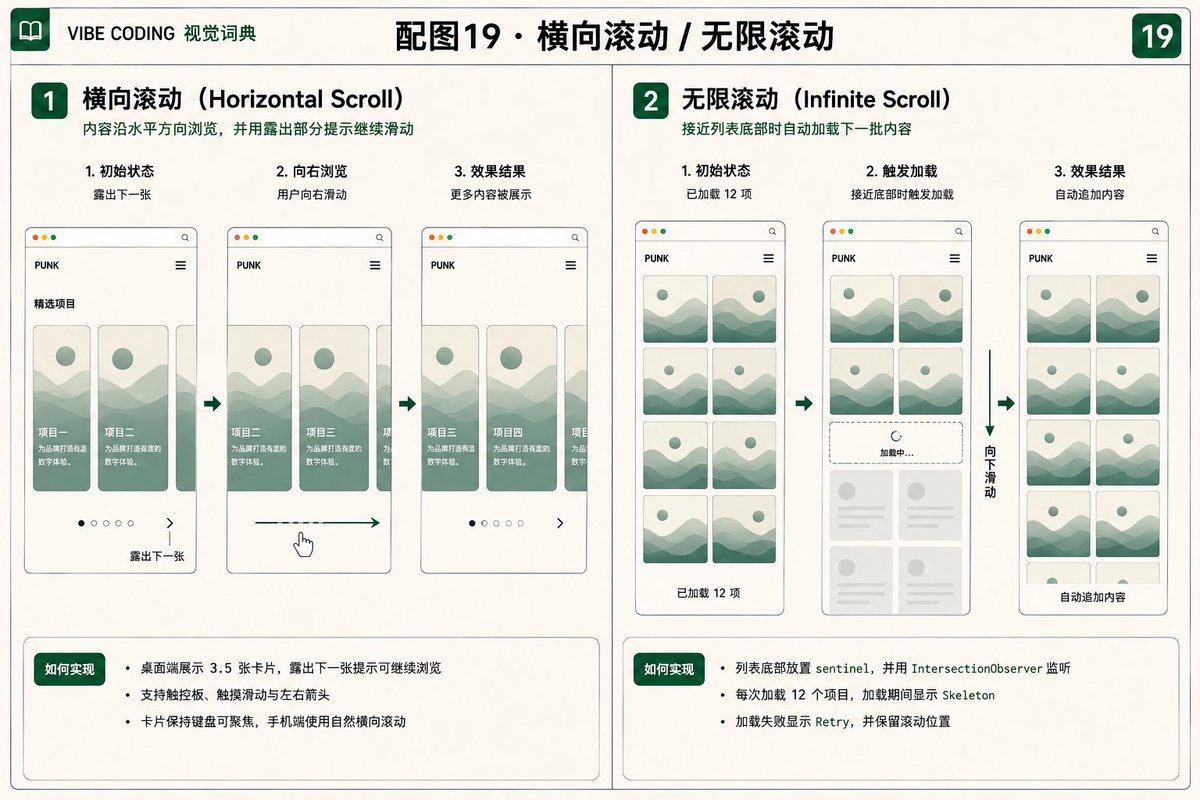
47. Marquee
Text, logos, or tags continuously scroll horizontally, forming a dynamic information strip. Modern CSS animations should be used, and it should remain readable even when the animation is turned off.
Suitable for: Client logos, skill lists, event information, brand slogans, project tags.
Add a slowly looping skills Marquee below the Hero, with two content groups joined seamlessly and paused on hover or keyboard focus. Do not use the obsolete `<marquee>` element; under `prefers-reduced-motion: reduce`, switch to a normal wrapping tag list and prevent assistive technology from reading duplicated content twice.48. Hover Micro-interaction
When the mouse hovers over an interactive element, slight movements, border changes, arrows, or image changes indicate "this can be clicked."
Suitable for: project cards, buttons, links, navigation items, image galleries.
Add a micro-interaction to project cards: on hover, move them up 4px, change the border to dark green, scale the cover to 1.03, and move the arrow 4px right; use 180-240 ms `ease-out`. `focus-visible` must provide equally clear feedback, and displacement and scaling must be removed under `prefers-reduced-motion: reduce`.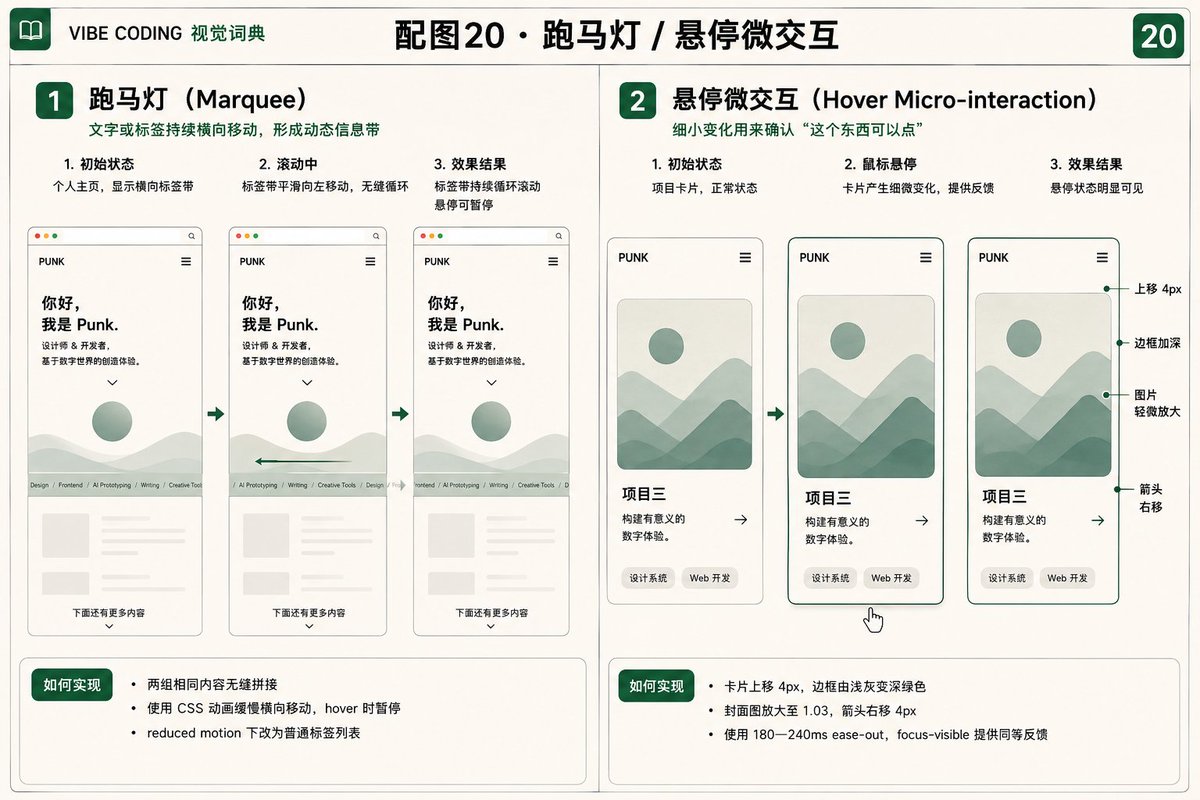
49. Staggered Animation
Make elements in the same group appear sequentially with a very short time difference to emphasize order. Excessive total waiting time can reduce the sense of page responsiveness.
Suitable for: Card grids, menus, data lists, logo walls, functional modules.
Add staggered entrances to four capability cards. After the first card is triggered, have the others fade in and move up 12px every 70 ms, with total delay not exceeding 300 ms;
play the animation only once, and show all content directly under `prefers-reduced-motion: reduce`.
50. Scroll-driven Animation
The animation progress is linked to the user's scroll position, rather than playing automatically according to a fixed time.
Suitable for: progress charts, product breakdowns, data storytelling, background changes, chapter animations.
Use a scroll-driven animation in the Process section of the case-study page: a progress line on the left advances with reading, and three prototype panels on the right appear progressively.
Use `animation-timeline` and `view()` inside `@supports`, and declare `animation-timeline` after the `animation` shorthand so it is not reset;
fall back to `IntersectionObserver` when unsupported. Show the final state directly under `prefers-reduced-motion: reduce`.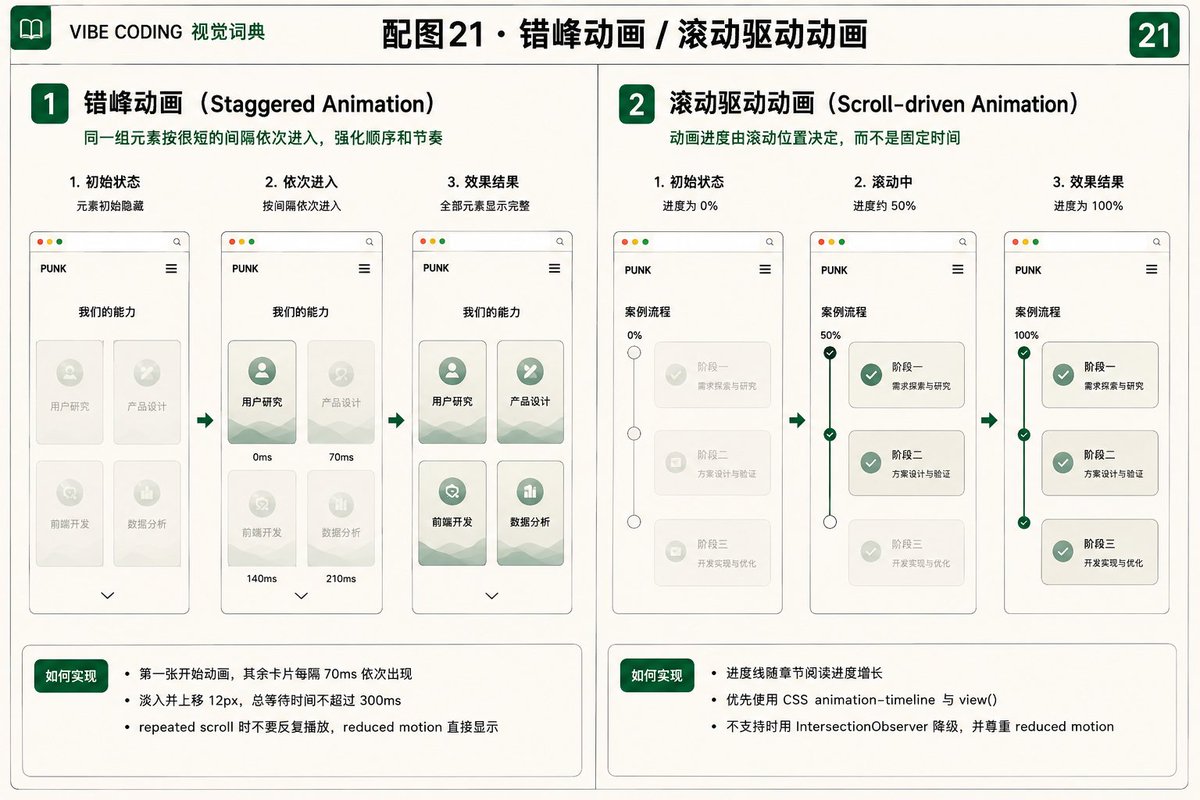
Chapter 6: Feedback & Loading
A complete interface should not only show the ideal state of "data has successfully appeared" but also explain whether it is currently waiting, why a failure occurred, and what the user can do next.
51. Skeleton Screen
Display a placeholder structure similar to the final layout before the real content returns, reducing blank space and sudden layout shifts.
Suitable for: Project cards, article lists, dashboards, detail pages, image galleries.
Create a Skeleton for the project list.
Match the final card dimensions in the placeholder, including the cover, title, two-line summary, and tag positions; use low-contrast gray-green without fake text.
Hide the skeleton itself from assistive technology and set `aria-busy="true"` on the loading container; remove the busy state and replace it with real content when data returns, avoiding layout shifts.
52. Lazy Loading
Load images, videos, or modules only when they are close to the viewport to reduce the initial resource size.
Suitable for: long pages, image galleries, portfolios, embedded videos, article recommendation areas.
Load above-the-fold critical images normally;
use `loading="lazy"` for `<img>` and `<iframe>` elements below the fold.
Predefine `width`, `height`, or `aspect-ratio` for every image, and provide appropriate `srcset` and `sizes` for responsive covers.
Do not lazy-load the largest contentful paint element or rely on lazy loading as a substitute for image compression.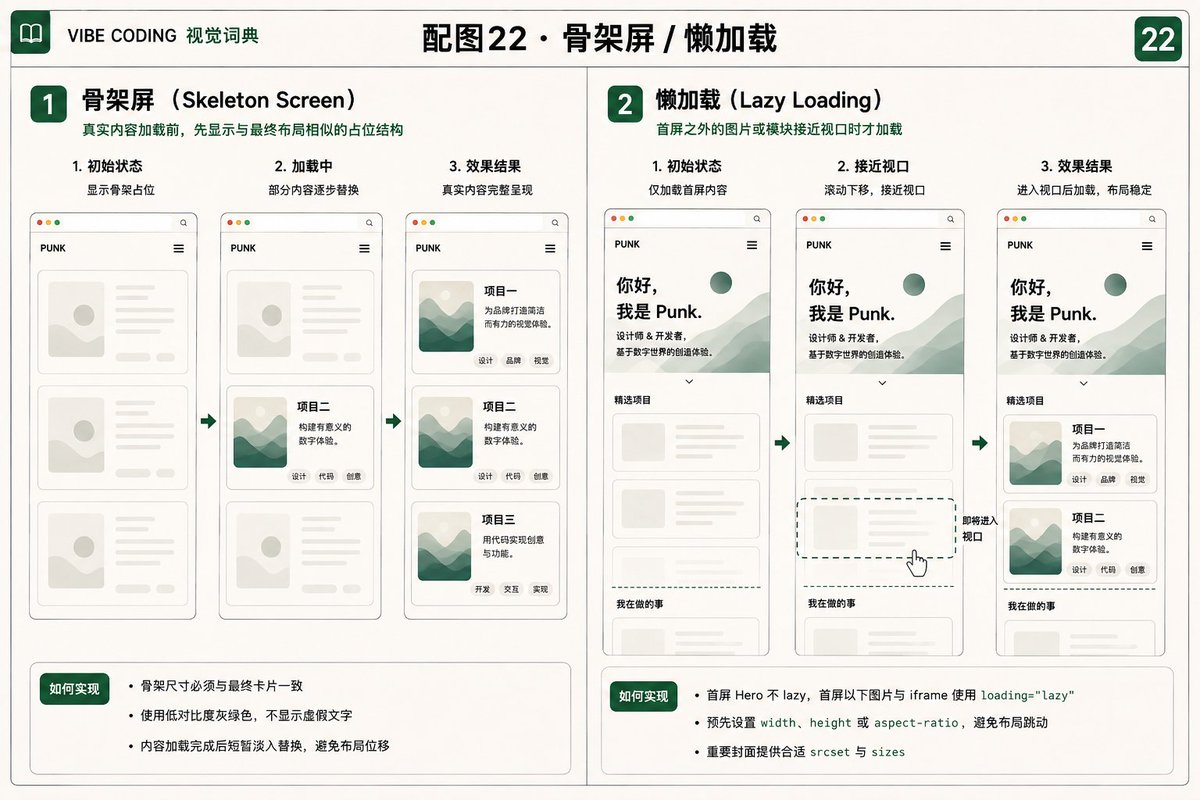
53. Loading Spinner
A spinner indicates that the system is processing, but it cannot show the remaining time, so it is more suitable for short, unpredictable waits.
Suitable for: short requests, partial refreshes, button processing, the preparation stage of generation tasks.
Show a Spinner only in the portion of the interface currently updating, and use `role="status"` to provide status text such as "Loading projects...".
After waiting more than eight seconds, add an explanation and a cancel option;
use a static status icon under `prefers-reduced-motion: reduce`.
54. Progress Bar
Used for tasks where the completion proportion can be calculated, allowing users to know how much has been completed and which stage they are currently in.
Suitable for: Uploading, AI generation, exporting, syncing, installation processes.
Show determinate 0-100% progress, the current stage, and a cancel button for export tasks.
Prefer a native `<progress>` element with a visible `<label>`; a custom implementation must provide `role="progressbar"`, an accessible name, and a live `aria-valuenow`.
When progress cannot be calculated, omit the value and describe the current stage instead of fabricating a percentage.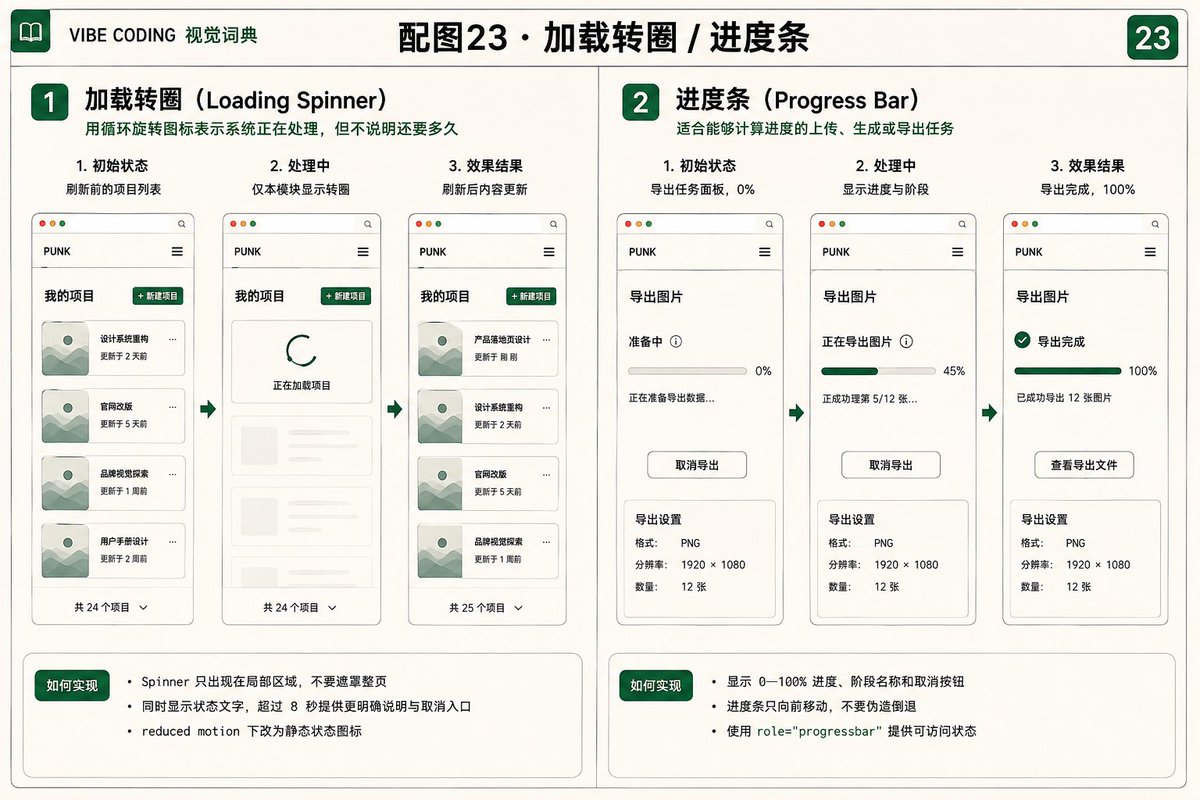
55. Loading Button
After submission, let the trigger button enter the processing state, prevent repeated operations, and provide feedback in the original position.
Suitable for: Save, publish, login, generate, upload, form submission.
After Send Message is clicked, prevent duplicate submissions, change the button text to Sending..., show a small Spinner, and set `aria-busy="true"`.
Keep the button width unchanged; show Sent after success, or restore the available state and explain the reason after failure. Do not let state changes cause keyboard focus to be lost.
56. Empty State
When there is no data, display the formal interface, explain why it is empty, and provide a reasonable next action.
Suitable for: new user dashboards, search results with no matches, favorites, project lists, notification center.
Design an Empty State for a page with no projects, including a simple graphic, clear title, one-sentence explanation, and a Create your first project button.
If filters caused the empty state, instead say No matching results and provide a clear filters action.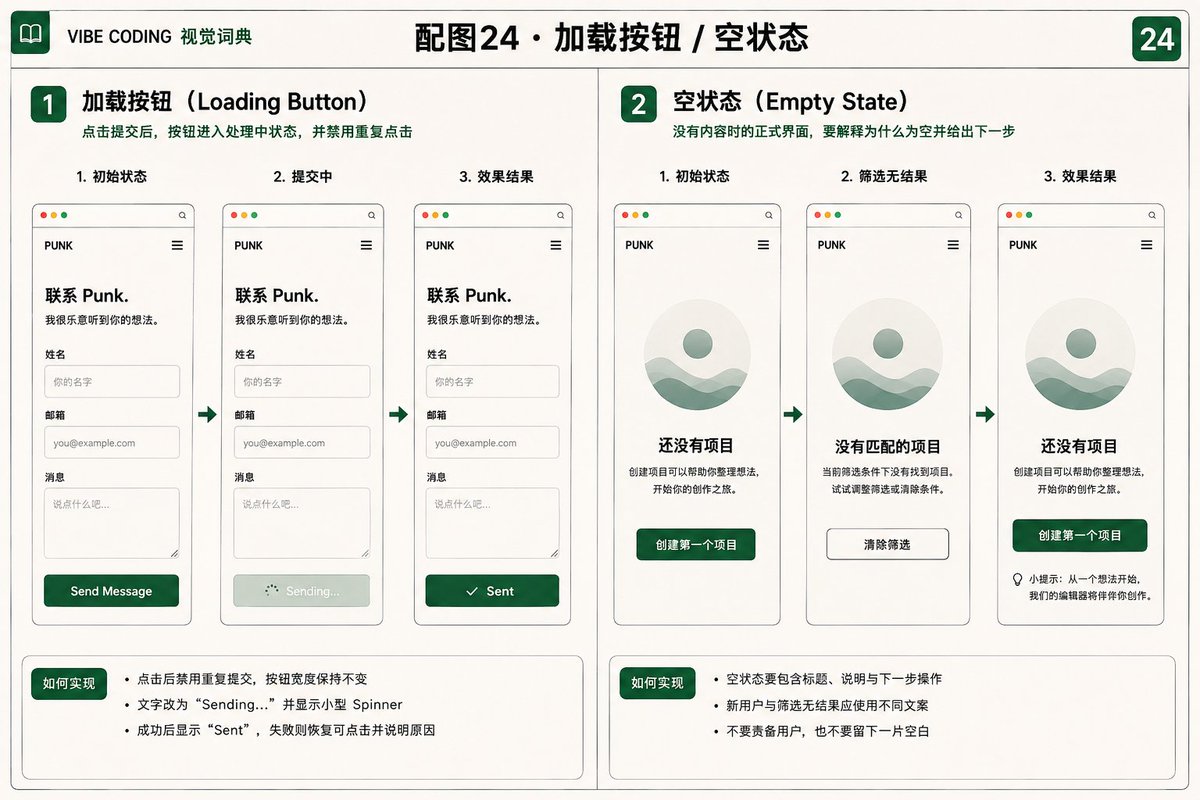
57. Error State
After a task fails, it should explain what happened, what was affected, and whether the user can recover, rather than just showing red or an error code.
Suitable for: Form failures, loading failures, permission issues, network disconnection, 404, 500 pages.
Design an error state for failed project loading, with a clear title, brief reason, Retry, and a back-to-list entry.
Keep other content that loaded successfully; use icons, text, and color together to communicate the error. Use `role="alert"` for dynamically appearing errors that need immediate attention, and use ordinary semantic structure for errors in initial page content to avoid interruptive announcements on load.
58. Retry State
Retry is a complete error recovery process: it keeps the failed object, re-executes the local task, and displays the new processing status.
Suitable for: network requests, uploads, AI generation, synchronization tasks, list loading.
After an image upload fails, retain its thumbnail and filename, and show a failure indicator with Retry and Remove actions. Retry must re-upload only the current file and switch it to a progress state;
replace it directly with the completed state after success.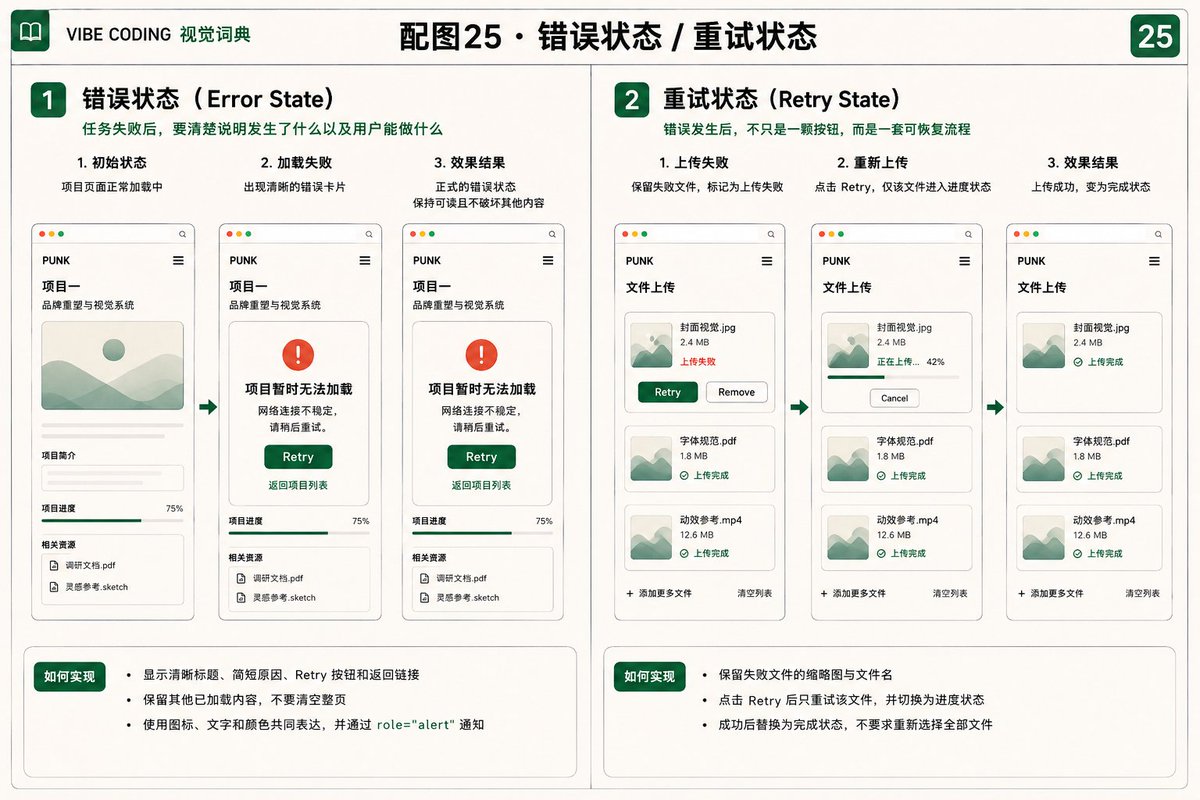
59. Optimistic UI
The interface first assumes that low-risk operations will succeed and provides immediate feedback, then makes the request in the background; if it fails, it is reverted and explained.
Suitable for: Likes, favorites, simple state toggles, sorting, lightweight edits.
Make a favorite button update its icon and count immediately on click, then send the request in the background.
Restore the original state on failure, show a non-blocking error, and allow retry.
Do not use optimistic updates for high-risk or irreversible actions such as payments or account deletion.
60. Inline Validation
Indicate specific problems and ways to fix them near the field, rather than only showing a vague 'form error' after submission.
Suitable for: Registration, contact forms, payments, settings, search criteria.
Check the email format after the field blurs and display specific correction guidance below the input;
set `aria-invalid="true"` on invalid fields and associate error descriptions with `aria-describedby`.
Do not show an error immediately after the user types the first character. On submission failure, focus the error summary and provide links to each invalid field.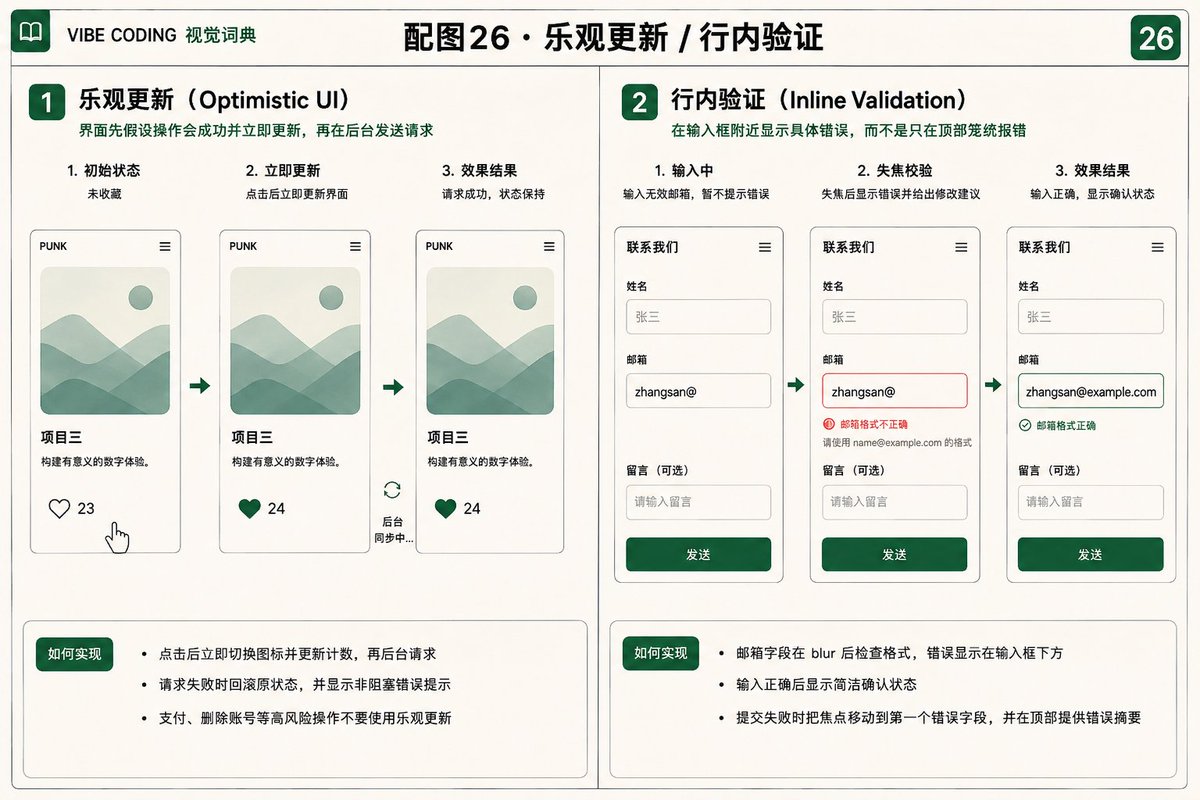
Chapter 7: Visual Styles
Visual style determines the first impression of a page. When choosing a style, it is necessary to consider the content, audience, and brand, rather than stacking all popular effects together.
61. Minimalism
Reduce unnecessary colors, decorations, and components, and establish order through whitespace, font hierarchy, and a few focal points.
Suitable for: Personal homepages, designer portfolios, product introductions, writing websites, high-end brands.
Design a minimalist portfolio using warm white, black, and a single dark green accent color, while limiting font, corner-radius, and shadow variations.
Keep only the identity, selected projects, and contact entry on the homepage; establish hierarchy through whitespace and typography without purposeless gradients or decorative icons.
62. Editorial Design
Drawing from publication typography, emphasizing large headlines, text-to-image ratio, column rhythm, numbering, and quotations.
Suitable for: Personal brands, article sites, photo collections, case studies, cultural content.
Use an Editorial Layout for the Journal, including oversized headlines, a narrow body column, cross-column images, chapter numbers, drop caps, and pull quotes.
Keep body text at a comfortable line length and line height; do not wrap every piece of content in a card.
63. Swiss Style
Composed of strict grids, sans-serif fonts, objective typography, precise alignment, and a limited color palette to form a rational system.
Suitable for: design studios, architecture websites, portfolios, brand systems, event poster pages.
Build a portfolio index with a 12-column grid, left-aligned sans-serif type, prominent numbering, and thin divider lines.
Use only warm white, black, and dark green; align years, categories, and roles by column, without handwritten fonts or complex shadows.
64. Glassmorphism
Create a glass-like feel through semi-transparent panels, background blur, subtle bright borders, and layering relationships, while maintaining text contrast.
Suitable for: AI products, technology homepages, data dashboards, spatialized Heroes, control centers.
Layer two or three semi-transparent panels over a dark green abstract background, using about 16px `backdrop-filter: blur()`, low-opacity light backgrounds, and thin bright borders.
Keep body text sufficiently contrasted; use `@supports` for feature detection and use more opaque solid-color panels when background blur is unsupported. Do not make every card transparent.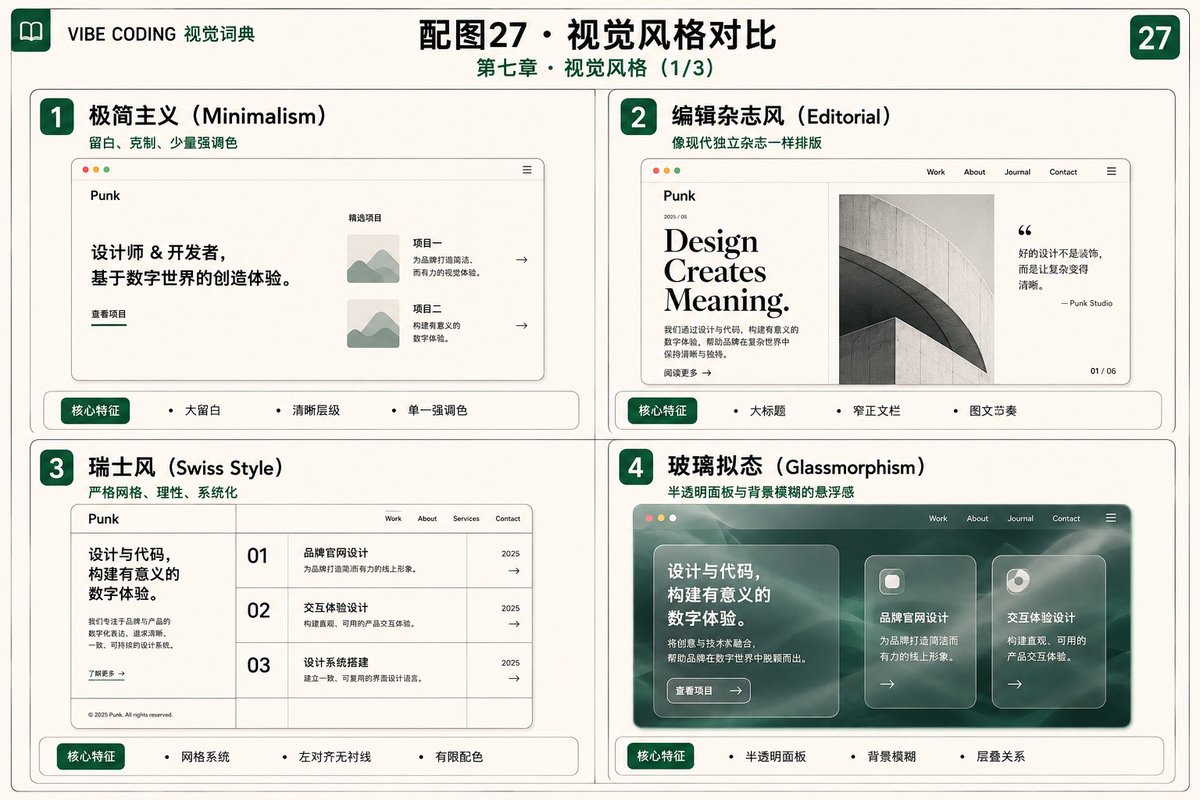
65. Neo-brutalism
Uses thick borders, high-contrast colors, direct typography, and hard shadows, retaining a strong raw feel while maintaining usable grids and hierarchy.
Suitable for: Creator websites, experimental products, event pages, young brands, independent tools.
Use a Neo-brutalist style for an experimental project page: thick black borders, hard shadows, large headlines, and high-contrast primary buttons.
Components must still follow a clear grid and information hierarchy; do not sacrifice readability or touch usability for deliberate misalignment.
66. Dark Mode
Dark mode requires readjusting the background, body text, borders, images, and controls; it is not simply inverting black and white.
Suitable for: Developer tools, content creation platforms, media products, night reading, AI applications.
Use `prefers-color-scheme` to read the initial system preference and provide a persistent manual theme toggle;
the user's manual choice takes priority over the system value. Avoid large pure-black areas in dark mode, use soft light gray for body text, and brighten the accent green appropriately;
use `color-scheme` to synchronize native controls, and check contrast, focus, and image treatment in both modes.
67. Monochrome / Duotone
Control the visual system using one main color or two core colors, and then create hierarchy through brightness, area, and texture.
Suitable for: Brand homepages, photography websites, portfolios, feature pages, minimalist products.
Build a monochrome-plus-duotone system with warm white, black, and dark green. Show project images in a low-saturation green duotone by default, restoring a little original color on hover;
text, borders, and buttons must use different brightness values to maintain hierarchy.
68. Gradient Mesh
Multiple soft color patches blend with each other, creating a spatial background that is more natural than a linear gradient, but should not distract from the main text.
Suitable for: Hero backgrounds, AI products, event pages, abstract personal branding, login pages.
Create a low-saturation Gradient Mesh for the Hero using warm white, gray-green, and dark green color fields, with blurred edges and an extremely slow drift.
Keep the text area calm and high-contrast; use a static version on mobile and disable animation under `prefers-reduced-motion: reduce`.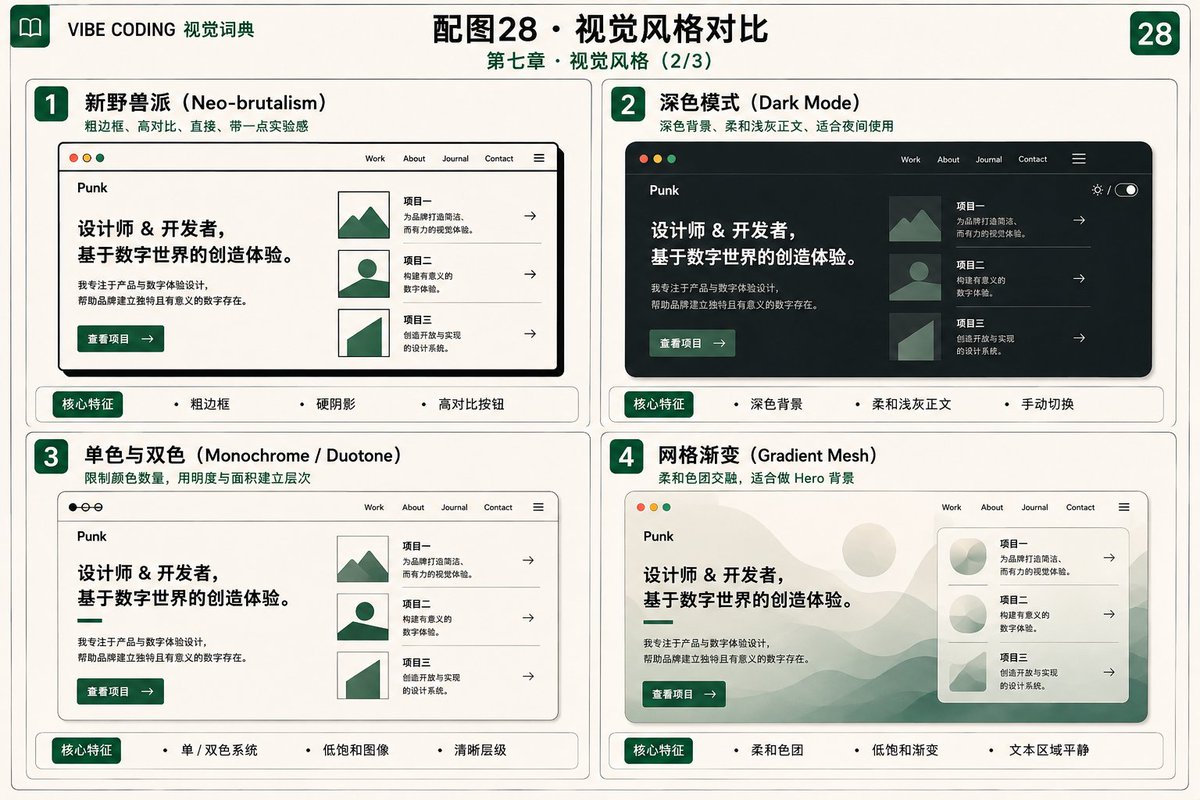
69. Grain / Noise Texture
Overlaying subtle grain on solid colors or gradients can reduce the plastic feel of digital images and add the texture of paper, print, or film.
Suitable for: Editorial design, brand websites, abstract backgrounds, poster-style Hero sections, and work covers.
Add low-opacity Grain to the warm white background and dark green Hero.
Use a small repeatable texture or CSS/SVG filter without affecting text clarity; keep body and form areas clean.
Measure filter rendering cost, and use a small static texture or disable the effect on low-performance devices.
70. Neumorphism / Soft UI
Makes controls appear raised or recessed from the background using light and dark shadows of the same color. Because the boundaries can be unclear, it is more suitable for partial use.
Suitable for: Small control components, players, experimental interfaces, display-type dashboards.
Use local Neumorphism only for play, volume, and mode buttons in a media player, while retaining clear text, icons, and focus outlines.
Do not use it for navigation, forms, or long text; express pressed states through shadow, position, and color together.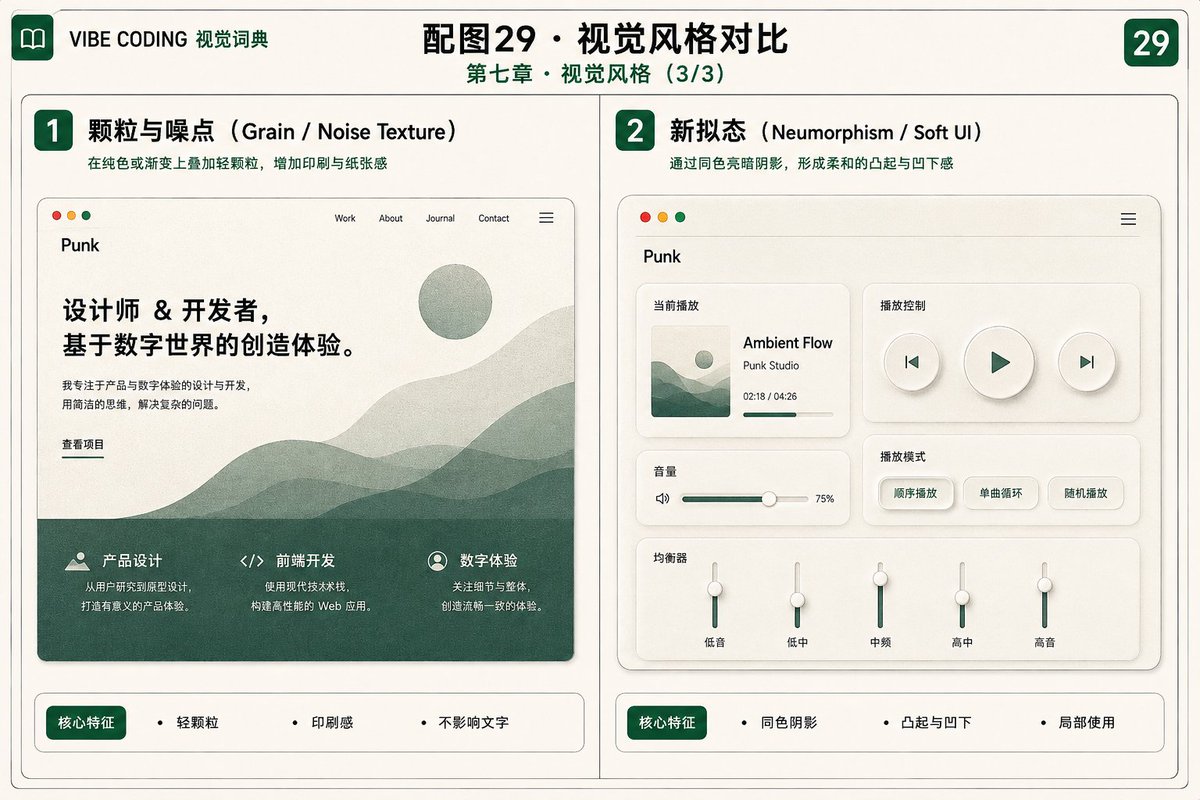
Chapter 8: Advanced Effects & Quality
The criterion for advanced effects is not complexity, but whether the expressiveness is worth the performance, compatibility, and accessibility costs.
71. Custom Cursor
Use dots, text, or previews to supplement the system cursor, indicating actions that can currently be performed such as View, Drag, Open, etc.
Suitable for: Creative portfolios, image galleries, experimental websites, drag-and-drop areas.
In a desktop gallery, use a pointer-following visual layer to supplement the native cursor, showing View when hovering an image and Drag when entering a horizontal gallery.
Do not hide the system cursor or change the real click target; disable this effect on touch devices, when a fine pointer is unavailable, and under `prefers-reduced-motion: reduce`.
72. Magnetic Button
When the cursor approaches, the internal elements of the button slightly shift toward the cursor, creating a sense of attraction.
Suitable for: Main CTAs, portfolio entries, contact buttons, creative homepages.
Add lightweight magnetic behavior to View Work. Move only the button's internal decorative layer by a maximum of 6px; keep the real button position and hit area unchanged.
Use standard button feedback for touch, keyboard focus, and `prefers-reduced-motion: reduce` modes.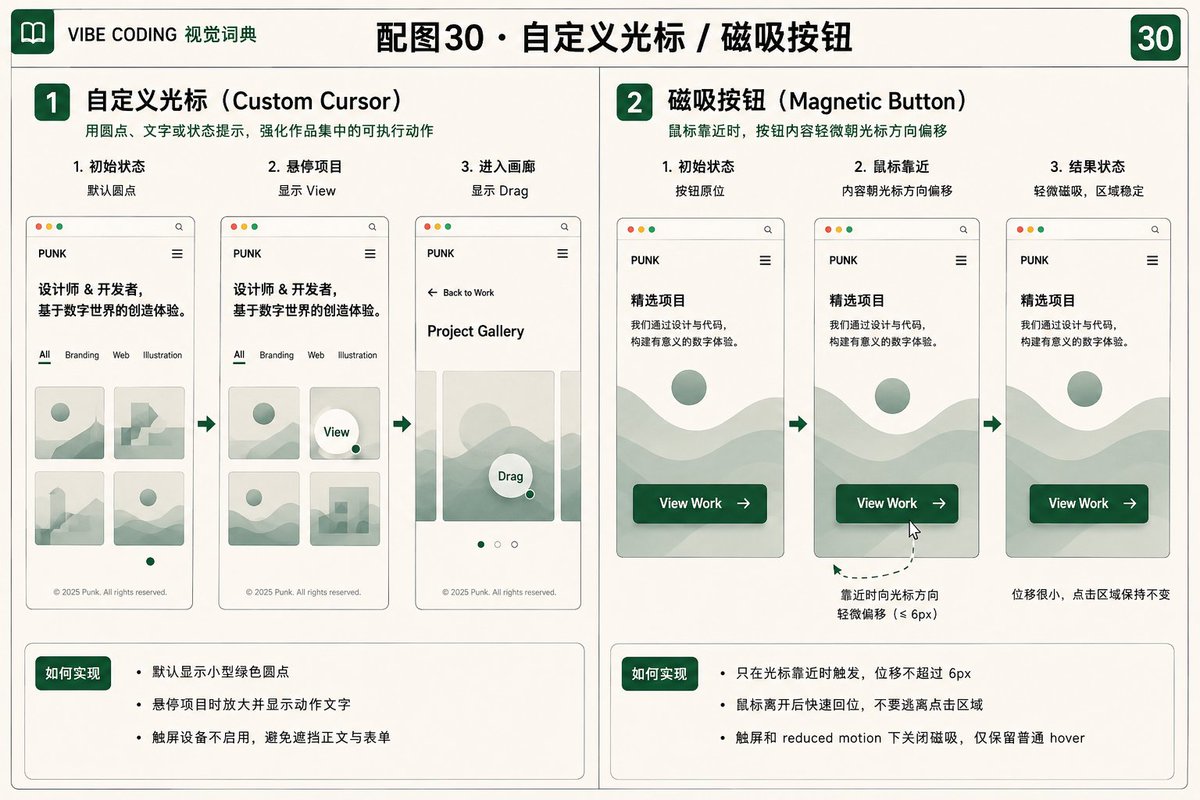
73. 3D Tilt Card
The card slightly rotates based on the cursor position and generates depth feedback through highlights or layering.
Suitable for: Featured items, product cards, collection cards, visual works, experimental homepages.
Add 3D Tilt to Featured Project. Keep `rotateX` and `rotateY` at no more than `5deg`, with only slight Z-axis differences for the cover, text, and highlight;
smoothly return it to rest when the pointer leaves.
Disable tilt on mobile, for keyboard interaction, and under `prefers-reduced-motion: reduce`, while retaining equivalent focus styles.
74. Spotlight Hover
Generate a restrained spotlight near the cursor to highlight the current card or grid area, commonly seen on dark-themed interfaces.
Suitable for: Dashboards, dark-themed interfaces, feature grids, project cards, pricing tables.
Use mouse position to control the radial gradient inside the current card, keeping the spotlight range and brightness restrained.
Provide a static highlight when keyboard focus enters; do not use intense continuous glow or reduce text contrast.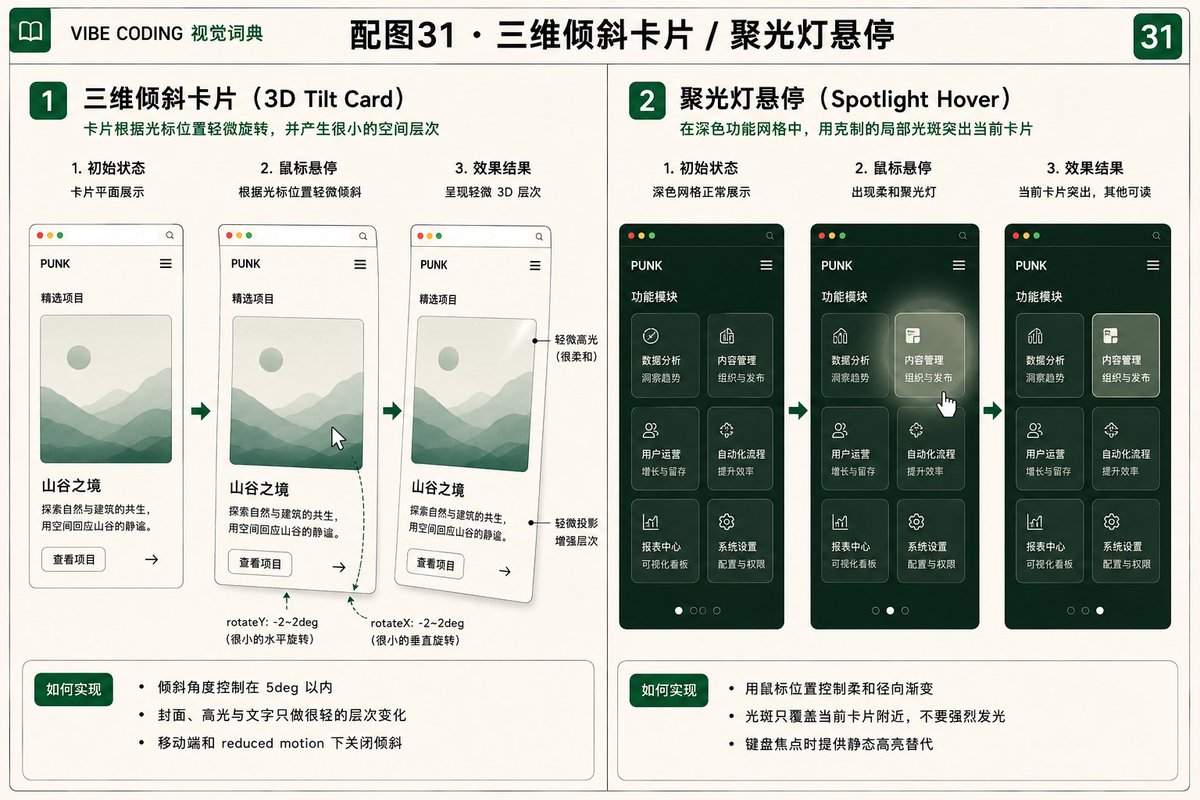
75. Image / Text Mask
Make images or dynamic textures appear only inside text or custom shapes, creating a concentrated visual focus.
Suitable for: Hero headlines, project covers, chapter numbers, brand slogans.
Add a Text Mask to the Hero headline so a low-saturation abstract texture appears only inside the text.
Fall back to solid dark green text when `background-clip: text` is unsupported; the heading must remain semantic, selectable, and readable.
76. Clip-path Reveal
Gradually reveal content through circular, rectangular, or polygonal clipping areas, creating an entrance effect like a curtain opening.
Suitable for: project transitions, image entrances, chapter transitions, button previews, full-screen menus.
When a project cover enters the viewport, transition it from fully clipped horizontally to fully visible, starting with a 500 ms duration and playing only once.
The default state must show the full image; apply the clipped initial state only when `@supports (clip-path: inset(0))` succeeds and scripts initialize successfully.
Show the image directly under `prefers-reduced-motion: reduce`.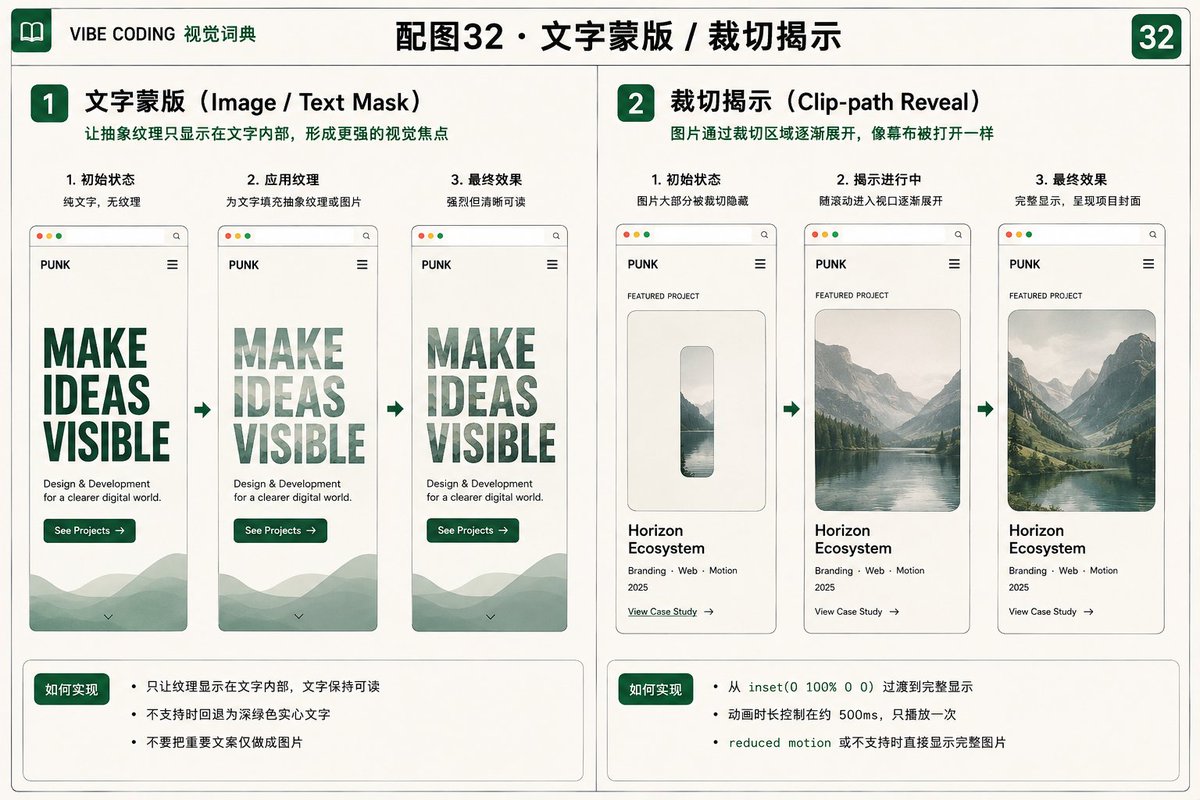
77. WebGL / Three.js Hero
Use GPU to render 3D, particles, materials, or interactive scenes in real-time, suitable for spatial visuals that are difficult to express with ordinary CSS.
Suitable for: Technology products, AI brands, experimental portfolios, data art, interactive storytelling.
Create a lightweight Three.js Hero with a low-poly abstract object and a small number of semi-transparent interface planes, using only subtle pointer parallax.
Limit geometry count, texture size, and device pixel ratio; pause rendering when the page is not visible and release GPU resources when the component unmounts.
Use a simplified scene on mobile; show a static poster with an alternative text strategy when WebGL is unavailable, device performance is insufficient, or `prefers-reduced-motion: reduce` is enabled.
78. View Transitions
When switching pages or states, allow the old content and new content to connect naturally, for example, a card cover expanding into a detail page Hero.
Suitable for: list to detail, SPA state transitions, multi-page navigation, image galleries.
Give the project card cover and detail Hero a shared, unique `view-transition-name`, with a transition duration of 300-450 ms.
For same-document transitions, check `document.startViewTransition`; enable `@view-transition` for cross-document transitions only on same-origin pages.
Keep normal navigation when unsupported, skip animation under `prefers-reduced-motion: reduce`, and verify focus, scroll position, and back-navigation behavior.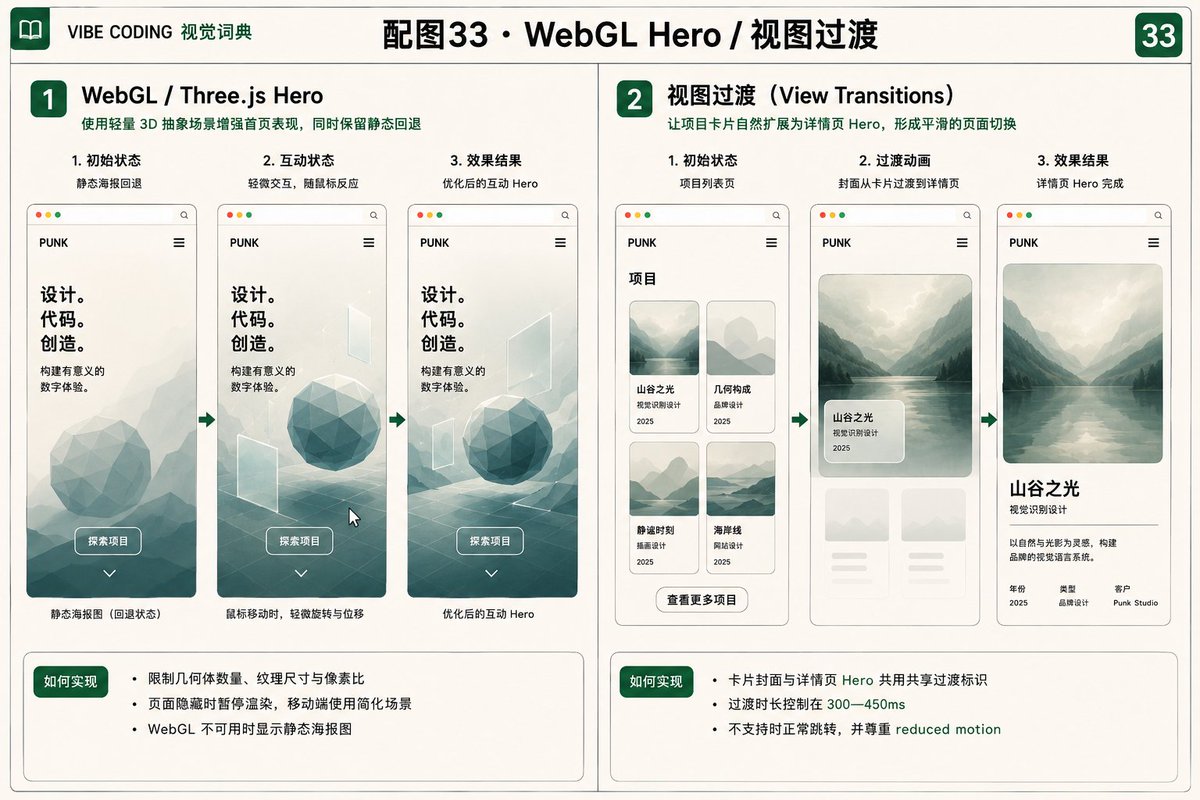
79. Reduced Motion
When users enable system reduced motion, remove unnecessary movement, scaling, parallax, and autoplay, while retaining all functionality and information.
Suitable for: All websites that include animations, parallax, scrolling effects, or 3D.
Fully support `prefers-reduced-motion: reduce`: disable Parallax, magnetic behavior, 3D Tilt, automatic Marquee, and large page transitions;
change Scroll Reveal to direct display or a brief fade, and stop Carousel autoplay. Disabling animation must not hide content or remove status feedback.
80. Performance Budget
Set limits on scripts, images, fonts, request amounts, and key performance indicators before development to prevent the effects from accumulating and slowing down the page.
Suitable for: image-based portfolios, animation websites, AI products, marketing pages, WebGL projects.
First measure the current page, then define measurable budgets for mobile above-the-fold JavaScript, critical images, fonts, third-party requests, and Core Web Vitals.
Use suitable formats and dimensions for critical images, load WebGL on demand, and retain only necessary font families and weights.
Check regressions in CI with fixed devices, network conditions, and multiple samples; fail the check or require explicit approval when a budget is exceeded.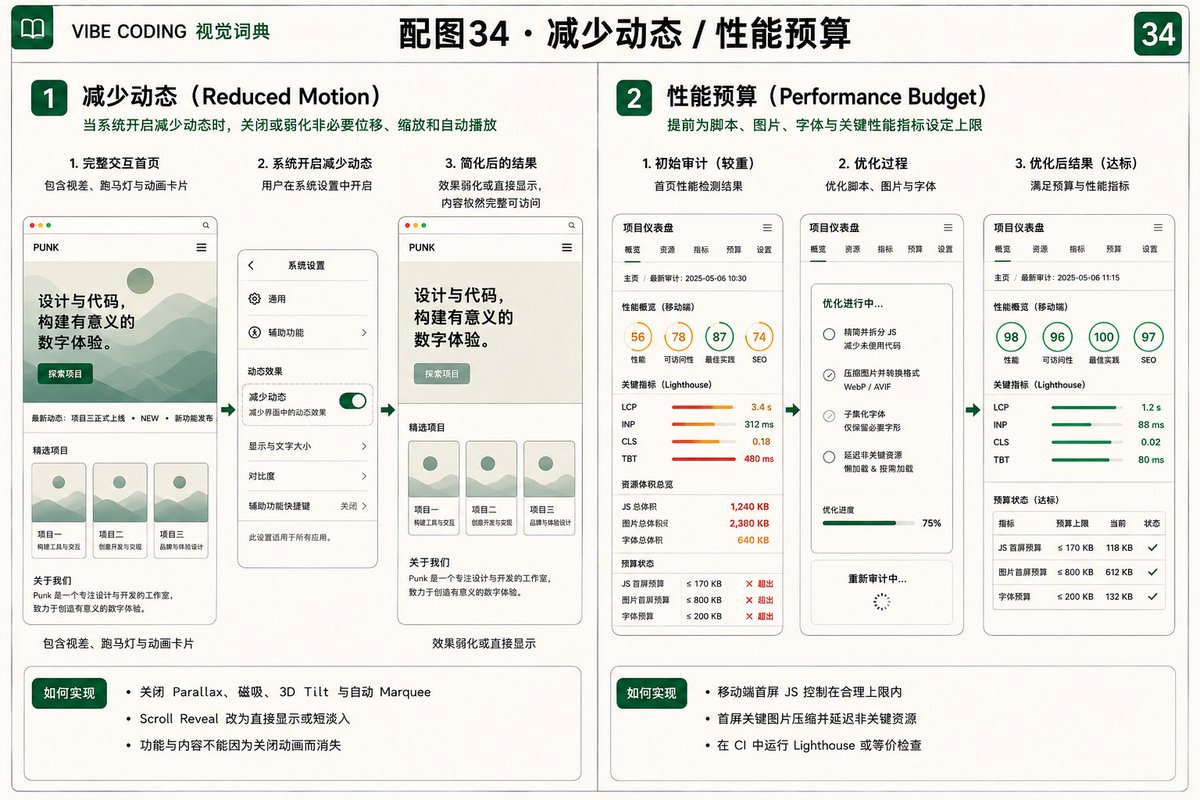
Concise Version of Prompt
The above vocabulary can be combined into a draft project requirement. It still needs to be supplemented with real content, target browsers, data status, and acceptance criteria:
Design and implement a responsive personal portfolio website.

The information architecture includes Home, Work, Project Detail, About, Journal, and Contact. The homepage uses a Split-screen Hero: the left side presents professional positioning, a short introduction, and primary actions, while the right side shows an abstract interface visual; below it, use a Bento Grid to organize Featured Project, About, Skills, Latest Writing, and Contact.

The Work page uses a responsive Card-based Layout: three columns on desktop, two on tablet, and one on mobile. Use a Masonry Gallery for visual work when the browser supports it; otherwise fall back to a regular Grid while keeping DOM and reading order consistent. Project details use a Case Study structure with Overview, Problem, Role, Process, Key Decisions, Solution, Outcome, and Reflection; add a sticky table of contents on desktop.

Use a Sticky Navbar on desktop and a Hamburger Menu with a right-side Drawer on mobile; provide Breadcrumbs on project details and Anchor Links for single-page sections. Put the contact form in a native dialog, support Lightbox for project images, use Toast feedback for saving and copying, use an Accordion for the FAQ, and provide a Command Palette for in-site navigation. Dialog, Drawer, Tabs, Accordion, Lightbox, and Command Palette must all implement correct focus management, keyboard operation, accessible names, and closing mechanisms.

Use a warm white background, dark green accents, and dark body text, with low-saturation abstract shapes, semi-transparent interface panels, and moderate spatial depth. Do not use unrelated home products, staged office photography, stock people, or cartoon illustrations.

Use mobile-first, semantic HTML, CSS Grid, and Flexbox. Cover loading, empty, error, success, disabled, and long-text states. All interactions support keyboard input, visible focus, and screen readers; respect `prefers-reduced-motion`; provide contextual alt text and `width` and `height` for images, with native lazy loading below the fold. Experimental capabilities must use feature detection, progressive enhancement, and a fallback experience that does not depend on animation.
How to Use This Dictionary
Do not mechanically stack all the terms in a single prompt. First, determine the page goals and content structure, then choose one or two main layouts, necessary navigation methods, and a few interactive components. Each time you use a template, you should also supplement it with real copy, brand colors, breakpoints, states, data sources, and acceptance criteria.
Make the Page Dynamic and Handle Real Usage States
The simple version of prompts addresses how content is arranged, how information is organized, how users navigate, and how local interactions occur. However, it still lacks four aspects:
- Scroll & Motion: When content appears and how the page establishes rhythm;
- Feedback & Loading: How waiting, completion, failure, and empty states are expressed;
- Visual Styles: Which consistent design language the page adopts;
- Advanced Effects & Quality: How to use 3D, transitions, and advanced interactions while maintaining performance and accessibility.
Enhanced Prompts
Add a complete experience layer to the responsive personal portfolio website.

[Scroll and Motion]
Use lightweight Scroll Reveal on the homepage and case-study pages; use Horizontal Scroll and CSS Scroll Snap for featured work; show reading progress at the top of long articles. Implement Infinite Scroll for inspiration feeds through `IntersectionObserver`, while retaining a focusable Load more entry, end state, and history-position restoration. Skill tags may use a slow Marquee. All effects must support `prefers-reduced-motion`, and content must remain visible by default if scripts fail.

[Feedback and Loading]
Use Skeletons that match the final layout for project lists, and express loading states with `aria-busy`. Use Lazy Loading and predefined dimensions for images and iframes below the fold; do not lazy-load the largest contentful paint image. Use a local Spinner with status text for short tasks, and prefer native progress for calculable tasks; submission buttons enter a Loading state and prevent duplicate actions. Design distinct Empty, Error, and Retry states for no content, failed loading, and retries; permit Optimistic UI for low-risk, reversible favorites; use `aria-invalid`, `aria-describedby`, error summaries, and Inline Validation in forms.

[Visual Style]
Combine Minimalism and Editorial Design with a warm white background, black body text, and dark green accents. Maintain a clear grid, large headlines, numbering, cross-column images, and generous whitespace. The Hero may selectively use restrained Glassmorphism, a low-saturation Gradient Mesh, and subtle Grain; do not turn all content into transparent cards.

[Advanced Effects]
Desktop galleries may use a Custom Cursor that does not replace the system cursor; primary CTAs may use a lightweight Magnetic Effect; featured cards may use 3D Tilt up to 5deg; and images may use a one-time Clip-path Reveal. The Hero may include a lightweight Three.js scene when needed, but it must provide a static fallback and release GPU resources; list-to-detail navigation may use View Transitions while retaining normal navigation when unsupported.

[Quality Requirements]
Use semantic HTML, modern CSS, and necessary JavaScript, prioritizing CSS Scroll Snap, Scroll-driven Animations, IntersectionObserver, native lazy loading, and the View Transition API. Define the target-browser matrix; use feature detection and progressive enhancement for all experimental capabilities. All interactions must support keyboard input, visible focus, and screen readers. Animation must not hide important information or become a prerequisite for completing tasks. First measure the baseline, then establish measurable performance budgets for scripts, fonts, images, third-party resources, Core Web Vitals, and WebGL.
How to Assemble a Complete Prompt
First, determine the skeleton of the page: choose the content structure, main layout, navigation method, and necessary components. Then select a small number of animations and styles with clear purposes, and supplement them with loading, empty, error, retry states, and reduced dynamic effects. Advanced effects should be added last, and each item requires a static fallback and performance justification.
A reliable usage sequence is:
- Page goals and information architecture;
- Layout and responsive rules;
- Navigation and key components;
- Loading, empty, error, and success states;
- Visual style and design tokens;
- A small number of high-value animations;
- Accessibility, compatibility, and performance budget.
Technical Reference Materials
- MDN: Masonry layout
- MDN: CSS scroll-driven animations
- MDN: View Transition API
- MDN: HTML dialog element
- W3C WAI: ARIA Authoring Practices Guide
Discussion
Support the author