Codex Practical Guide: Interface, Workspace, Permissions, and Extension System
The system explains Codex App, CLI, Local, Worktree, Cloud, Plan, Permissions, AGENTS.md, Skills, Plugins, MCP, Automations, and Goal, and provides a learning path from scratch.
The first time you open Codex, what’s really confusing are what these areas in front of you are for: the difference between projects and tasks, whether to choose Local, Worktree, or Cloud, whether opening a Plan is necessary, where permissions should be assigned, and why Plugins, Skills, and MCP all exist at the same time.
This tutorial starts with these basic questions. We won’t start with a project or take you through a complex case from start to finish. First, you need to understand the interface, buttons, workspace, and commonly used features, then decide which extended functions are worth connecting.
After reading this, you should be able to independently open the correct directory, create tasks, manage permissions, view changes, and know when to use Plan, Skill, Plugin, MCP, Automation, and /goal.
Chapter One: Understanding What Codex Really Is
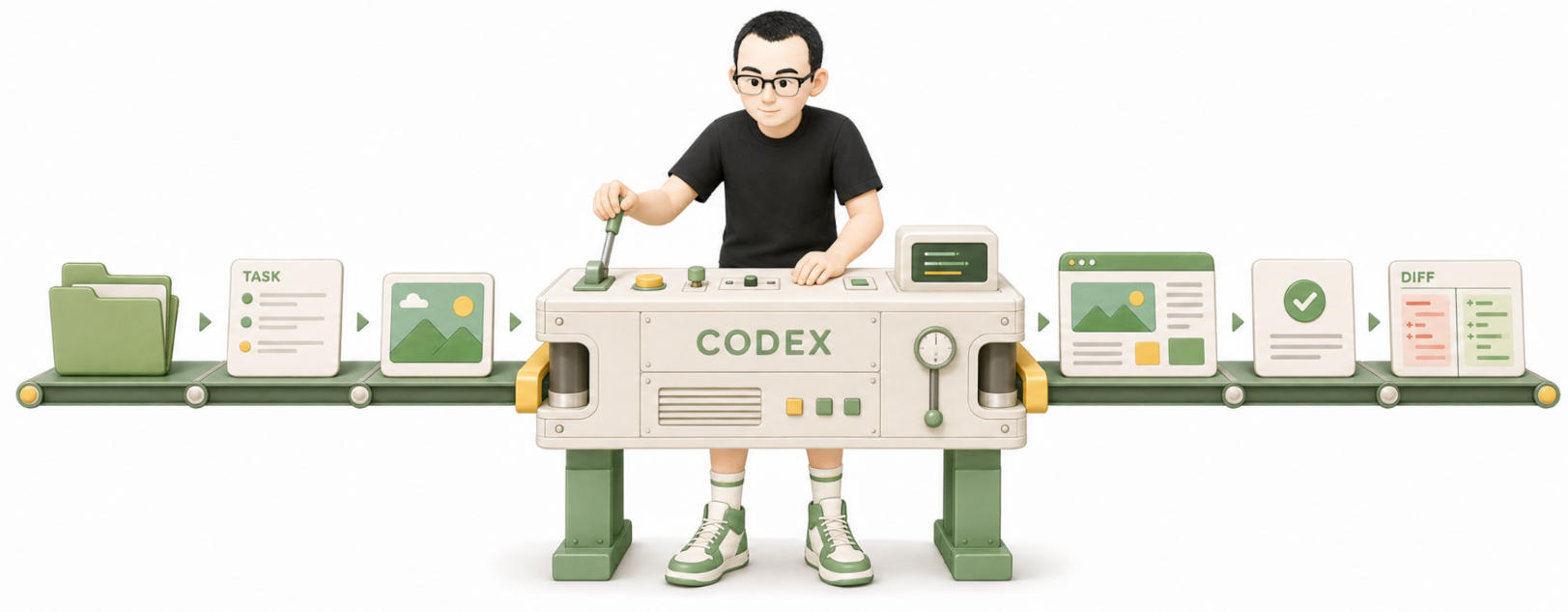
Codex is an actionable Agent. Regular chat tools primarily provide text answers; Codex, in addition to answering, can read files, modify code and documents, run commands, view Git changes, open web pages, operate applications, and call external tools that have been integrated.
Therefore, the best type of task for Codex is one that has materials, boundaries, and a result. Its basic cycle can be described in four steps:
Prompt → Plan → Execute → Verify
Prompt is when you present a task, Plan is how it plans to do it, Execute is the actual reading and writing of files and running commands, and Verify is checking the result. The most important step here is the last one. When Codex says 'done', it only means it has completed the current execution, and it cannot automatically verify that a file is correct, a page is functional, or tests have passed.
Codex has five main entry points.
| Entry Point | Where It Is Used | Best Suited For |
|---|---|---|
| CLI | Terminal | Single tasks, scripted processing, requires full control |
| Codex App | Desktop application | Multi-tasking, view diffs, operate native apps, scheduled tasks |
| Cloud | Cloud environment in the browser | After explaining the task, leave it to run in the background |
| IDE Extension | Editors like VS Code, Cursor | Prefer not to leave the editor, work around current code |
| Chrome Extension | Logged-in Chrome browser | Operate Gmail, CRM, internal system pages with login |
Beginners don’t need to learn all five entry points at once. Once you’ve opened the desktop app, start by understanding the app first; if you’re comfortable with the terminal, then learn CLI. Cloud, IDE, and Chrome extensions all serve specific scenarios—they are not "the more, the more professional."
Chapter 2: How to read the Codex App interface from left to right
The main interface of Codex App can be divided into three parts: left for managing projects and tasks, center for handling conversations and execution, right to check file changes. Different functional panels will unfold around these three sections, but the main logic does not change.
Left: Projects and Tasks
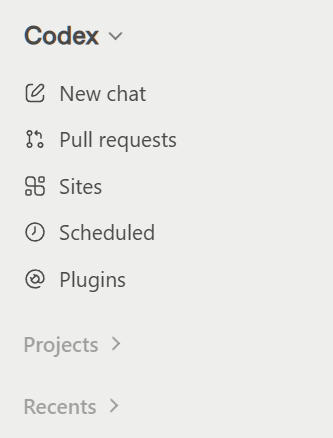
A project corresponds to a working directory. When you add a website repository, article directory, or tool project, you are essentially telling Codex: "This batch of files belongs to the same long-term work." The project determines where it reads materials by default and usually where the sandbox is allowed to write. A task (Thread, Chat) is an independent conversation under a project. A task is best in charge of only one clear outcome, such as 'check the structure of this article,' 'fix the login page error,' or 'organize yesterday's commit records.' Projects can exist long-term, while tasks should have an endpoint.
Common actions on the left side include:
- Adding or switching projects;
- Creating a new task under the current project;
- Opening previous tasks to continue processing;
- Viewing tasks that are running, waiting for approval, or already finished;
- Popping a task out into a separate window for easier side-by-side viewing with a browser or editor.
If an old task has already mixed a lot of unrelated context and the new requirement is completely different, creating a new task is usually cleaner. If you are just continuing to modify the same result, stay in the original task; you don't need to repeatedly start new conversations for formal 'tidiness.'
Middle: Conversation Area and Input Box
The middle area displays Codex's replies, plans, commands, tool calls, approval requests, and final summaries. The bottom input box is not just a chatbox—it is also the task console.
Common functions around the input box include:
- Send: submit the current request;
- Stop: interrupt the task currently in progress;
- Model: choose the model to handle the current task;
- Permissions: set read-only, workspace writable, or higher permissions;
- Attachments: add files or images as context;
- Voice Input: hold Ctrl+M to speak, release to convert to text;
- Work Mode: select where the task runs between Local, Worktree, and Cloud.
During execution, you don't have to wait for it to finish to speak. If you find the direction is wrong, you can directly add: 'Only check, do not modify,' 'Do not install dependencies,' or 'Stop at the planning stage first.' The earlier you correct the course, the less time is wasted.
Right: Diff and File Changes
The right Diff panel is used to see exactly what Codex has changed. Additions are usually shown in green, deletions in red. You can view by file or focus on a specific round or the entire branch of changes.
The value of the Diff panel is not just 'a glance.' It can also perform review work:
- View all unsubmitted modifications;
- Add inline comments next to specific lines of code;
- Stage or undo changes by file or chunk;
- Complete commit, push, or create a Pull Request within the App.
If there’s an issue with a particular line, leave a comment directly on that line—it’s far more accurate than describing “the function above” in the input box. After writing the comment, send a message like “Handled the inline comment just now, don’t expand changes elsewhere.”
Chapter 3: The choice of workspace determines what Codex can see
The workspace is the directory where Codex is currently working. Choosing the wrong directory is the most common reason for “file not found,” “changed the wrong place,” or “read too much irrelevant material.”
You can use a very simple criterion when selecting: can the files needed to complete this task be concentrated in a minimal directory? If yes, open only that directory. Don’t hand over the entire desktop, personal home directory, or a bunch of unrelated projects to Codex just to save a switch.
Common scenarios can be handled like this:
- Modifying only a standalone project: open the project root directory;
- A repository with multiple unrelated applications: each can be added as a separate Codex project;
- Frontend and backend in adjacent directories: start with the main directory and, if needed, supplement the other with additional directory permissions;
- Only want analysis without modifications: still open the correct directory but set permissions to read-only;
- Task to be executed in a remote environment: choose Cloud instead of expanding local permissions.
In the CLI, you can use --cd to specify the working directory and --add-dir to add extra writable directories:
codex --cd ~/projects/frontend --add-dir ../backendThis is clearer than writing permissions directly to the entire computer. The smaller the boundary, the smaller the impact range in case of misoperation.
Chapter 4: When creating a new task, how to choose Local, Worktree, or Cloud
One of the most important choices when creating a new task is where it works.
Local: Directly changes the current directory
Local works in the project directory you select. Changes appear immediately in the local file, suitable for most daily tasks: editing documents, fixing a bug, running tests, organizing the directory, and viewing project structures.
Its advantage is directness, but the disadvantage is also direct: when you and Codex modify the same file at the same time, it may interfere with each other. Starting a single task locally is the easiest way.
Worktree: Give tasks an isolated copy
Worktree is based on Git's worktree functionality, creating a separate working directory for each task. The agent modifies it inside, and the local directory you are using does not change accordingly.
It works for two situations: having multiple tasks change to the same repository at once, or wanting Codex to try a change without immediately touching the current branch. After completing a task, you can create a branch, commit, and start a PR in Worktree, or use Handoff to move the result back to Local.
Worktree does not require running every task. Only a small file is modified, only one agent is working, and Local is shorter. Use Worktree only when isolation and parallelism are needed.
Cloud: Delegate tasks to the cloud
Cloud clones and executes repositories in remote isolation environments. It is suitable for tasks with clear boundaries and asynchronous waiting, such as code review, fixing definite issues, batch refactoring, and running tests.
The value of the Cloud is that you don't have to stay local. After tasks are completed, check the diff and decide whether to merge them. Tasks that require frequent discussion and depend on local files or local applications are usually smoother for local or Worktree.
Chapter 5: How to Set Up a Plan and When Not to Set
A plan is the route before execution. For complex tasks, it lets you detect issues like overly large scope, unreasonable order, or unnecessary dependencies when preparing for installation. In simple tasks, a plan may just be an extra step.
In the CLI, you can enter:
/planYou can also write the requirements clearly together:
/plan First check the current directory and related files, only give a modification plan, do not write filesYou can also use natural language directly in the app:
Do not make any changes yet. Please confirm your understanding of the objectives, the documents you need to review, and the steps you are preparing to take, and wait for my confirmation before proceeding.Plans are suitable for these situations: tasks that span multiple files, modifications that cannot be easily rolled back, situations where you need to investigate the cause first, or when you are still comparing several implementation methods. Changing a title, checking a single error location, or executing one definite command does not require forcing a five-step plan first.
A useful plan should answer at least four questions: what exactly needs to be solved, what materials to review, which areas to modify, and how to ultimately prove it is completed. A template like "analyze requirements, start implementation, test results, summary" contains very little information and can be requested to be rewritten.
Here is an even more important principle: when receiving a task, first determine the real problem and the shortest reliable path. If it can be completed directly, do not add extra processes; if existing results can be reused, do not redo from scratch; if only a local modification is needed, do not rebuild everything; if it can be solved with a single command, do not write a script; if a single script suffices, do not create a project. The purpose of a plan is to help choose the method, not to add ritual to simple problems.
Chapter 6: How to Choose Permissions and Handle Approval Pop-ups
Codex can read and write files and run commands, so permissions must be clear. Common sandboxes can be understood in three levels.
| Permission | Capabilities | Suitable Tasks |
|---|---|---|
| Read-only | Read and analyze, no file writing | Code review, understanding a project, finding issues |
| Workspace-write | Can modify the current workspace, limited beyond that | Default choice for daily use |
| Full access | Can access a wider range and execute high-privilege actions | Only suitable for clear, controlled, recoverable environments |
For beginners, Workspace-write is sufficient for most work. Use Read-only for analysis. Full access should not be granted just to skip a few confirmations, and it is especially unsuitable for unattended scheduled tasks. When you see an approval request, first look at four things: what command it is going to execute, in which directory it will be executed, whether it needs network access, and why this step is necessary for the current target. Installing dependencies, uploading files, deleting data, modifying account settings, publishing externally, and accessing credentials are all worth pausing to verify.
You can view and adjust the current security mode at /permissions. In the CLI, you can also specify it at startup:
codex --sandbox read-only
codex --full-auto
--full-auto is suitable for low-friction execution within the workspace; it does not mean the entire machine is fully open. --yolo will skip approvals and sandboxing, and is not suitable as a daily default.
Chapter 7: Some of the Most Basic and Easily Overlooked Tools
Integrated Terminal
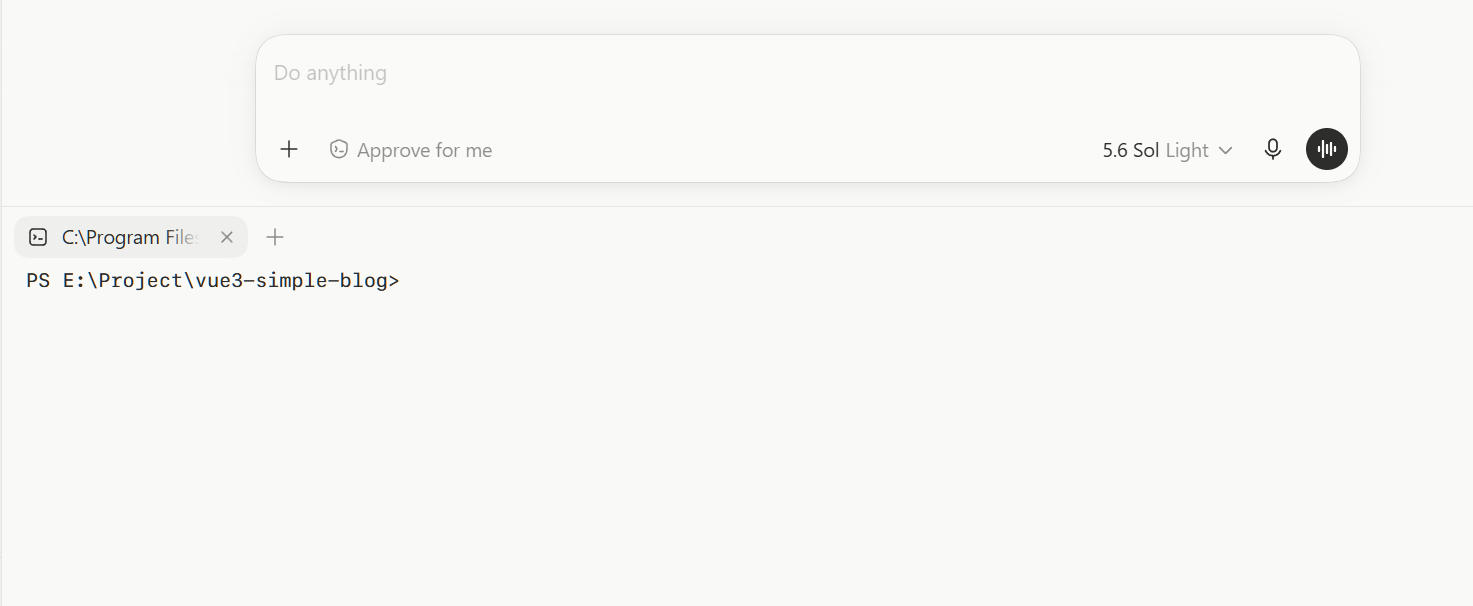
Each app task has its own terminal, which can be displayed on macOS using Cmd+J. The terminal directory follows the task: Local tasks open local projects, Worktree tasks open their corresponding isolated directories.
The terminal can be used to run tests, start development services, check git status, and also to review Codex's modifications. A convenient point is that Codex can read the current terminal output. When you see an error, you can directly say 'check the error in the terminal' without copying the entire section.
In-App Browser
The built-in browser is suitable for opening local pages and inspecting the interface. You can leave comments directly on page elements with positioning, such as 'make the font size smaller here' or 'align this button with the input box above.' This type of feedback is more accurate than pure text descriptions.
The built-in browser does not reuse your already logged-in Chrome sessions. When operating Gmail, Salesforce, LinkedIn, or internal systems, use the Chrome extension.
Computer Use
Computer Use allows Codex to operate desktop applications, including clicking, typing, dragging, reading the screen, and using shortcuts. It is suitable for legacy tools without APIs, bulk data entry, file organization, and cross-application workflows.
Just because it can operate does not mean every operation should be automated. When it involves payments, publishing, deletion, account permissions, or sending externally, the final confirmation should still be left to humans.
Image Input and Image Generation
Images can be directly dragged into the input box as context or included when launching from the CLI:
codex -i screenshot.png "检查这个页面为什么错位"Image generation is suitable for creating interface assets, concept art, and document illustrations. It is an optional capability and not a step required for every task.
Memory
Memory is used to retain preferences and corrections that you repeatedly express. For example, which set of testing tools a project consistently uses, the format of submission messages, or where certain types of files should be placed. It is suitable for long-term repeated collaboration.
Important rules are still recommended to be written into AGENTS.md. Memory is more like gradually accumulated implicit preferences, whereas AGENTS.md contains clearly visible, reviewable project rules.
Chapter 8: The Most Common Commands and Keys in the CLI
The CLI is not mandatory, but it exposes Codex’s capabilities in the most direct way. After installation, typing codex in the project directory brings up the full-screen TUI.
The three most commonly used subcommands in daily use are:
codex                 # 启动交互界面
codex exec "任务"     # 非交互执行一次任务
codex resume --last   # 继续最近的会话
After entering the TUI, type / to view special commands.
| Command | Purpose |
|---|---|
/model | Switch model |
/plan | Enter planning mode |
/review | Review current changes |
/diff | View Git Diff |
/permissions | Adjust approvals and sandbox |
/goal | Set cross-session persistent goals |
/skills | View available Skills |
/plugins | Browse plugins |
/mcp | View MCP connections |
/compact | Compress conversation history |
/copy | Copy the most recent complete output |
/status | View session and usage information |
/clear | Start a new conversation |
/fork | Fork a new task from the current position |
/exit | Exit |
There are also several very useful operations in the input box:
- Type @ to search and reference workspace files;
- Type ! followed by a command to directly run a Shell command;
- When the Agent is running, press Enter to supplement the current instruction.- When the agent is running, pressing Tab can queue a follow-up request;
- Pressing Esc twice consecutively in an empty input box will return to the previous message for continued editing;
- Ctrl+L only clears the screen and does not clear the context;
- /clear is what starts a new conversation context. Commands don't need to be memorized. First, remember /plan, /review, /diff, /permissions, and /status; look up the others when needed.
Chapter 9: AGENTS.md: Writing Long-Term Rules for Codex
AGENTS.md is a rules file that Codex will read when entering a project. It is suitable for recording information that doesn't disappear after a single task is completed, such as build commands, directory structure, coding standards, acceptance criteria, and things that are not allowed.
You can first generate a draft with /init, then delete unnecessary content. A simplified version for practical work can be written like this:
# Project Rules

- When receiving a task, first determine the real problem to solve and the shortest reliable path.
- Prioritize reusing existing files; if partial modifications are possible, do not rewrite the entire set.
- Check related files before making changes; do not guess the directory structure.
- Write only within the current workspace; do not install unrelated dependencies.
- After completion, run existing checks and indicate which parts have been verified and which have not.
Rules should come from real problems; don’t write a dozens-of-pages "company constitution" all at once. Every time Codex repeatedly makes the same mistake on the same thing, add a specific rule. Short and precise is easier to implement than long and comprehensive.
Chapter 10: What’s the Difference Between Skills, Plugins, and MCP
These three concepts are often confused. The simplest way to distinguish them is:
- Skill teaches Codex how to do a certain type of task;
- Plugin packages and distributes a set of Skills, MCP, and connectors;
- MCP allows Codex to connect to external tools and data.
Skills: Reusable Methods for Doing Things
A Skill is essentially a directory, with the core file called SKILL.md. It contains the name, trigger instructions, and specific steps, and can also include scripts, templates, and references.
There are two ways to invoke a Skill. Explicit invocation is writing $skill-name in a prompt; implicit invocation is Codex automatically judging based on the Skill's description. Skills that involve destructive operations are better off with implicit triggers disabled, only allowing manual invocation.
Common Skills can be categorized by purpose:
- Documentation and content: long-form writing, removing template style, PDF or spreadsheet processing;
- Development workflows: code review, release, handling issues, creating PRs;
- Visual and media: generating images, processing videos, making presentations;
- Team rules: fixed testing, deployment, and acceptance methods for a repository;
- Research and analysis: retrieving materials, organizing data, outputting fixed-format reports.
You can create a Skill by invoking $skill-creator. Personal general-use Skills are stored in the user-level directory, shared team Skills are stored in the repository under .agents/skills/. Having more Skills does not necessarily mean better; only tasks that truly repeat are worth formalizing.
Plugins: Installing a Full Set of Capabilities from the App Store
The Plugins page is the entry point for plugins. Open Plugins in the App, or type /plugins in the CLI, to browse and install. A plugin may contain multiple Skills, MCP Servers, and App Connectors, which can be used across workspaces after installation.
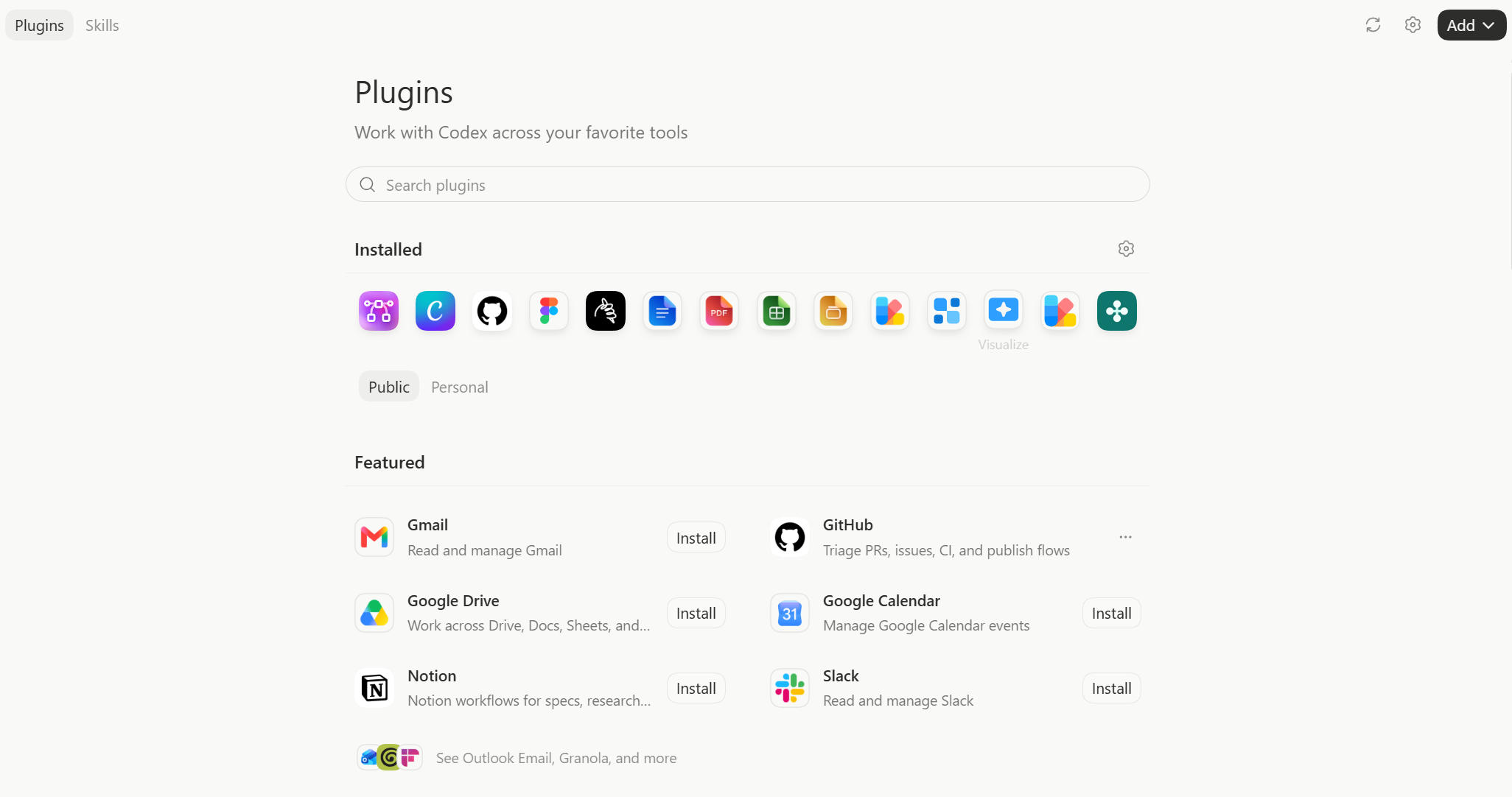
Representative plugins listed in the Orange Book include:
- Atlassian Rovo: connects Jira, Confluence, Bitbucket;
- GitLab Issues: handles issues in GitLab;
- CircleCI, Render: view builds and deployments;
- CodeRabbit: assists with code review;
- Microsoft Suite: connects Word, Excel, Outlook, Teams;
- Connectors like GitHub, Slack, Google Drive: bring external work into tasks.
Before installing, ask yourself: does the current task repeatedly require this system's data or actions? For websites used only once, a plugin may not be worth installing; if native features already suffice, there's no need to add another layer just for the 'ecosystem.'
MCP: Connecting External Tools to Codex
MCP can be understood as a unified interface. Once an external service implements MCP, Codex can treat the queries and operations it provides as tools.
Common MCPs include:
- OpenAI Docs MCP: query OpenAI documentation;
- Context7: read common development library documentation;
- Figma MCP: read design files;
- Playwright MCP, Chrome DevTools MCP: control and inspect web pages;
- Sentry MCP: read online errors;
- GitHub MCP: handle PRs and Issues.
In the CLI, you can add using codex mcp add, view with codex mcp list, and check connection in a session with /mcp. MCP may involve real external operations, so pay attention to authentication, tool whitelists, and permission scopes during setup.
Chapter 11: How to Set Up Scheduled Tasks in Automations
Automation is the scheduled task system in the Codex App. It is suitable for tasks that need to check at fixed intervals, execute at a future time, or continue long tasks across days.

After entering Automations from the sidebar, the setup process can be condensed into five steps:
- Select the project corresponding to the task;
- Clearly write the Prompt to be executed at the scheduled time;
- Choose the time or recurrence frequency;
- Select the execution environment: Local or Worktree;
- Check permissions, save, and wait for execution.
Scheduled tasks can be categorized into several types:
- One-time future tasks: e.g., generating release notes tomorrow morning;
- Fixed cycle tasks: check once daily, weekly, or at a specified frequency;
- Skill-driven tasks: explicitly call $skill-name in the Prompt and repeat using the same method;
- Continuous goal tasks: Automation is responsible for triggering, /goal remembers cross-session goals.
The execution results go to the Triage inbox. Results that require your attention stay there, while executions with no important findings can be automatically archived. For Git repositories, it’s more stable for Automation to use Worktree, which won’t directly interfere with the directory being edited.
Before scheduling, manually run the same Prompt as a normal task. Confirm that the scope, tools, output, and Diff meet expectations before handing it over to unattended execution. High-frequency Automation will also accumulate Worktrees, so regularly archive the execution results that are no longer needed.
Chapter 12: /goal, Plan, and Automation Are Not the Same
These three features handle different issues.
| Feature | The Question It Addresses |
|---|---|
| Plan | How many steps to take this time |
| Automation | When to trigger, how often to repeat |
/goal | Whether this long-term goal is still ongoing, and when it counts as completed |
/goal is suitable for long tasks that span multiple sessions and have clear completion criteria. It can retain state across /clear commands, conversation compression, and session switches. Ordinary short tasks of a few minutes do not need /goal, and exploratory tasks that require frequent judgment are also not suitable to forcibly impose a 'do not stop until finished' approach.
A reasonable goal should have verifiable end conditions. For example, 'migrate all tests and ensure all existing tests pass' is more suitable for /goal than 'continuously optimize this project.' If the goal is too vague, the Agent will just keep looking for new things to do.
When Skill, Plugin, MCP, Automation, and /goal appear together, they can be understood as follows: Skill is an operation manual, Plugin is a capability package, MCP is an external interface, Automation is an alarm clock, and /goal is the long-term task state. You do not need to use all five at once in practice; you only add the layer that is missing.
Chapter 13: Practical Learning Sequence from 0 to 1
If you are just starting with Codex, you can familiarize yourself in the following sequence instead of installing all extensions at once.
The first stage focuses on four things: choosing the right workspace, creating a new task, controlling Read-only and Workspace-write permissions, and learning to read Diffs. If you can independently judge 'what it changed and whether it went beyond boundaries,' you have passed the basics.
The second stage adds Plan, Terminal, and /review. For complex tasks, first look at the plan, then run your check after completion, and finally let an independent review Agent look over the changes once more.
The third stage is when you learn Worktree and parallel multi-tasking. Only parallelize if there are indeed two independent tasks; do not split a task that can be easily completed just to see multiple Agents running at the same time.
The fourth stage installs extensions according to actual needs. Repeatable work is solidified into Skills; external systems require MCP; a full set of pre-built capabilities requires Plugins; scheduled or cross-day execution requires Automation and /goal.
Whether you can use Codex proficiently does not depend on how many plugins are installed, nor on writing long Prompts every time. The real watershed is: can you provide it with correct materials and boundaries, correct it in time during execution, and judge results using Diffs, Terminal, tests, and pages, rather than just looking at a single sentence 'completed.'
Finally, leave a quick reference table
| What you need to do now | Prefer to use |
|---|---|
| Understand the project, no changes allowed | Read-only + Regular Task |
| Directly modify the current directory | Local + Workspace-write |
| Two tasks in the same repository simultaneously | Worktree |
| Discuss the plan first | /plan or explicitly request only the plan |
| Check changes | Diff + /review |
| Check errors, run tests | Integrated Terminal |
| Operate local applications | Computer Use |
| Check local web pages | In-App Browser |
| Operate logged-in web pages | Chrome Extension |
| Solidify repetitive methods | Skill |
| Install a complete set of ready-made capabilities | Plugin |
| Connect external data and tools | MCP |
| Execute repeatedly on a schedule | Automation |
| Track a long-term result across sessions | /goal |
Discussion
Support the author